

Save Time and Reduce Errors: Managing Cloud Workloads Efficiently with AWS MCP Servers
AWS provides multiple MCP servers that can integrate with the AWS CLI and various IDEs, making life easier for Cloud and DevOps engineers

What is MCP?
The Model Context Protocol (MCP) is an open protocol that enables seamless integration between LLM applications and external data sources and tools. Whether you're building an AI-powered IDE, enhancing a chat interface, or creating custom AI workflows, MCP provides a standardized way to connect LLMs with the context they need. Ref: https://github.com/modelcontextprotocol
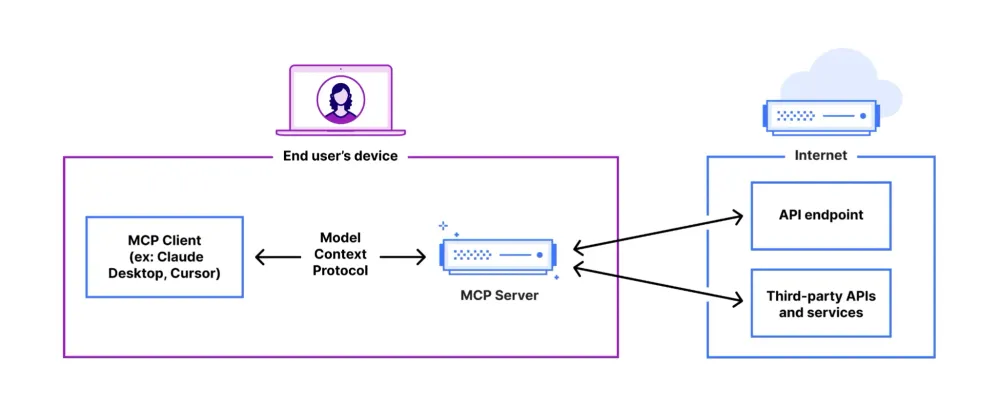
AWS MCP Servers use this protocol to provide AI applications access to AWS documentation, contextual guidance, and best practices. Through the standardized MCP client-server architecture, AWS capabilities become an intelligent extension of your development environment or AI application.
Install the AWS MCP server. In this example, I used a Linux-based installation, but you can follow the same procedure for Windows or macOS.
Installing UV, you can use curl or wget
1
2
curl -LsSf https://astral.sh/uv/install.sh | sh
wget -qO- https://astral.sh/uv/install.sh | sh
Install Python using uv
1
uv python install 3.10
Install AWS CLI version 2 & Configure CLI
1
2
3
4
5
curl "https://awscli.amazonaws.com/awscli-exe-linux-x86_64.zip" -o "awscliv2.zip"
unzip awscliv2.zip
sudo ./aws/install

aws configure
Next, redirect the AWS configure directory in Linux and run the following command. In here, I used the AWS documentation MCP server and the AWS Billing and Cost Management MCP server. You can check available MCP servers using https://awslabs.github.io/mcp/
1
2
3
4
5
6
7
8
9
10
11
12
13
14
15
16
17
18
19
20
21
22
23
24
25
26
27
28
29
30
31
32
33
34
35
36
37
38
39
40
41
42
43
44
45
46
47
48
49
cd .aws/amazonq
touch mcp.json
# open mcp.json via text editor or vs code
code mcp.json

# add following code
{
  "mcpServers": {
    "mcpServers": {
    "awslabs.core-mcp-server": {
      "command": "uvx",
      "args": ["awslabs.core-mcp-server@latest"],
      "env": {
        "FASTMCP_LOG_LEVEL": "ERROR"
      }
    },
    "awslabs.aws-mcp-server": {
      "command": "uvx",
      "args": ["awslabs.aws-mcp-server@latest"],
      "env": {
        "FASTMCP_LOG_LEVEL": "ERROR"
      }
    },
    "awslabs.billing-cost-management-mcp-server": {
      "command": "uvx",
      "args": [
        "awslabs.billing-cost-management-mcp-server@latest"
      ],
      "env": {
        "FASTMCP_LOG_LEVEL": "ERROR",
        "AWS_PROFILE": "default",
        "AWS_REGION": "us-east-1"
      },
      "disabled": false,
      "autoApprove": []
    },
    "awslabs.aws-documentation-mcp-server": {
      "command": "uvx",
      "args": [
        "awslabs.aws-documentation-mcp-server@latest"
      ],
      "env": {
        "FASTMCP_LOG_LEVEL": "ERROR"
      },
      "disabled": false,
      "autoApprove": []
    },
  }
}
Additionally, if you plan to use VS Code, you will need to install the Amazon Q Extension and log in using your AWS builder ID.

Samples usage
List my EC2 instances
List down running ec2 instance in us-east-2 region
References
Thanks for reading the Article.
Connect with me
Enjoyed reading this content? Let the author know!
Your likes, comments, shares, and saves help creators reach more builders.

Loading recommendations
Loading article