
Automate Maintenance and Updates on Amazon WorkSpaces Personal
This article provides a deployable, automated solution for OS patching and AWS driver updates on Amazon WorkSpaces Personal, built on AWS Systems Manager.

Amazon WorkSpaces Personal offers built-in maintenance options for both AlwaysOn and AutoStop WorkSpaces, providing a foundation for keeping systems updated. These built-in maintenance options differ depending on the running mode of the WorkSpace...
AlwaysOn WorkSpaces
The built-in maintenance process operates through standard operating system settings via Windows registry or Group Policy configurations. This approach integrates naturally with existing enterprise patch management workflows.
AutoStop WorkSpaces
AutoStop WorkSpaces benefit from AWS-managed built-in maintenance orchestration, which starts WorkSpaces monthly beginning on the third Monday of each month. The maintenance window runs daily from approximately 00:00 to 05:00 in the AWS Region's time zone for up to two weeks.
Organizations looking for more flexibility and control over their WorkSpaces maintenance can use this Automation, which addresses common pain points with the built-in maintenance mode. This solution expands on Amazon's base offering with:
- Customizable Scheduling: Define maintenance windows that align with your business needs and global user base.
- Universal Management: Consistent management across both AlwaysOn and AutoStop WorkSpaces, including all current flavors of Linux and Windows, including BYOL (Bring Your Own License)
- Enhanced Visibility: Centralized dashboard for monitoring update status, detailed logging, reporting, and compliance tracking.
- Extended Capabilities: Optionally automate AWS driver upgrades, third-party app deployments, and custom configurations.
- Directory-Level Control: The automation can be configured independently for each WorkSpaces directory, allowing for granular management and scalability across your organization.
How it works
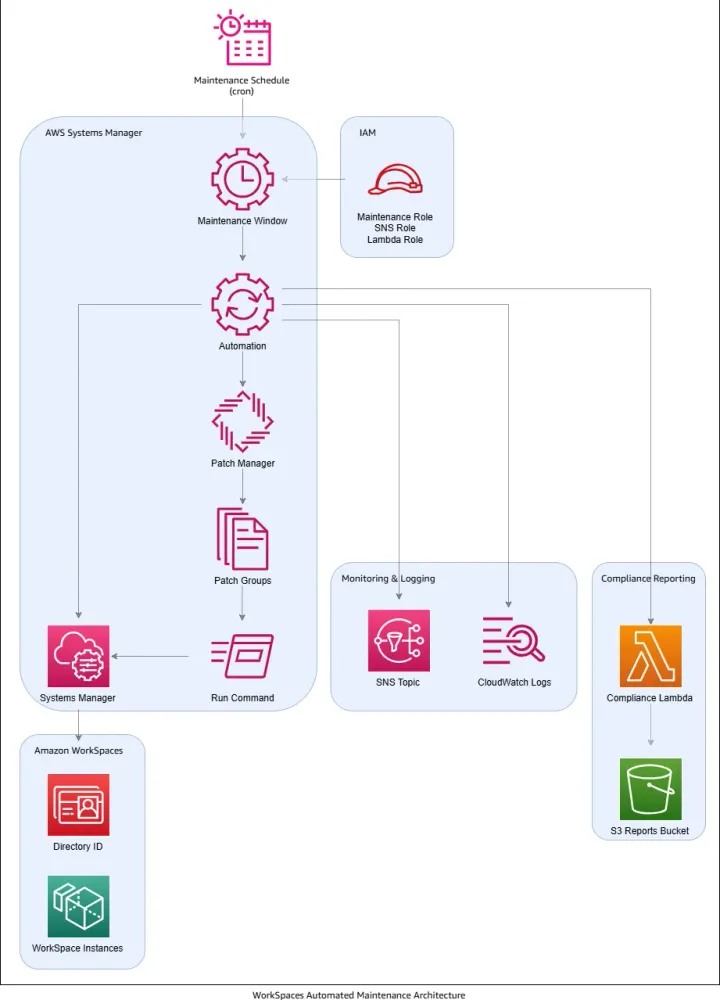
A customizable maintenance window controls the timing and duration of patching operations - for example, running every Sunday from 1 AM for 3 hours.
During this window, the Systems Manager Automation runbook executes, starting the WorkSpaces, applying patches and drivers, and generating a compliance report.
Components
SSM Automation - Handles the primary automation logic
Patch Manager - Manages patches through Patch Groups and Patch Baselines
Maintenance Window - Schedules update operations
Run Command - Executes remote scripts
SSM Compliance - Generates patch compliance reporting
SNS - Delivers email notifications
Lambda - Generates ad-hoc CSV patch compliance exports
CloudWatch - Provides logging capabilities
S3 - Stores historical CSV compliance reports
Details of the Automation runbook
Discovery: Identifies eligible WorkSpaces (WorkSpaces under a specified directory, excluding those tagged with Patch: No)
Verification: Checks which WorkSpaces are managed by Systems Manager
Preparation: Starts WorkSpaces and optionally reboots them
Maintenance Mode: Enables manual maintenance mode (ADMIN_MAINTENANCE)
Patching: Applies patches using AWS provided patch documents AWS-RunPatchBaseline or AWS-InstallWindowsUpdates (for BYOL)
Monitoring: Tracks patch status until completion
Driver Updates: Optionally updates AWS storage and networking drivers (NVMe and ENA)
Cleanup: Disables maintenance mode and optionally stops AUTO_STOP WorkSpaces
Reporting: Sends patch summary and compliance report to SNS topic
Prerequisites
1. The WorkSpaces need to registered as Hybrid Activations , refer to this blog to automate the activations.
2. Although this automation has been extensively tested in multiple environments, it is recommended to test it first in a non production ready environment.
2. Although this automation has been extensively tested in multiple environments, it is recommended to test it first in a non production ready environment.
How to deploy
1. Download the CloudFormation template provided at the end of this article
2. From the CloudFormation console, click Create stack (with new resources)
3. Select 'Upload a template file' browsing to the downloaded template
4. Provide a Stack name eg: WorkSpacesMaintenance. If you plan to deploy against multiple directories consider naming the stack WorkSpacesMaintenance-d-xxx eg: WorkSpacesMaintenance-d-9367a8bb7f
5. Specify the Directory ID associated with the WorkSpaces
6. For 'NotificationEmail', enter the email address where you want to receive patch reports
7. Other parameters can be left at their defaults or customized as needed
8. Tick the 'I acknowledge that AWS CloudFormation might create IAM resources with custom names' box and click next and submit

Tag your resources
You can control patching by tagging your WorkSpaces with two specific tags: 'PatchGroups' and 'Patch'
Patch Groups:
This solution configures dedicated Patch Groups for WorkSpaces. Patch Groups allows customers to associate specific WorkSpaces with designated Patch Baselines.
Patch Baselines allow control over which patches are approved or rejected for your environment.
Patch Baselines allow control over which patches are approved or rejected for your environment.
To implement this feature:
- Managed instances must be tagged in Systems Manager with a PatchGroup key via the SSM > Fleet Manager console
- The key must be "
PatchGroup" - The value must follow the format "
WorkSpaces-$directoryid" (example: WorkSpaces-d-93671549fa)

To apply the PatchGroup tag to all "mi-" managed SSM instances that are joined to a specified domain, use this PowerShell command:
1
2
3
4
5
6
7
8
9
10
$domain = "example.com"

$directoryId = "d-xxxxx"


Get-SSMInstanceInformation |

    Where-Object { $_.InstanceId -like "mi-*" -and $_.ComputerName -like "*.$domain" } |

    ForEach-Object {

        Add-SSMResourceTag -ResourceType "ManagedInstance" `

                          -ResourceId $_.InstanceId `

                          -Tag @{Key="PatchGroup"; Value="WorkSpaces-$directoryId"}

    }
Note: Patch Group tags are case sensitive
Consider adding supplementary tags like the WorkSpace ID or the username to help with instance identification and management in Systems Manager.

Patch tag:
The Patch tag allows you to exclude certain WorkSpaces from being patched by the automation.
Testing the automation on specific WorkSpaces
First, exclude all WorkSpaces from patching by applying a "Patch:No" tag using this PowerShell command:
1
2
3
4
Get-WKSWorkspace -Region $region |

    foreach {

        New-WKSTag -WorkspaceId $_.WorkspaceId -Tag @{Key="Patch";Value="No"}

    }
Then remove this tag from only the WorkSpaces you want to test with:

Viewing and Updating the Maintenance Window
The Maintenance Window can be modified in two ways:
- Editing directly in the Systems Manager console
- Updating the 'MaintenanceSchedule' parameter on the CloudFormation stack
To modify using the Systems Manager console:
- Navigate to Systems Manager > Maintenance Windows
- Select the Maintenance Window labeled 'WorkSpacesMaintenance-dxxxx' (example: "WorkSpacesMaintenance-d-93671549fa-Window")
- Click "Edit" and modify the schedule using the Cron or Rate schedule builder
- Save your changes


To view execution history:
Select the "History" tab on the Maintenance Window to see invocation details and Automation execution ID history
Select the execution ID and click View details:

Select the Task Invocation ID and click View details:

This will display details of all the automation steps:

Patch Compliance and Email Notifications
Patching Summary
If an email address was provided when deploying the stack the automation will send a patching summary and detailed Patch compliance report:
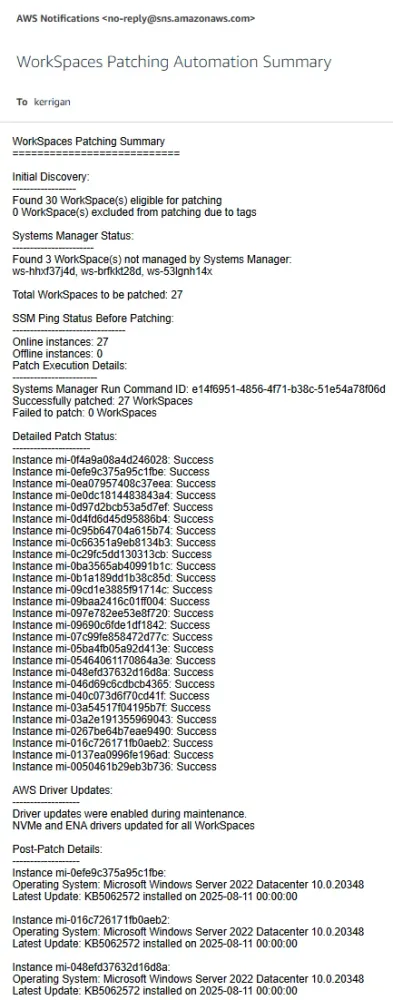
Patch Compliance Report
The patch compliance email provides a patch compliance summary along with a presigned URL to a CSV report stored in S3:

The report provides extensive patching compliance details:

Generating Ad-Hoc Patch Compliance Reports:
The compliance report can also be generated manually by invoking the Lambda function with the DirectoryId and PatchGroup parameters
{
 "DirectoryId": "d-93671549fa",
 "PatchGroup": "WorkSpaces-d-93671549fa"
 }
Manually invoking the Lambda function in the console:

Manually invoking the Lambda function in the CLI/CloudShell:
1
2
3
4
5
6
7
8
$directoryId = "d-xxxxx"

$patchGroup = "WorkSpaces-$directoryId"


aws lambda invoke `

    --cli-binary-format raw-in-base64-out `

    --function-name workspacemaintenance-compliancereport-$directoryId `

    --payload "{`"DirectoryId`": `"$directoryId`", `"PatchGroup`": `"$patchGroup`"}" `

    response.json
Considerations
Disable the built-in Maintenance Mode
When using this solution, consider disabling the built-in Maintenance Mode on the WorkSpaces directory to avoid unnecessary costs.
For more information, refer to the [AWS WorkSpaces Administration Guide](https://docs.aws.amazon.com/workspaces/latest/adminguide/workspace-maintenance.html).
For more information, refer to the [AWS WorkSpaces Administration Guide](https://docs.aws.amazon.com/workspaces/latest/adminguide/workspace-maintenance.html).
Handling Auto-Stop WorkSpaces
For Auto-Stop WorkSpaces, the Amazon SSM agent may not start immediately when resuming from hibernation. To address this, consider:
- Choosing "RebootIfNeeded" for the "AllowReboot" parameter (default option), or
- Incorporating the following scripts into the SSM installation process or via Group Policy:
Windows:
1
2
3
4
5
6
7
8
9
10
If (!(Get-ScheduledTask -TaskName "RestartSSMAgent" -ErrorAction SilentlyContinue)) {

    schtasks /create `

        /tn "RestartSSMAgent" `

        /tr "powershell.exe -Command 'Restart-Service -Name AmazonSSMAgent'" `

        /sc ONEVENT `

        /ec System `

        /mo "*[System[Provider[@Name='Microsoft-Windows-Power-Troubleshooter'] and EventID=1]]" `

        /ru "SYSTEM" `

        /f

}
Linux:
1
2
3
4
5
6
7
8
9
10
11
12
13
14
15
16
17
18
19
20
21
22
23
24
25
26
27
# cd /lib/systemd/system-sleep
# cp 10-ws-resume-hook.sh 20-ssm-agent.sh
# Edit 20-ssm-agent.sh with your preferred editor
# Delete existing content and add the following content:

#!/bin/bash

log_file="/var/log/amazon/ssm/ssm-resume-hook.log"

log() {
    echo "$(date -uIs): $1" | tee -a ${log_file}
}

log "Executing $0"

case $1 in
    pre)
        log "Going to $2 mode"
    ;;
    post)
        log "Waking up from $2 mode"
        log "Restarting SSM agent Service"
        systemctl restart amazon-ssm-agent.service || true
    ;;
esac

log "Finished Executing $0"
Deploy with this CloudFormation template:
Enjoyed reading this content? Let the author know!
Your likes, comments, shares, and saves help creators reach more builders.

Loading recommendations
Loading article