

Deploying n8n on AWS in under 5 minutes
Using Amazon Lightsail to deploy n8n on AWS, a founder-friendly way

Motivation
As you may know, there are many ways you can deploy n8n on AWS (check these two resources for example [1] , [2] ), but in this article we'll talk about how to do it in the most startup-founder friendly way.
In this post, we'll walk you through deploying n8n on AWS using Amazon Lightsail and Easypanel.io - a combination that gets you up and running with a powerful automation platform for just $12/month in AWS costs, with minimal complexity.
What is Amazon Lightsail?
Amazon Lightsail provides simplified access to AWS resources and it's designed for developers who need predictable and low-cost solutions. Hosting, monitoring, and scaling your web application is made even easier via its simplied web UI.
Why Lightsail for n8n?
- Fixed Pricing: $12/month for 2GB RAM, 2TB transfer (perfect for n8n's requirements)
- Simplified Management: Streamlined interface without overwhelming options
- Built-in Networking: Automatic firewall and DNS configuration
- 90-Day Free Trial: Test your setup without any cost
- AWS Integration: Easy to scale up to full AWS services when needed
As Jason during our live demo mentioned: "Founders new to AWS will benefit from having a fixed cost alternative, and Lightsail is actually one of those services where you can get a good hosting bundle for $5 to 12 a month instance."
What is n8n?
n8n is an open-source workflow automation platform that allows you to connect different services and automate repetitive tasks through a visual, node-based interface. Unlike traditional automation tools, n8n offers both cloud-hosted and self-hosted options, giving you complete control over your data and workflows. Find more information about n8n and its features here and use-cases.
Sample Automation Usecases
We've seen founders use n8n as their automation platform for many use-cases. Here are some examples.
Do you use n8n to power automations for your Startup? Have some interesting use-case? Let us know in the comments!
Content Marketing Pipeline:
- Extract blog content from your CMS
- Use AI (Amazon Bedrock /Claude) to create multiple LinkedIn posts
- Schedule posts across different timeframes
- Track engagement and store results in spreadsheets
DevOps & Support Automation:
- Collect logs from multiple sources, Amazon Cloudwatch for example
- Process support tickets automatically
- Monitor infrastructure and send alerts
- Automate deployment notifications
Lead Generation & Sales:
- Capture form submissions from your website
- Enrich lead data using external APIs
- Update CRM systems automatically
- Send personalized follow-up sequences via Amazon Simple Email Service (SES)
Content Processing:
- Transcribe videos using Amazon Transcribe
- Generate summaries and highlights
- Create social media snippets
- Automatically publish to multiple platforms
Walkthrough
(0) Log into your AWS account and search for Amazon Lightsail . Once on the Lightsail console, click on "Create Instance". Lightsail will automatically choose a Region and an Availability Zone where to deploy your brand new instance.
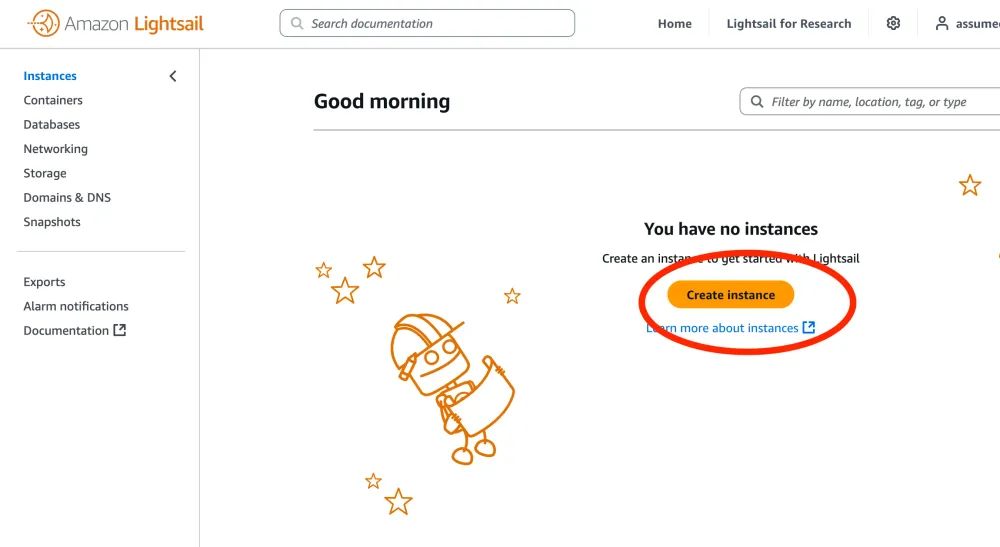
(1) Make sure you're using Linux
(2) switch to OS only, as we want a plain Linux installation
(3) Choose Ubuntu 24.04 (LTS at the moment of writing this)
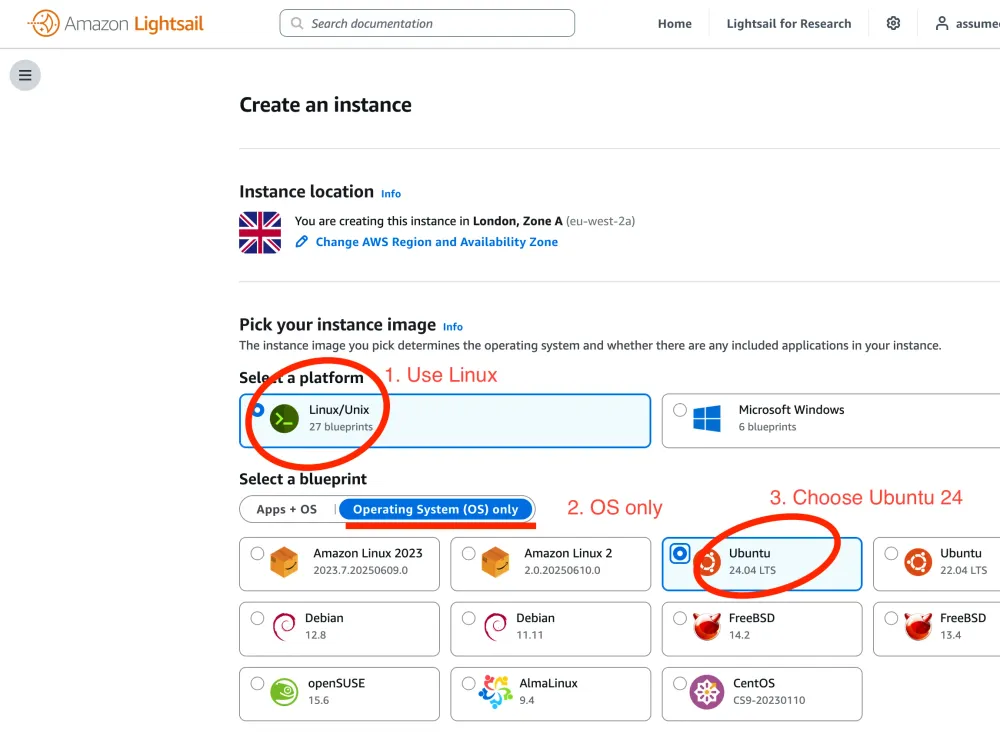
(4) Choose the 2GB Memory instance cut. This is going to be free for 90 days and will support both easypanel and n8n requirements
(5) Give your instance a name
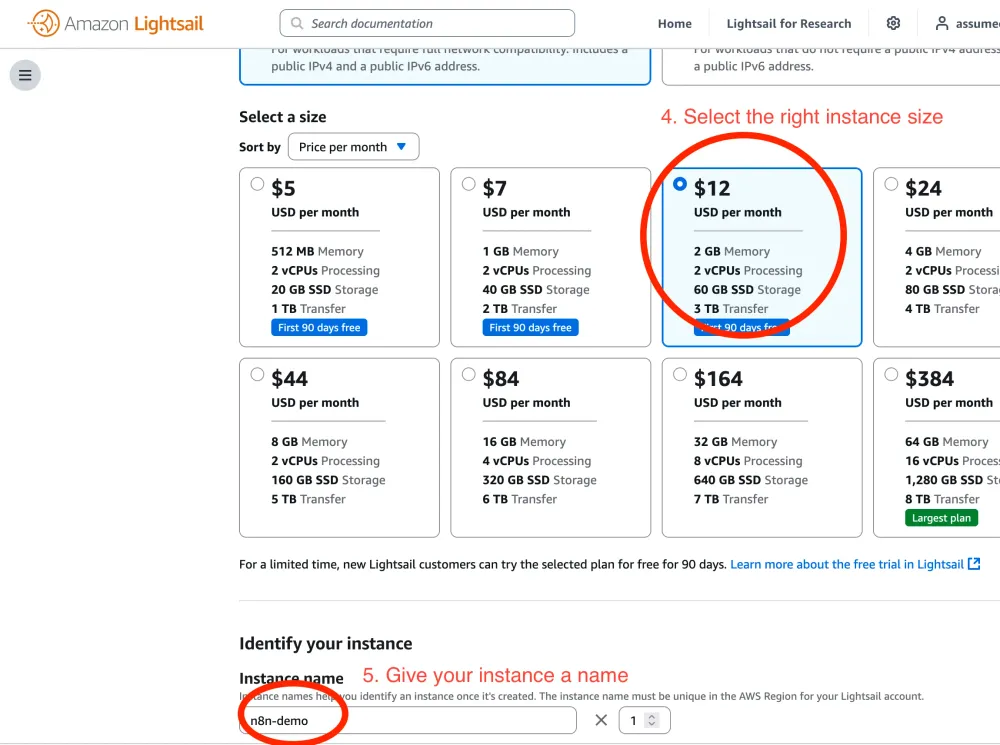
(6) Wait until your instance is up and running. Make a note of your Lightsail instance IP as we're going to need it in a few steps.
(7) When your instance is ready to receive SSH connections, click on the shell icon to get to a terminal
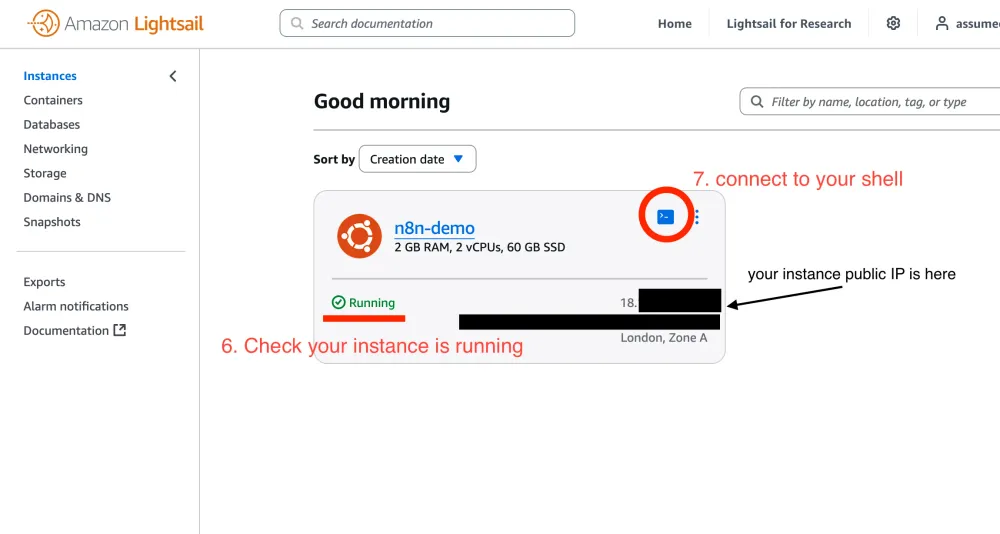
We're now going to install easypanel on your instance. Because easypanel is a server management tool able to deploy and monitor software on your instance, you will want to install it as the root user.
(8) route to easypanel.io and copy the command to install easypanel in your instance.
⚠️ Security Note: Always inspect scripts before running them on your machine. You can view the script at
https://get.easypanel.io first, especially as we're going to run this script as root!At the moment of writing this, here's a quick recap of what this script does
Prerequisites Check:
- Verifies you're running as root user (required for system installation)
- Confirms you're not on macOS as it's not supported
- Ensures you're not inside a Docker container
- Checks that ports 80 and 443 are free (needed for web traffic)
Docker Installation:
- Checks if Docker is already installed
- If not, downloads and installs Docker using the official Docker installation script
- Leaves any existing Docker swarm configuration (cleanup step)
Easypanel Setup:
- Pulls the latest Easypanel Docker image
- Runs the Easypanel setup container with:
- Access to the host's Docker socket (for managing containers)
- A mounted volume for Easypanel configuration storage
- Setup command to initialize the platform
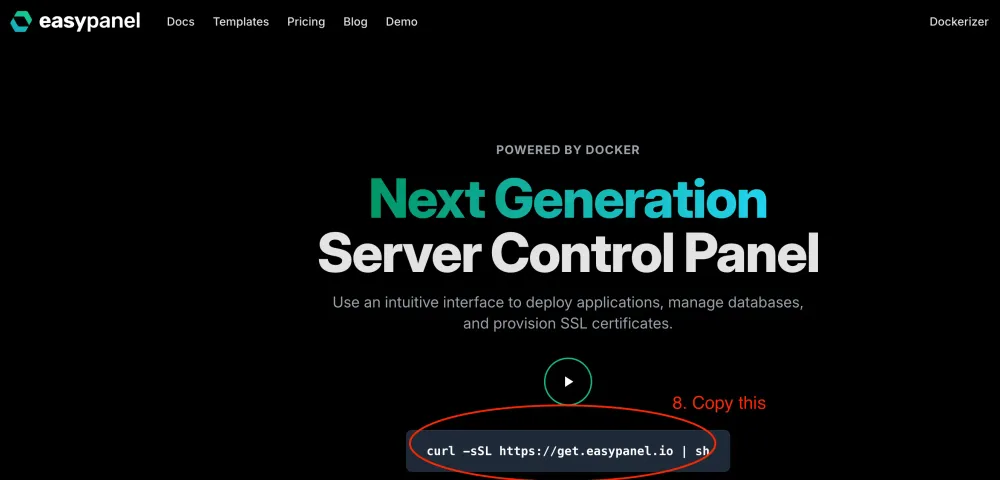
Now in your instance termial run the following commands
1
2
3
4
sudo -i # to become root user
the following line will download easypanel installation script and will run in in this shell
make sure you have reviewed its content carefully
curl -sSL https://get.easypanel.io | sh (9) While you wait for the installation to complete, route back to Lightsail console and click on "Manage" from the contextual menu.
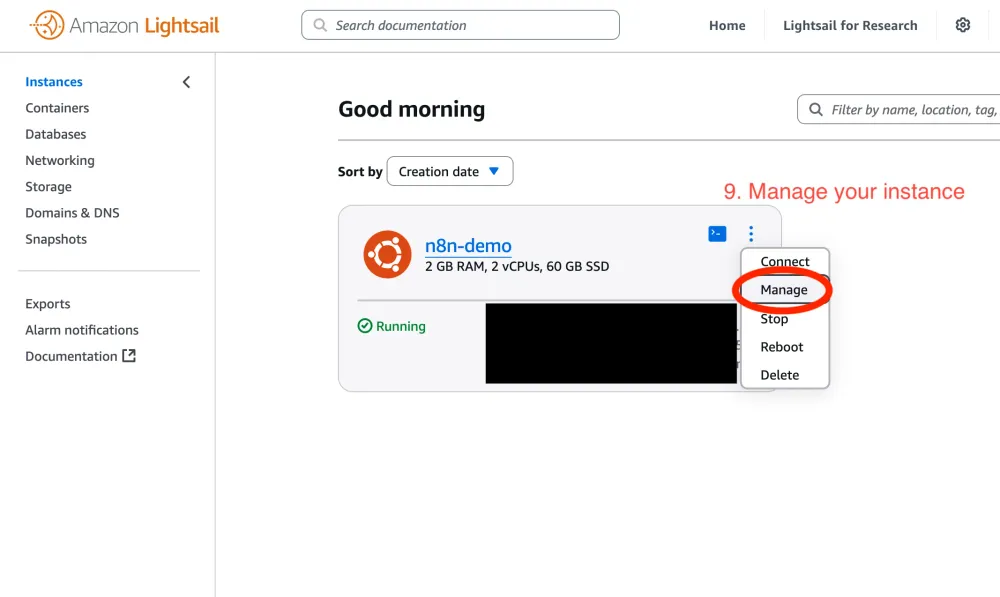
(10) Click on the "Networking" tab
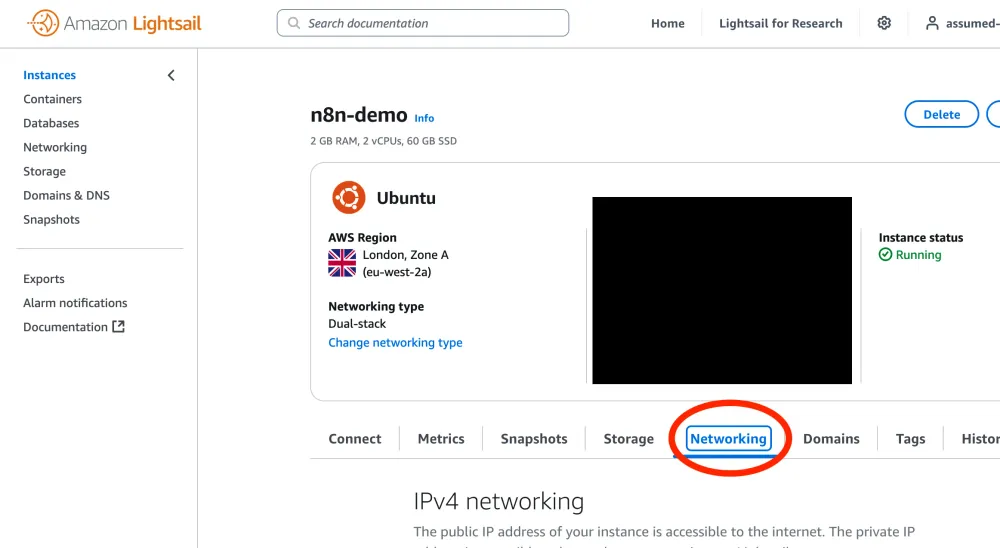
Under "IPv4 Firewall" click "Add rule", make sure "Custom TCP" is selected. Configure port 3000 and click on Restrict to IP address. Port 3000 is where Easypanel will be running in a short while. To enhance your security posture, we want to restrict who's able to connect to port 3000 of your Lightsail server. In this case we're only allow-listing your own computer IP. You can retrieve your current IP address by opening https://whatsmyip.org in a new tab in your browser.
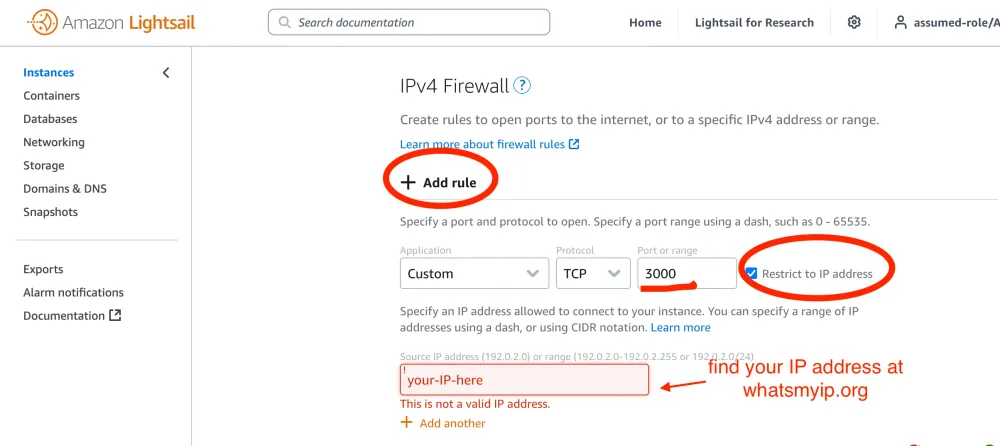
(11) Open a new tab in your browser and paste the IP of your Lightsail instance you took note of at step 6, followed by :3000. This is how you tell your browser to open a connection to your Lightsail instance on port 3000 which is currently serving easypanel. It should be something like
1
http://18.5.9.90:3000
Wait a second. What's the difference between my computer IP and my Lightsail instance IP? Your Lightsail Instance is a server running in the AWS Cloud which has a public IP address. This address is used by your users all over the world to connect to your server and interact with easypanel and n8n once installed.Your computer IP address is the address assigned to your laptop or desktop computer by your internet service provider (ISP). Think of it as a "license plate number" to identify you on the internet.While your computer's IP may change regularly (especially if you have a dynamic IP from your ISP), your Lightsail IP remains constant until you stop/start your instance. You can attach a static IP to your Lightsail instance that will survive a reboot by following these instructions .
In this screen you'll be able to sign-up to easypanel by setting up your email and password. Give us a shout in the referral input if you feel like!
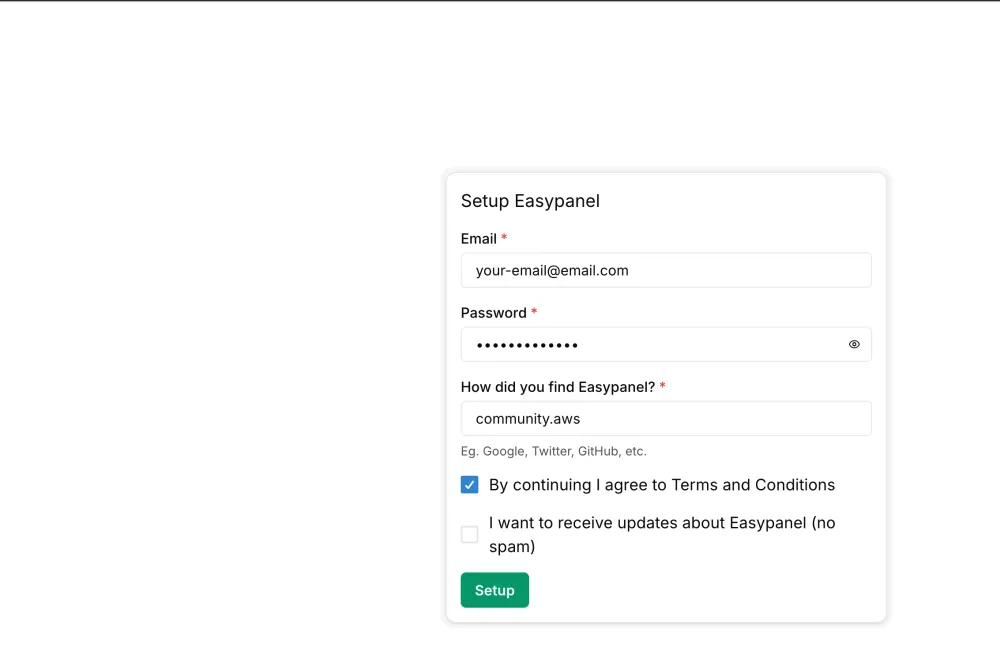
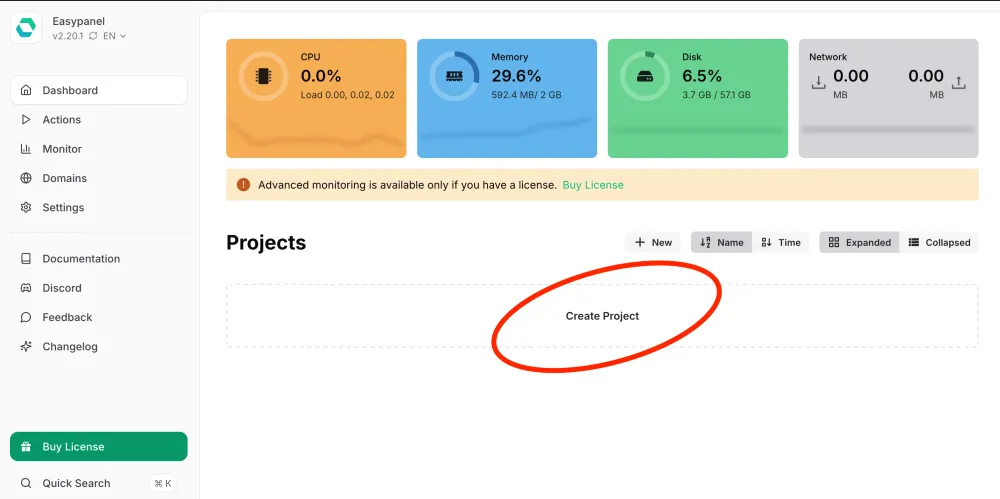
(12) Click on "Create Project"
(13) Select the "Templates" tab and search for "n8n" in the search box. Click on the n8n tile.
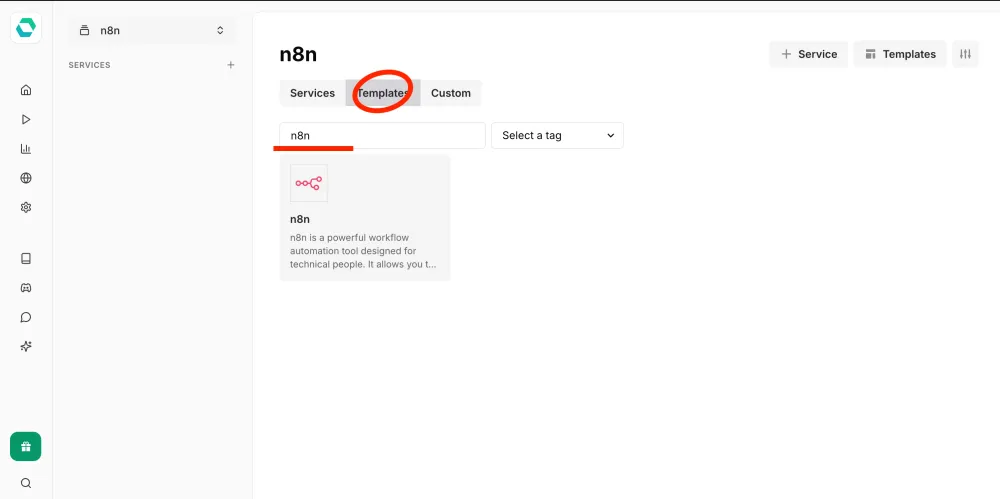
(14) You can customize your installation of n8n by choosing a release version (at the time of writing
1.79.3 is the latest n8n version) and providing a name for this application. Click on "Create" to initiate the installation of n8n.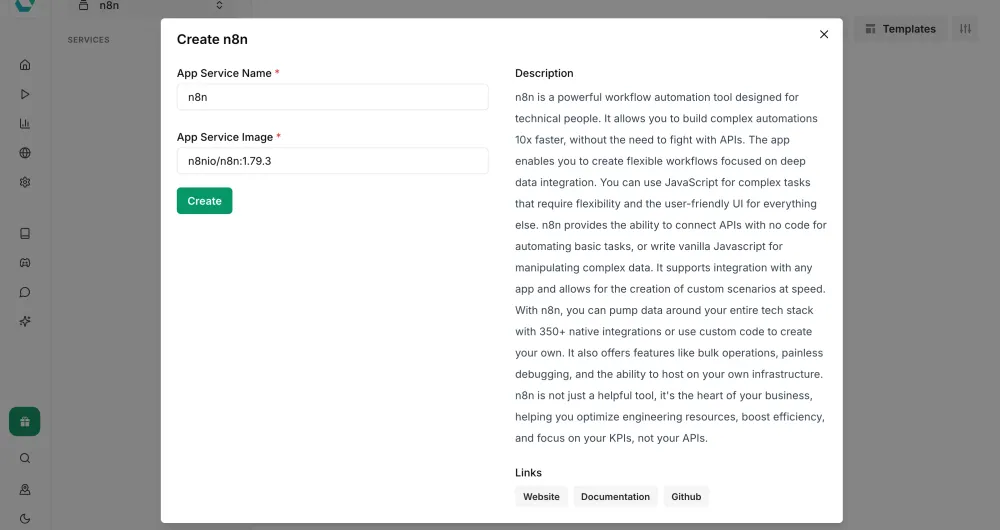
You can follow installation logs. The installation will be completed when you'll read
1
2
Editor is now accessible via:
http://localhost:5678/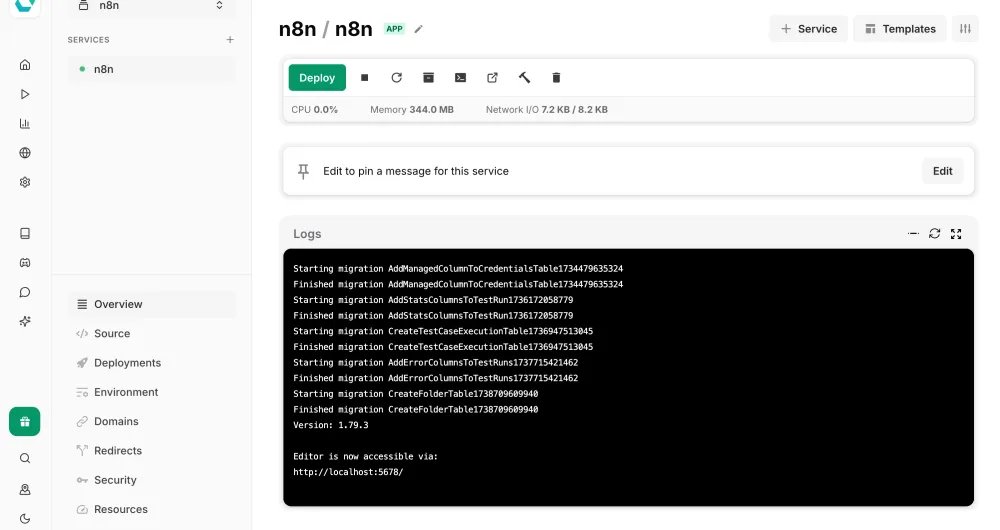
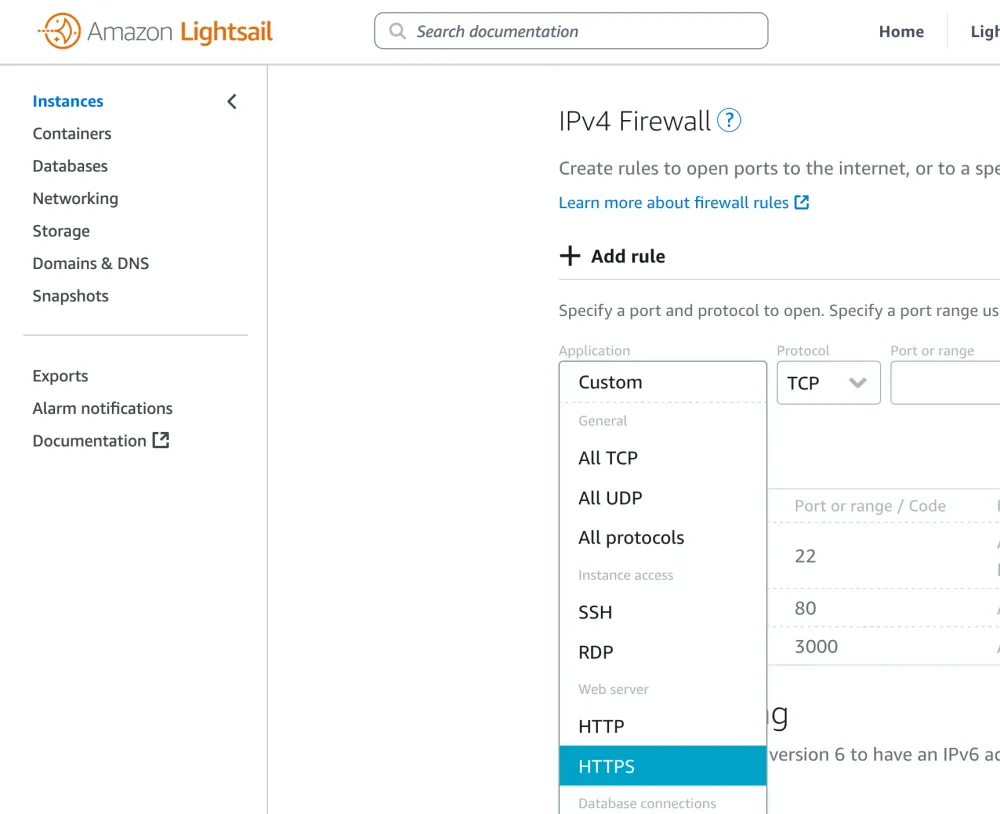
(15) While we wait for the installation to complete, let's change our Lightsail instance network configuration to allow HTTPS traffic. Go back to your Lightsail management console and under "Networking" > "IPv4 Firewall" click "Add rule" like done previously in step 10. This time, from the Application dropdown select HTTPS, then "create rule"
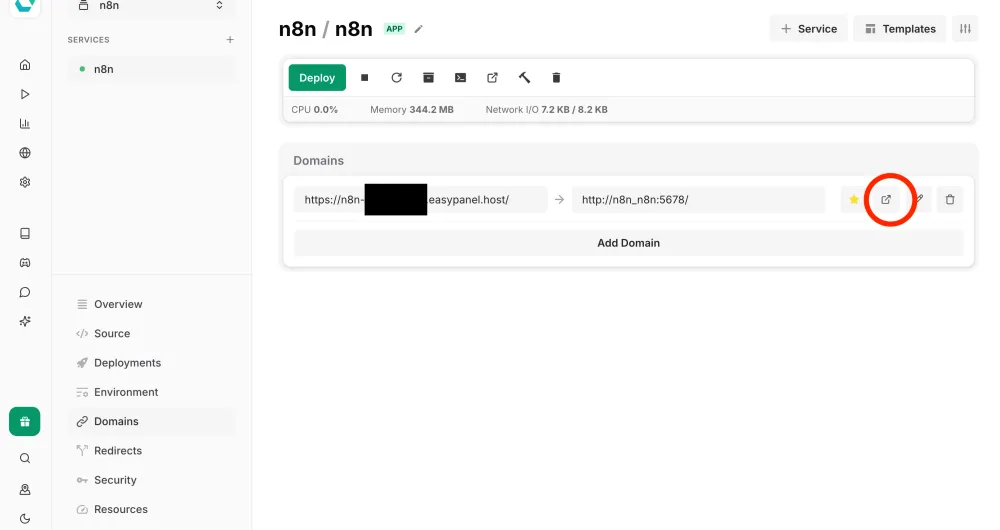
(16) Now go back to your easypanel project tab and click on Domains
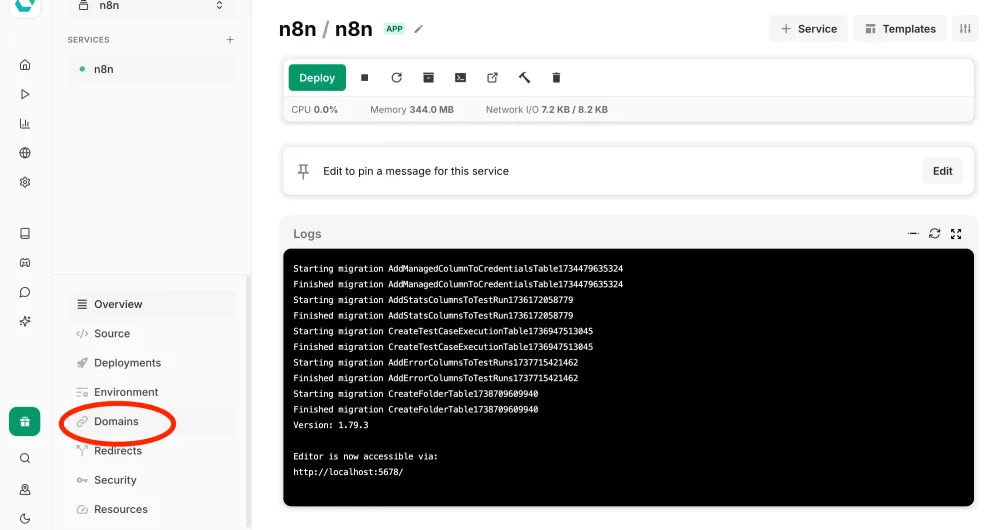
(17) Here you'll find the domain associated to your n8n installation. Click on the "open" button to launch your n8n editor.
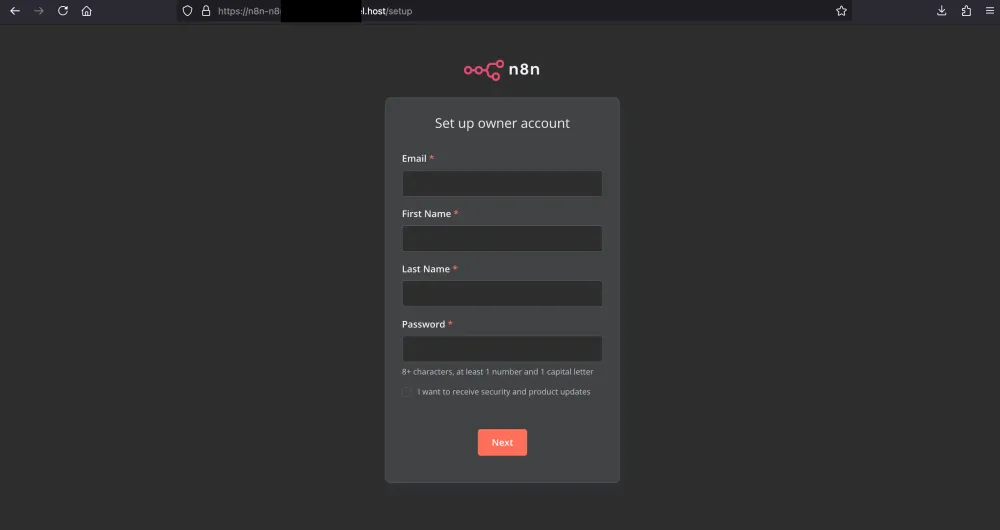
(18) A new tab will open pointing to your very own n8n installation. Now go build!
Cleanup
Lightsail has a very generous free tier : you can run the instance we've just depolyed for free for 90 days and get 3TB of free data transfer. Keep in mind that in AWS you'll be charged for the resurce you're using. If you don't terminate resources you'll be billed. If you exceed your data transfer allowance, you will only get charged for data transfer OUT from a Lightsail instance to the Internet or to AWS resources using the public IP address of the instance. This additional charge for data transfer beyond allowance is also payable for resources that are within their free trial period.
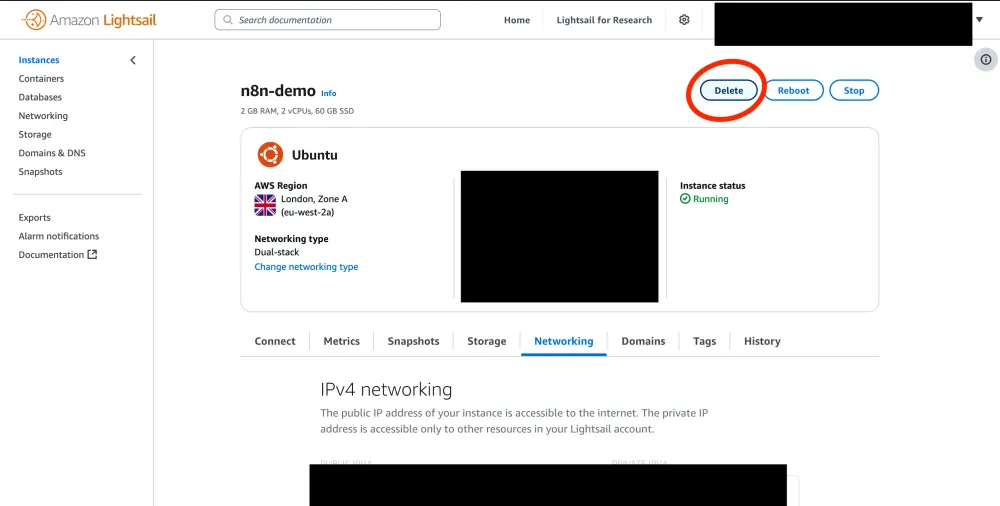
All this to say that if you're not using resources on AWS, you should shut them down or terminate them. Here's how:
- Choose "Delete" if you want to destroy your Lightsail instance. All the work you've done so far will be lost, including creating or modifying workflows and agents in your n8n installation. You won't be able to recover this instance. It's gone. Forever.
- Choose "Stop" if you want pause the execution of your Lightsail instance. You won't lose your progress, but you won't incur charges for the usage of this instance. Keep in mind that your public IP will change once you start this instance again.
Full Broadcast on LinkedIn
This article comes directly from a live LinkedIn broadcast I hosted as part of AWS Startup Garage - our experimental content factory where I get to work with pre-series A founders and early-stage startup communities in a more intimate setting than our usual AWS channels.
I'll be honest - this session was intentionally unscripted and exploratory. That's actually how I like to approach these experimental sessions - learning in public alongside the founders I work with. It keeps things authentic and often leads to discoveries we wouldn't have made in a scripted environment.
The whole idea for this broadcast came from recurring conversations with my customers. Specifically, many founders had discovered n8n and wanted to self-host it on their AWS accounts . As I explained during the stream, they told me they wanted to keep certain workflows "closer to my chest in terms of where the data resides" - especially for compliance reasons or sensitive automation processes.
What made this session special was having Jason join me - he's a former AWS Solutions Architect turned founder who's actually been using n8n in his own company. Together, we went from zero to a working n8n deployment in about 30 minutes of live coding, with our small community of invited founders watching every step and asking great questions along the way.
The interactive format really worked. When founder Simon asked about cost implications of different LLM models, we dove deep into Amazon Bedrock pricing and token economics right there on the spot. These are exactly the kinds of real-world questions I get from my customers, and being able to address them live with the community was incredibly valuable.
By the end of our two hours, we had not only deployed n8n successfully but also started planning future sessions around content automation workflows - video transcription, highlight extraction, multi-platform publishing - all the scaling challenges I see my startup customers wrestling with daily. This is exactly why I love spending my "sharpen the saw" time on these experimental formats. We're building solutions together, in real-time, for real problems that founders face every day.
Resources
- n8n Documentation
- n8n Community Templates
- AWS Lightsail Pricing
- Easypanel Documentation
- EasyPanel on the AWS Marketplace
- Amazon Bedrock Pricing
Authors
Giuseppe Battista - Senior Startup Solutions Architect at AWS.
Jason Forte - CEO at MakeOps and ex-AWS Startup Solutions Architect
Anthropic Claude Sonnet 4
Amazon Nova Canvas
Acknoledgments
- Dheeraj Mudgil - Sr. Solutions Architect, AWS Startups UKIR. Thank you for continuously providing kind and patient guidance on security and inspiring the architectural and flow diagrams in this article
Legal & Security Disclaimers
Please note that the content presented in this document is designed solely for the demonstration of a Proof of Concept (PoC) and utilizes synthetic data to illustrate its capabilities. It does not incorporate production-grade security measures and should not be implemented as is in a production environment.
Security Awareness Disclaimer For any considerations of adopting these services in a production environment, it is imperative to consult with your company-specific security policies and requirements. Each production environment demands a uniquely tailored security assessment that comprehensively addresses its particular risks and regulatory standards. If in doubt, reach out to your AWS Account team.
Generative AI Disclaimer. The cover image for this article was generated with Amazon Nova Canvas.
Choice and Awareness Disclaimer. This guide outlines how to deploy n8n on Amazon Lightsail using Docker for container management. While Easypanel.io is one option for managing Docker containers via a web interface, users can choose from a variety of Docker management tools based on their preferences, requirements and security posture.
Relevant Security Resources
Enjoyed reading this content? Let the author know!
Your likes, comments, shares, and saves help creators reach more builders.

Loading recommendations
Loading article