
How to Install Amazon Q CLI on Windows
Learn how to easily install Amazon Q CLI on your Windows machine with this step-by-step guide. Amazon Q CLI is a powerful tool for managing AWS resources efficiently. This article covers prerequisites, download instructions, configuration, and basic commands to get you started. Perfect for developers and cloud administrators looking to streamline their AWS workflows. Follow along to set up Amazon Q CLI quickly and start automating tasks today!

Amazon Q CLI is part of Amazon Q Developer , a powerful generative AI assistant that helps you build, troubleshoot, and understand code directly from your terminal. It integrates with your local development environment, enabling you to ask questions, generate boilerplate code, fix bugs, and even explain complex logic — all from the command line.
While Amazon Q is primarily available in the AWS Management Console and VS Code (via AWS Toolkit), you can also interact with it via the AWS CLI.
Whether you're working in Python, JavaScript, Java, or other languages, Amazon Q is designed to boost your productivity as a developer.
In this guide, you’ll learn how to install and set up the Amazon Q Command Line Interface (CLI) on a Windows machine using a smooth and reliable process. Alternatively, I have included a video walkthrough of this installation and where I used Amazon Q Developer to build an arcade game.
Steps to Install Amazon Q CLI on Windows
Step 1. Install WSL ( Windows Subsystem for Linux)
Run the following command in Powershell.
wsl --install or wsl --distrubution Ubuntu enables the WSL feature on Windows. It enables the Virtual Machine Platform required for WSL and sets up Ubuntu by default, unless you specify another distro. The command is equivalent to dism.exe /online /enable-feature /featurename:Microsoft-Windows-Subsystem-Linux /all /norestart )wsl --installNote: The system will ask you to choose a username and password. Ensure you remember your password.
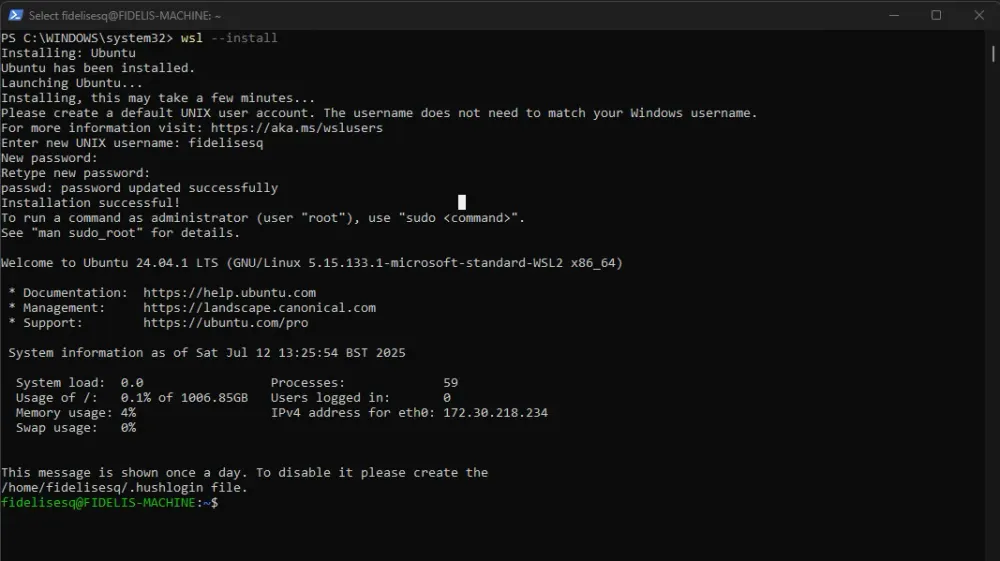
Step 2: Start Ubuntu in WSL
It runs a Linux shell session inside Ubuntu, right from Windows
wsl -d UbuntuStep 3: Install unzip from your home directory
cd ~sudo apt install unzipStep 4: Download Amazon Q CLI Installer
curl --proto '=https' --tlsv1.2 -sSf "https://desktop-release.q.us-east-1.amazonaws.com/latest/q-x86_64-linux.zip" -o "q.zip"Step 5: Unzip the Installer, Setup & Run
unzip q.zipcd qchmod +x install.sh./install.shStep 6: Reload & login
Optionally reload the shell with updates path setting and use your
AWS Builder ID credentials to log in to use AWS Q Developer free version. bashq login
Note:
To use the ``Pro version of Amazon Q Developer``, you need to have ``AWS IAM Identity Center configured``, and ensure the user is ``subscribed to Amazon Q Developer`` under your AWS organization step 7: Start Amazon Q Developer
q chat
Tips for Using Amazon Q CLI
- Run
qin any project folder to start chatting with Amazon Q about your codebase.
- You can ask things like:
- “Explain what this function does”
- “Fix this error”
- “Write a Python script to sort JSON data.”
- Combine it with VS Code + WSL for a full AI-enhanced dev experience. Run the command below to use it in VS Code. Ensure you install the Microsoft WSL VS Code Extension.
mkdir -p ~/project/amazonq_gamecd ~/project/aws_amazonq_gamecode .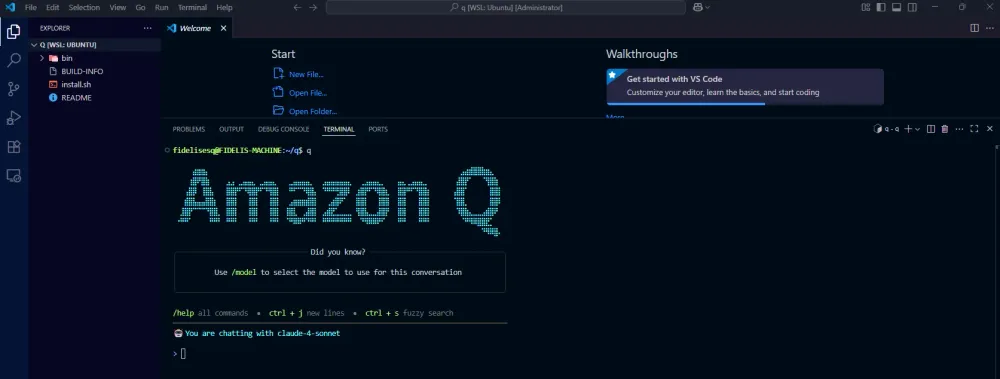
🧠 Things to Know About Amazon Q CLI
- Amazon Q CLI is still evolving — you may need to sign into your AWS account for access.
- It supports multiple languages (Python, JavaScript, Java, TypeScript, etc.)
- It works best when run inside your project folder
- There are GUI versions too, but the CLI version is perfect for terminal lovers and power users
Video Guide
Game Development with Amazon Q CLI
✅ Conclusion
Installing Amazon Q CLI on Windows is straightforward once you have the right files and path setup. With the CLI installed, you get a smart AI pair programmer right inside your terminal. Whether you're building apps, debugging, or exploring unfamiliar code, Amazon Q helps you work faster and smarter — without leaving your shell.
Enjoyed reading this content? Let the author know!
Your likes, comments, shares, and saves help creators reach more builders.

Loading recommendations
Loading article