
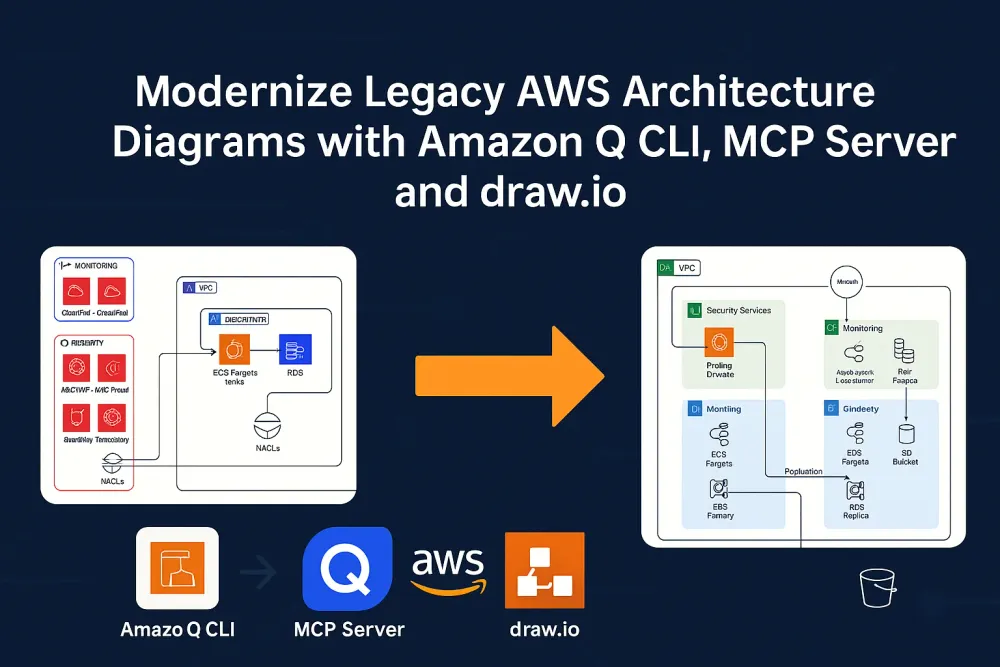
Modernize Legacy AWS Architecture Diagrams with Amazon Q CLI, MCP Server, and draw.io
This hands-on blog walks you through analyzing outdated diagrams, applying updates via Amazon Q CLI, converting them into draw.io formats, and maintaining visual infrastructure accuracy with best practices and future-ready workflows.

Introduction
Architecture diagrams are core assets in any cloud-native engineering workflow. But let’s face it, most teams still have legacy architecture diagrams stuck in PNGs, JPEGs, or PDFs with no source files. When infrastructure changes, updating these visuals becomes a dreaded manual task. This blog explores how you can automate and modernize that process using Amazon Q CLI, the AWS Diagram MCP Server, and draw.io with minimal effort and maximum flexibility.
Why This Blog? (The Motivation)
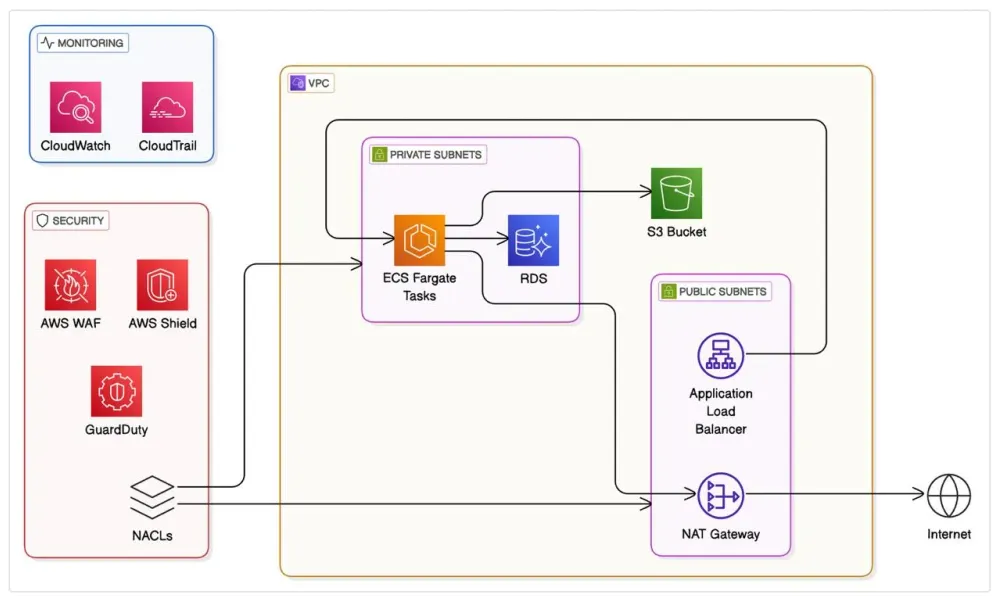
I was handed a legacy AWS architecture diagram. The image (a PNG) was outdated and I was asked to:
- Show multiple Availability Zones
- Demonstrate service replication across AZsAlign with documented multi-AZ deployment
But there was a problem: there was no
.drawio, .vsdx, .pptx, or editable format. Just a static image.That’s when I decided to put Amazon Q CLI and AI tooling to the test.
Common Real-World Challenges
If you’ve ever managed infrastructure, you’ll probably relate to these:
- No Access to Editable Source Diagrams
- Outdated visuals that don’t reflect the current infra state
- Diagrams made in tools like PowerPoint or Lucidchart with no automation
- Frequent infra changes that aren’t synced visually
- Multi-team handoffs where context is lost
The Solution (What We’re Doing Here)
In this blog, I will explain how I used Amazon Q CLI, the AWS Diagram MCP Server, and draw.io to update an old AWS architecture diagram that only existed as a static image. Since I didn’t have access to the original source file, I needed a smarter way to make updates without starting from scratch. This guide walks you through how I solved that problem by using AI tools to read the image, apply infrastructure updates, and convert it into an editable draw.io file. The blog also shares best practices, real-world use cases, and ideas for improving this workflow in the future.
This ensures your infra diagrams:
- Are editable and shareable
- Stay in sync with actual infrastructure
- Save hours of manual work
Let’s Build It (Step-by-Step)
Step 1: Prepare Your Inputs
- Locate your legacy diagram file (e.g.,
aws_legacy_architecture.png) - Ensure Amazon Q CLI is installed and configured. For a complete guide on how to setup amazon q cli refer to my previous blog here .
1
q chat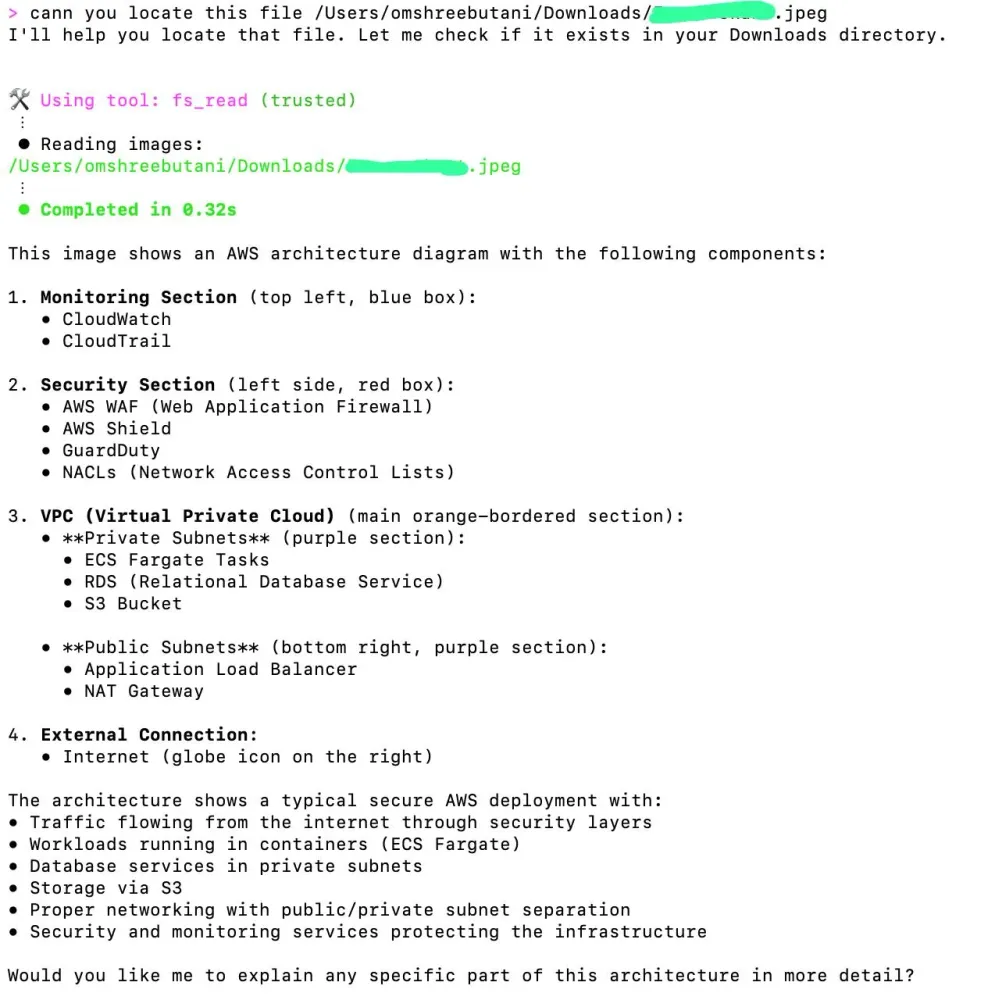
Step 2: Ask Amazon Q CLI to Read and Describe the Diagram
1
can you locate this file /Users/yourname/Downloads/aws_legacy_architecture.png
Amazon Q will:
- Parse the file
- Identify key AWS components (ECS, ALB, RDS, S3, etc.)
- Provide a textual breakdown
Step 3: Define What You Want to Change
Use a prompt like this:
1
2
3
4
5
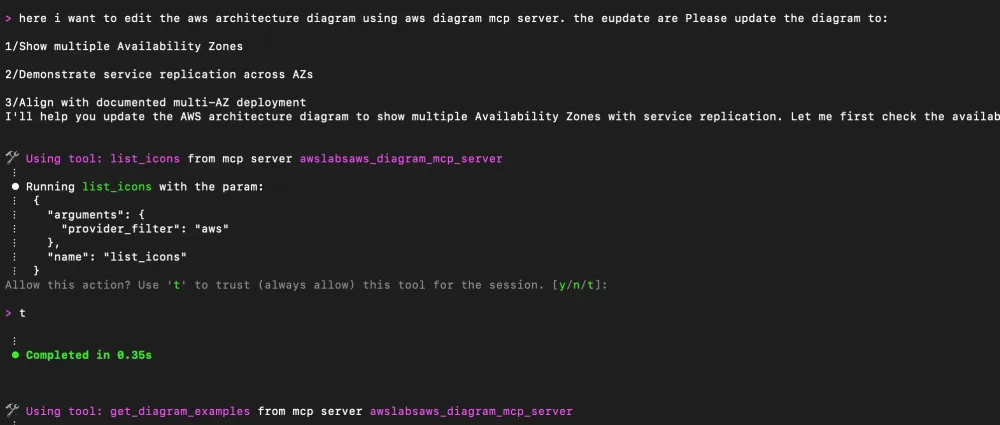
Please update the diagram to:

1/Show multiple Availability Zones
2/Demonstrate service replication across AZs
3/Align with documented multi-AZ deployment
Q will run the MCP server to apply the changes.
Step 4: Export the Updated Diagram to PNG
1
save updated diagram as png to ~/generated-diagrams/aws_updated.png
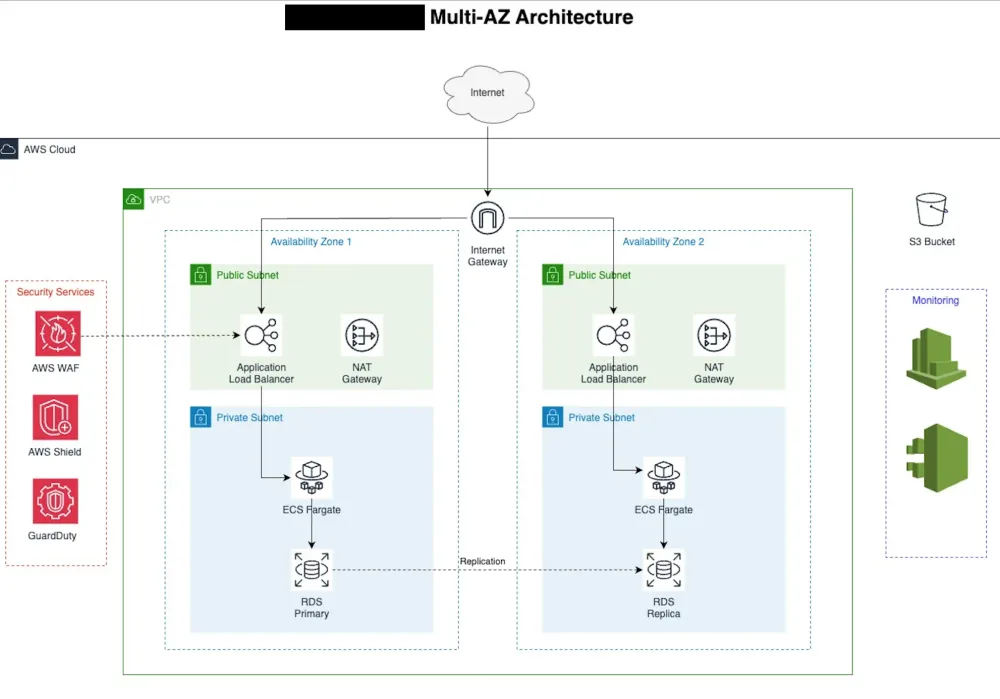
Step 5: Convert to Editable draw.io Format
1
create a draw.io file for ~/generated-diagrams/aws_updated.png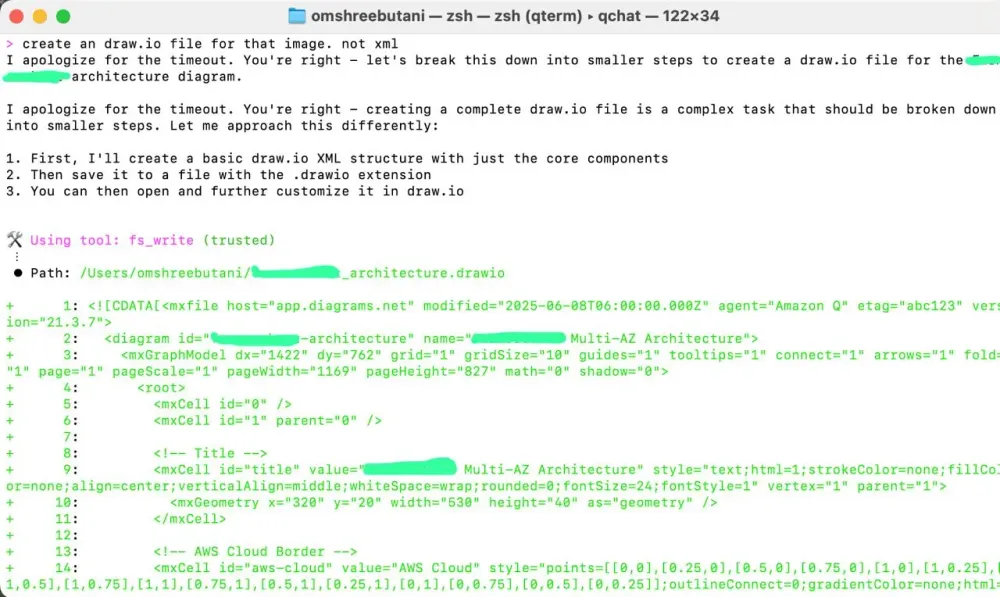
Amazon Q will generate a valid
.drawio XML structure and save it locally:Step 6: Edit Visually in draw.io
- Open ## Introduction Architecture diagrams are core assets in any cloud-native engineering workflow. But let’s face it, most teams still have legacy architecture diagrams stuck in PNGs, JPEGs, or PDFs with no source files. When infrastructure changes, updating these visuals becomes a dreaded manual task. This blog explores how you can automate and modernize that process using **Amazon Q CLI**, the **AWS Diagram MCP Server**, and **draw.io** with minimal effort and maximum flexibility. ## Why This Blog? (The Motivation) I was handed a legacy AWS architecture diagram. The image (a PNG) was outdated and I was asked to: * Show multiple Availability Zones * Demonstrate service replication across AZsAlign with documented multi-AZ deployment But there was a problem: **there was no** `.drawio`**,** `.vsdx`**,** `.pptx`**, or editable format.** Just a static image. That’s when I decided to put **Amazon Q CLI** and **AI tooling** to the test. ## Common Real-World Challenges If you’ve ever managed infrastructure, you’ll probably relate to these: * No Access to Editable Source Diagrams * Outdated visuals that don’t reflect the current infra state * Diagrams made in tools like PowerPoint or Lucidchart with no automation * Frequent infra changes that aren’t synced visually * Multi-team handoffs where context is lost ## The Solution (What We’re Doing Here) In this blog, I will explain how I used Amazon Q CLI, the AWS Diagram MCP Server, and draw.io to update an old AWS architecture diagram that only existed as a static image. Since I didn’t have access to the original source file, I needed a smarter way to make updates without starting from scratch. This guide walks you through how I solved that problem by using AI tools to read the image, apply infrastructure updates, and convert it into an editable draw.io file. The blog also shares best practices, real-world use cases, and ideas for improving this workflow in the future. This ensures your infra diagrams: * Are editable and shareable * Stay in sync with actual infrastructure * Save hours of manual work ## Let’s Build It (Step-by-Step) ### Step 1: Prepare Your Inputs * Locate your legacy diagram file (e.g., `aws_legacy_architecture.png`) * Ensure Amazon Q CLI is installed and configured. For a complete guide on how to setup amazon q cli refer to my previous blog [here](https://community.aws/content/2vONfoFJu4kpYdqd0LIowIM2iE0/vibe-coding-with-amazon-q-cli).  ```text q chat ```  ### Step 2: Ask Amazon Q CLI to Read and Describe the Diagram ```text can you locate this file /Users/yourname/Downloads/aws_legacy_architecture.png ```  Amazon Q will: * Parse the file * Identify key AWS components (ECS, ALB, RDS, S3, etc.) * Provide a textual breakdown ### Step 3: Define What You Want to Change Use a prompt like this: ```plaintext Please update the diagram to: 1/Show multiple Availability Zones 2/Demonstrate service replication across AZs 3/Align with documented multi-AZ deployment ``` Q will run the **MCP server** to apply the changes.  ### Step 4: Export the Updated Diagram to PNG ```plaintext save updated diagram as png to ~/generated-diagrams/aws_updated.png ```  ### Step 5: Convert to Editable draw.io Format ```plaintext create a draw.io file for ~/generated-diagrams/aws_updated.png ```  Amazon Q will generate a valid `.drawio` XML structure and save it locally: ### Step 6: Edit Visually in draw.io * Open [draw.io]() * File → Open From Device → Select `aws_updated.drawio` * Refine icons, spacing, grouping, and add your final annotations 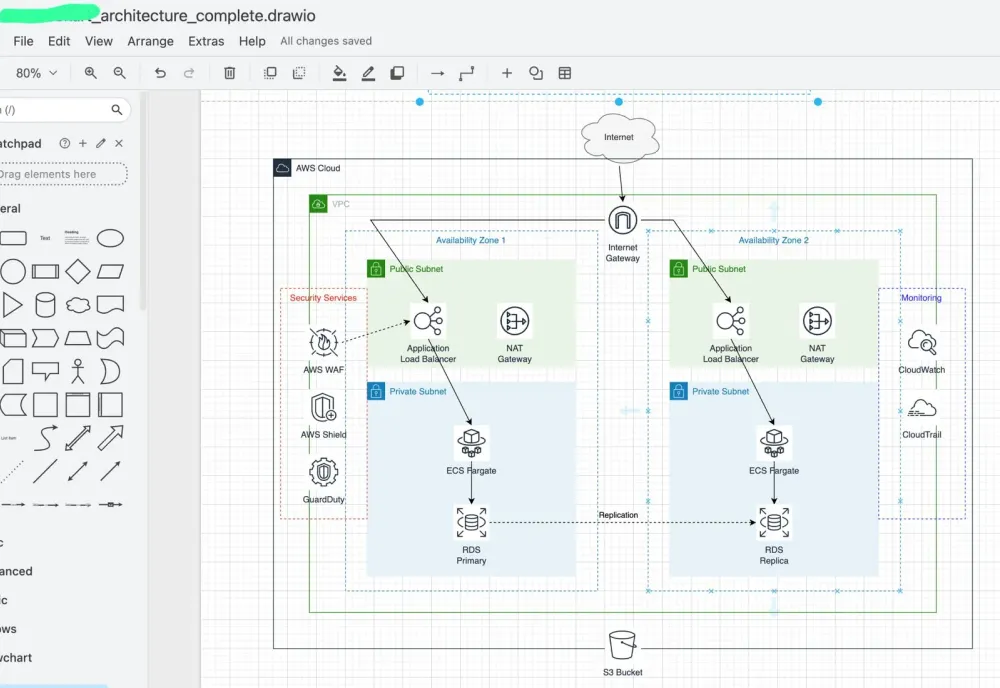 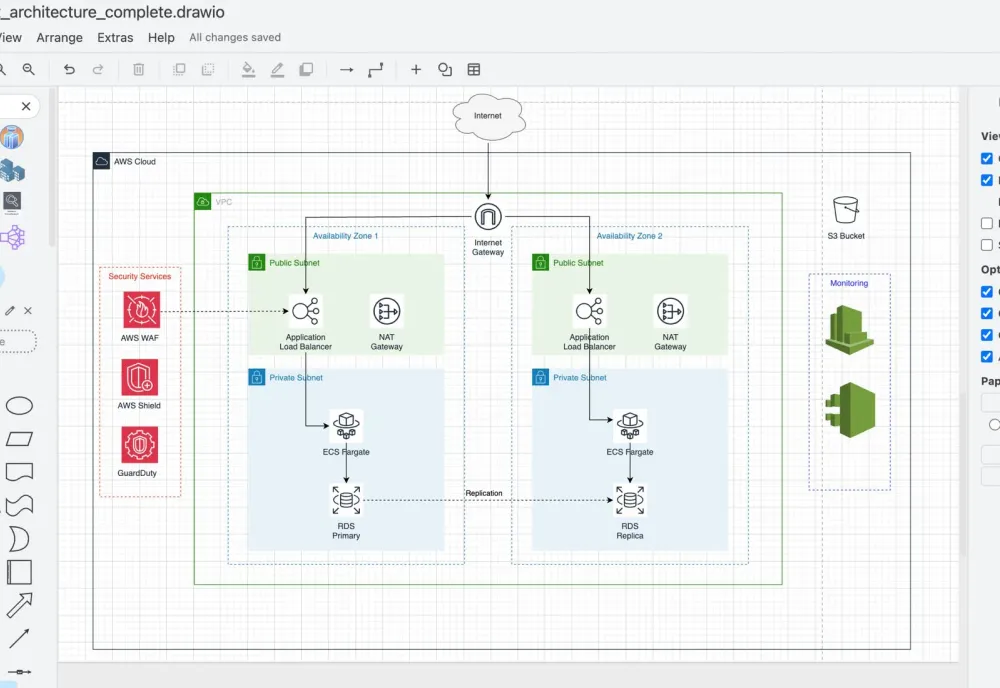 ## Best Practices * Always label your intent clearly in prompts: ```plaintext “Update the diagram to show internal load balancer in private subnets, and replication between RDS in AZ1 and AZ2” ``` * Use folders like `~/generated-diagrams` to organize outputs. * If you’re not happy with placement, ask Q to regenerate layout with spacing hints: ```plaintext “Rebuild the layout with improved spacing between AZ components and more visual clarity for VPC boundaries.” ``` * Use draw.io to drag-drop or add your custom branding afterward. ## Other Use Cases to Try * Updating legacy infra diagrams for migration assessments * Visualizing Terraform/CloudFormation outcomes (via `terraform show` + Q analysis) * Rapid onboarding decks with editable visuals * App-level architecture views across services like API Gateway, Lambda, DynamoDB ## Conclusion What used to take me 2+ hours of redrawing is now done in under 10 minutes. With **Amazon Q CLI**, the **MCP Server**, and **draw.io**, maintaining up-to-date cloud architecture diagrams just became faster, smarter, and AI-powered. Let me know if you'd like a `.drawio` template or starter prompt set to begin your own transformation.
- File → Open From Device → Select
aws_updated.drawio - Refine icons, spacing, grouping, and add your final annotations


Best Practices
- Always label your intent clearly in prompts:
1
“Update the diagram to show internal load balancer in private subnets, and replication between RDS in AZ1 and AZ2”- Use folders like
~/generated-diagramsto organize outputs. - If you’re not happy with placement, ask Q to regenerate layout with spacing hints:
1
“Rebuild the layout with improved spacing between AZ components and more visual clarity for VPC boundaries.”- Use draw.io to drag-drop or add your custom branding afterward.
Other Use Cases to Try
- Updating legacy infra diagrams for migration assessments
- Visualizing Terraform/CloudFormation outcomes (via
terraform show+ Q analysis) - Rapid onboarding decks with editable visuals
- App-level architecture views across services like API Gateway, Lambda, DynamoDB
Conclusion
What used to take me 2+ hours of redrawing is now done in under 10 minutes.
With Amazon Q CLI, the MCP Server, and draw.io, maintaining up-to-date cloud architecture diagrams just became faster, smarter, and AI-powered.
Let me know if you'd like a
.drawio template or starter prompt set to begin your own transformation.Enjoyed reading this content? Let the author know!
Your likes, comments, shares, and saves help creators reach more builders.

Loading recommendations
Loading article