

Security checks using Amazon Q Developer CLI
Amazon Q CLI brings AI-powered security and automation to AWS, helping startups efficiently manage, assess, and secure their cloud environments.

Amazon Q CLI is redefining the developer experience by bringing advanced, AI-powered capabilities directly to the command line. Designed for seamless integration into your terminal workflow, Amazon Q CLI offers features such as intelligent command autocompletion, natural language chat, and context-aware code generation for hundreds of popular tools—including
git, npm, docker, and awscli. With its conversational interface, developers can translate natural language instructions into executable commands, debug issues, automate repetitive tasks, and manage AWS resources, all without leaving their terminal environment.For startups operating with limited resources, Q CLI becomes an indispensable ally, empowering teams to enhance their security posture and streamline daily operations directly from the command line.
In this article, we’ll explore several practical ways to leverage Q CLI for gaining an overview of your account security and demonstrate how it can help you identify, address, and strengthen your security stance—all within your terminal environment.
Installation of Amazon Q CLI
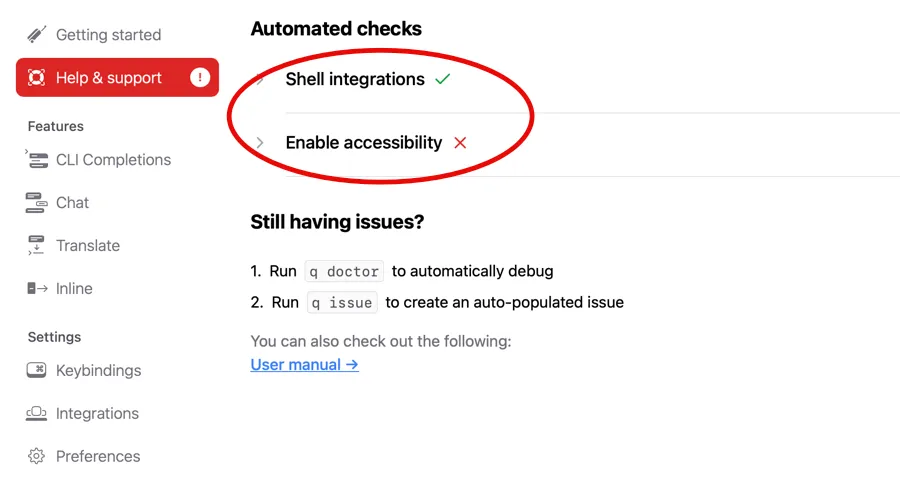
Amazon Q CLI is available to install on all major operating systems. On MacOS systems, we do strongly recommend to install the shell integrations for a better user experience.
Integration with the AWS CLI
Amazon Q CLI includes several built-in tools that can interact with your local system and AWS environment. These tools can read files, execute bash commands, and interface with AWS CLI.
By default, Q CLI operates in a secure, read-only mode during chat sessions. This means it can only perform non-destructive operations like reading files or executing AWS commands that don't modify your resources. For any commands that could alter your system or AWS resources, Q CLI will explicitly request your permission before proceeding. This security feature helps prevent unintended changes to your local environment or AWS account.
For AWS interactions, we highly recommend using named profiles to manage access to different AWS accounts. Named profiles provide a secure and organized way to handle multiple AWS account credentials. You can direct Q CLI to use a specific AWS account by specifying the profile name at the beginning of your command. For more information about setting up and using named profiles, refer to the AWS CLI documentation on profile configuration .
1
2
3
4
5
6
7
8
9
10
11
12
13
14
15
16
17
18
19
20
> Using the staging profile, list all S3 buckets. Returns a table with bucket name and location.

[Q CLI running commands to answer the question]

Here's a table of all S3 buckets in your staging profile with their locations:

| BUCKET NAME                          | LOCATION  |
|--------------------------------------|-----------|
| amplify-xxx-dev-221426-deployment    | eu-west-3 |
| amplify-xxx-dev-160415-deployment    | eu-west-1 |
| amplify-xxx-sandbox-94142-deployment | eu-west-3 |
| assets-123456789012-ec2rolewatchdog  | eu-west-1 |
| aws-sam-cli-2tdwpxfwulnp             | eu-west-1 |
| config-123456789012                  | eu-west-1 |

You have 5 S3 buckets total, distributed across several regions:
• **eu-west-1**: 4 buckets
• **eu-west-3**: 2 buckets

The buckets appear to be used for various purposes including Amplify deployments.
Q CLI will use the region defined in your config file or defaults to
us-east-1 if none defined. You can explicitly tell him to work in a specific region:1
2
3
4
5
6
7
8
9
10
11
> Using the staging profile, in region us-west-2, give me the list of all running EC2 instances. You should return a table with theses columns: instance ID, instance name, instance type, status.
[Q CLI running commands to answer the question]
Here's the table of all running EC2 instances in the us-west-2 region using the staging profile:
Instance ID | Instance Name | Instance Type | Status
-------------------- | --------------- | ------------- | --------
i-1234567890abcdefg | db-server | c6g.large | running
i-1234567890abcdefg | bastion | t4g.micro | running
i-1234567890abcdefg | app-server | c6g.large | running
Port Security Analysis
Monitoring and analyzing network traffic is crucial for maintaining security in a rapidly evolving infrastructure environment. Open ports, if not properly secured, can become potential vulnerabilities that malicious actors might exploit for data exfiltration or unauthorized access to your company's resources.
Amazon Q Developer CLI provides tools to help you assess and validate network traffic patterns. The tool can analyze specific port activities and provide recommendations about the legitimacy of access attempts. This analysis helps you make informed decisions about your security posture and identify potentially dangerous network configurations.
When analyzing ports, Q Developer CLI examines traffic patterns and compares them against security best practices. It can help identify:
- Unusual traffic patterns
- Potentially unauthorized access attempts
- Compliance with security policies
- Recommendations for port security improvements
Here is an example:
1
2
3
4
5
6
7
8
9
10
11
12
13
14
15
16
17
18
19
20
21
22
23
24
25
26
27
28
29
30
31
32
33
34
35
36
37
38
39
40
41
42
43
44
45
46
47
48
49
50
51
52
53
54
> Using the staging profile, in the us-west-2 region, give me the list of all security groups allowing SSH access. Analyze them and give me an estimation of legitimacy. Return results in a table format.

[Q CLI running commands to answer the question]

## Security Groups with SSH Access - Analysis Results

| Security Group ID    | Group Name | SSH Source         | Port Range | Legitimacy Assessment | Risk Level | Justification                             |
|----------------------|------------|--------------------|------------|-----------------------|------------|-------------------------------------------|
| sg-abcdef1234567890a | bastion    | 176.175.174.173/32 | 0-22       | ✅ LEGITIMATE         | LOW        | Bastion host with specific IP restriction |

## Analysis Summary:

### SSH-Enabled Security Groups Found: 1

LEGITIMATE SSH ACCESS:
• **sg-abcdef1234567890a (bastion)**:
  • ✅ Properly configured bastion host
  • ✅ Restricted to single IP (176.175.174.173/32)
  • ✅ Named appropriately ("bastion")
  • ✅ Managed by Terraform (infrastructure as code)
  • ✅ Port range 0-22 (includes SSH)

### Security Assessment:

COMPLIANT CONFIGURATIONS:
1. No open SSH access (0.0.0.0/0) found
2. IP-restricted access to single trusted source
3. Purpose-built bastion following security best practices
4. Infrastructure as code management (Terraform tags)

RISK ANALYSIS:
• **Overall Risk**: LOW
• **Exposure**: Minimal (single IP whitelist)
• **Purpose**: Legitimate bastion host for secure access

### Recommendations:

CURRENT STATUS: ✅ SECURE
• SSH access is properly restricted and follows security best practices
• Consider implementing additional controls:
  1. **MFA requirement** for SSH access
  2. **Session Manager** as alternative to direct SSH
  3. **Regular IP whitelist review** to ensure 176.150.150.244 is still valid
  4. **SSH key rotation** policy
  5. **Connection logging** and monitoring

### Other Security Groups Reviewed:
• **13 other security groups** analyzed
• **No additional SSH access** found
• **SageMaker NFS groups** (ports 988, 1018-1023, 2049) - legitimate
• **Load balancer group** (port 80) - legitimate HTTP access
• **Default VPC groups** - properly configured with no SSH access

CONCLUSION: SSH access configuration is secure and follows AWS security best practices.
Understanding AWS GuardDuty Findings
Amazon GuardDuty serves as AWS's threat detection service, continuously monitoring your AWS environment for potential security threats and suspicious activities. It analyzes various AWS services and alerts you to security events, such as unauthorized cryptocurrency mining operations on EC2 instances or potential data exfiltration attempts.
When first enabled, GuardDuty typically generates numerous findings, which can be overwhelming to process and prioritize effectively. The volume of initial alerts can make it challenging to identify and address the most critical security concerns.
Amazon Q CLI will simplify this process by helping you focus on high-priority security issues. You can request Q CLI to identify and display the five most critical GuardDuty findings in your environment. For each finding, Q CLI would provide:
- A detailed explanation of the security threat
- The potential impact on your infrastructure
- Specific remediation steps to address the security concern
This targeted approach helps teams quickly understand and resolve the most pressing security issues in their AWS environment.
1
2
3
4
5
6
7
8
9
10
11
12
13
14
15
16
17
18
19
20
21
22
23
24
25
26
27
> Using the staging profile, in the us-west-2 region, return the top 5 guardduty findings, sorted by criticity. For each, provide a guidance to fix the finding. Return the results as a concise list.

[Q CLI running commands to answer the question]

# Top 5 Critical GuardDuty Findings (Severity 8.0)

## 1. Impact:IAMUser/AnomalousBehavior
• **Issue**: Admin role invoking Impact APIs from unusual location (France)
• **Fix**: Review legitimacy → Implement IP-based IAM policies → Enable MFA → Rotate access keys if compromised

## 2. Impact:Runtime/CryptoMinerExecuted
• **Issue**: Cryptocurrency miner detected on EC2 i-99999999
• **Fix**: Isolate instance → Kill miner process → Scan for malware → Rebuild from clean AMI

## 3. Persistence:Kubernetes/TorIPCaller
• **Issue**: Kubernetes API calls from Tor exit node (198.1.100.0)
• **Fix**: Block Tor IPs → Review RBAC permissions → Enable EKS audit logging → Rotate service tokens

## 4. PrivilegeEscalation:Runtime/RuncContainerEscape
• **Issue**: Container escape via runc vulnerability on EC2 i-99999999
• **Fix**: Patch runc immediately → Implement container security policies → Use Fargate when possible

## 5. UnauthorizedAccess:Runtime/MetadataDNSRebind
• **Issue**: DNS rebinding attack targeting EC2 metadata service
• **Fix**: Enforce IMDSv2 → Set hop limit to 1 → Restrict security groups → Monitor DNS queries

Priority: Address findings 1-2 immediately as they indicate active compromise.
Compliance with the AWS Startup Security Baseline
The AWS Startup Security Baseline is a set of controls we strongly encourage startups to follow to secure their environments and accounts. These controls are designed to help any startup of any size to mitigate common security risks with small efforts. Amazon Q CLI can help you assess your posture against this framework and provide actionable items.
1
2
3
4
5
6
7
8
9
10
11
12
13
14
15
16
17
18
19
20
21
22
23
24
25
26
27
28
29
30
31
32
33
34
35
36
37
38
39
40
41
42
43
> Analyse the account posture against the AWS Prescriptive Guidance called "Startup Security baseline".

[Q CLI running commands to answer the question]
## AWS Startup Security Baseline Compliance Assessment

Based on my comprehensive analysis of your AWS account against the AWS Prescriptive Guidance "Startup Security Baseline", here's the detailed assessment:

### ✅ COMPLIANT AREAS (60%)

1. Logging & Monitoring Excellence
• ✅ CloudTrail: Multi-region trail enabled with log file validation
• ✅ GuardDuty: Enabled with 6-hour finding frequency
• ✅ Security Hub: Enabled and actively subscribed
• ✅ Inspector: Enabled for EC2, ECR, and Lambda scanning

2. Data Protection
• ✅ S3 Security: All sampled buckets have public access blocked
• ✅ KMS: 42 encryption keys available for data protection

3. Identity & Access Management
• ✅ Root Account: No access keys present (following best practices)
• ✅ IAM Roles: 196 roles configured (extensive role-based access control)

### ❌ NON-COMPLIANT AREAS (40%)

1. Critical Root Account Security Gap
• ❌ Root MFA: NOT ENABLED (CRITICAL SECURITY RISK)

2. Identity & Access Management Gaps
• ❌ Password Policy: Not configured
• ❌ IAM User Access: summit-demo user has active access key

3. Data Protection Deficiencies
• ❌ EBS Encryption: Not enabled by default
• ❌ Config Service: Not configured for compliance monitoring

4. Network Security Gaps
• ❌ VPC Flow Logs: Not enabled on any VPCs
• ❌ Security Groups: demo-group has overly permissive 0.0.0.0/0 rules

5. Monitoring & Alerting
• ❌ Cost Budgets: No cost monitoring/alerting configured
• ❌ SNS Topics: No notification channels for security alerts
Conclusion
While we've explored several key security features, Amazon Q Developer CLI offers even more capabilities to enhance your security monitoring and management. The tool can provide detailed analytics on Web Application Firewall (WAF) activities, showing frequently blocked IP addresses through Protection packs. It can also analyze IAM role permissions and their usage patterns, helping you implement the principle of least privilege effectively.
Amazon Q Developer CLI transforms security operations by offering contextual recommendations, optimization strategies, and actionable advice. For security-conscious startups, this means having an intelligent assistant that not only identifies security concerns but also guides you through their resolution, making robust security practices more accessible and manageable.
Enjoyed reading this content? Let the author know!
Your likes, comments, shares, and saves help creators reach more builders.

Loading recommendations
Loading article