

Amazon Q CLI to analyze VPC flow logs and Cloudtrail
How Amazon Q CLI is going to help analyse the VPC flowlogs


Introduction
Analyzing AWS logs like VPC Flow Logs and CloudTrail can be tedious when we need to recall precise AWS CLI syntax and craft complex filters. Amazon Q Developer CLI (q CLI) streamlines this process by translating simple, natural-language prompts into ready-to-run shell and AWS CLI commands directly in your terminal .
What Is Amazon Q CLI?
Amazon Q CLI is a conversational, AI-powered interface that brings chat capabilities and IDE-style autocompletion to your shell. With q CLI, you can:
- Chat in plain English to explore and debug your environment
- Translate natural-language instructions into executable shell snippets
- Autocomplete dozens of popular CLIs (including
aws,git,docker) as you type - Interact with AWS resources and local files via an embedded agent powered by Claude 3.7 Sonnet
Prerequisites
Before you begin:
- AWS CLI v2 installed and configured (
aws configure). - IAM permissions to read VPC Flow Logs, CloudTrail, and CloudWatch Logs.
- Amazon Q CLI installed and authorized.
Installing and Configuring Q CLI
Download the installer for your platform from the AWS Developer Center:
The autocomplete feature of Amazon Q for command line is supported on macOS and specific Linux environments, including AppImage and Ubuntu.
The following environments are supported for both macOS and Linux:
- Shells: bash, zsh, fish
- CLIs: Over 500 of the most popular CLIs such as git, aws, docker, npm, and yarn
Amazon Q CLI does not yet offer a native Windows installer; however, we can install and run it seamlessly on Windows by leveraging the Windows Subsystem for Linux (WSL).
Install and Configure WSL
- Open PowerShell as Administrator
- Press Win+X → Windows PowerShell (Admin).
- Enable WSL and Install a Linux Distro
Execute:
1
wsl --install- By default, this installs Ubuntu 22.04 LTS.
- If you already have WSL enabled, skip this step.
- Restart Your Machine (If Prompted)
After installation, Windows may prompt you to reboot. Allow the reboot to complete. - Set Up Your Linux Username/Password
- On first launch (e.g., open “Ubuntu” from Start menu), you’ll be prompted to create a UNIX username and password. This account will be your default WSL user.
- Update and Upgrade Packages
In the Ubuntu terminal, run:
1
sudo apt update && sudo apt upgrade -y
This ensures you have the latest package metadata and security patches.
Download and Install Amazon Q CLI on Ubuntu (WSL)
Once WSL (Ubuntu) is running, follow these steps inside the Ubuntu shell:
Fetch the Latest Debian Package for Amazon Q CLI
1
wget https://desktop-release.q.us-east-1.amazonaws.com/latest/amazon-q.deb
This pulls down the official Amazon Q CLI Debian package.
Install the Package and Resolve Dependencies
1
2
sudo dpkg -i amazon-q.deb
sudo apt-get install -f -y
The first command installs the
.deb file.The second command fixes any missing dependencies that
dpkg might have flagged.Verify the
q Executable Is in Your PATH1
which qYou should see an output like
/usr/local/bin/q (or similar). Enable Shell Integrations
Amazon Q CLI can suggest autocompletions for hundreds of commands (AWS CLI, Git, Docker, etc.). To activate these integrations:
- Run the Integrations Command
q integrations enableshell
This command modifies your shell startup files (e.g., ~/.bashrc) to source Q CLI’s autocomplete scripts.- Restart Your Shell or Source Your Profile
- Close and reopen the Ubuntu terminal, or
- Run:
1
source ~/.bashrc
Confirm Autocomplete Is Working
Type
q aws and then press Tab twice. You should see AWS CLI-related suggestions (e.g., ec2, s3, cloudtrail, etc.).Authenticate Q CLI
Amazon Q CLI must authenticate against your AWS account. Two methods are supported: AWS Builder ID (i.e., an email/password sign-in) or IAM Identity Center (SSO). Both methods let Q CLI obtain a temporary session to call AWS APIs.
Run the Login CommandbashCopyEditq login
You will see prompts in your WSL terminal to:
You will see prompts in your WSL terminal to:
- Open a URL in your default Windows browser,
- Enter a six-digit code to associate the browser session with the CLI,
- Choose a sign-in method (AWS Builder ID or IAM Identity Center SSO).
Complete Authentication in Your Browser
1
You are now logged in as <your-username> (profile: default)- If using Builder ID, enter your AWS Builder credentials.
- If using IAM Identity Center, follow your organization’s SSO flow (e.g., choose your IdP, authenticate).
After successful login, your WSL terminal will display a confirmation:
Verify Your Profile and Permissions
1
2
q whoami
q profile
Test Basic Q CLI Commands
Now that you’re authenticated and autocomplete is enabled, try a few simple Q CLI queries to ensure everything works:
- Fetch EC2 Instances (Natural Language → AWS CLI)
1
q translate "list all EC2 instances in us-east-1"
You should see Q CLI generate:
1
aws ec2 describe-instances --region us-east-1
If you run that generated command, it will return your EC2 inventory.
Note: Verify if you have AWS CLI installed or not. Configure your AWS credentials.
Enabling VPC Flow Logs
To start capturing your VPC’s network traffic, create a Flow Log:
1
2
3
4
5
6
aws ec2 create-flow-logs \
  --resource-type VPC \
  --resource-ids vpc-12345678 \
  --traffic-type ALL \
  --log-destination-type cloud-watch-logs \
  --log-group-name my-flow-logs
This command provisions a CloudWatch Logs group and streams all traffic metadata to it .
Understanding Flow Log Records
A sample record looks like:
1
2 123456789012 eni-abc12345 10.0.0.1 10.0.0.2 443 49152 6 10 100 1617600000 1617600060 ACCEPT OK
Fields represent:
- Version
- Account ID
- Network interface ID
- Source IP
- Destination IP
- Source port
- Destination port
- Protocol
- Packets
- Bytes
- Start time
- End time
- Action (ACCEPT/REJECT)
- Log status .
Fetching and Filtering with Q CLI
Basic Retrieval
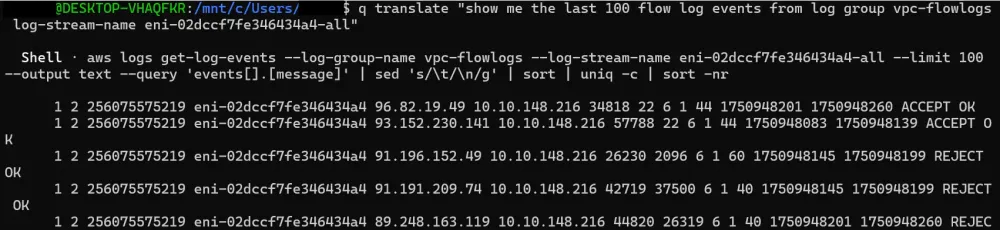
Ask Q CLI to craft and run the AWS CLI call:
1
q translate "show me the last 100 flow log events from log group my-flow-logs"
1
aws logs filter-log-events --log-group-name my-flow-logs --limit 100
Advanced Filtering
Refine by action or time window:
1
2
3
4
5
aws logs filter-log-events \
  --log-group-name vpc-flowlogs \
  --filter-pattern '{ $.action = "REJECT" }' \
  --start-time $(date -u -d '1 hour ago' +%s)000 \
  --end-time $(date -u +%s)000
Summarizing Top Talkers
Generate a shell pipeline via Chat mode:
1
q chat "Count top 10 source IP addresses in my VPC flow logs"
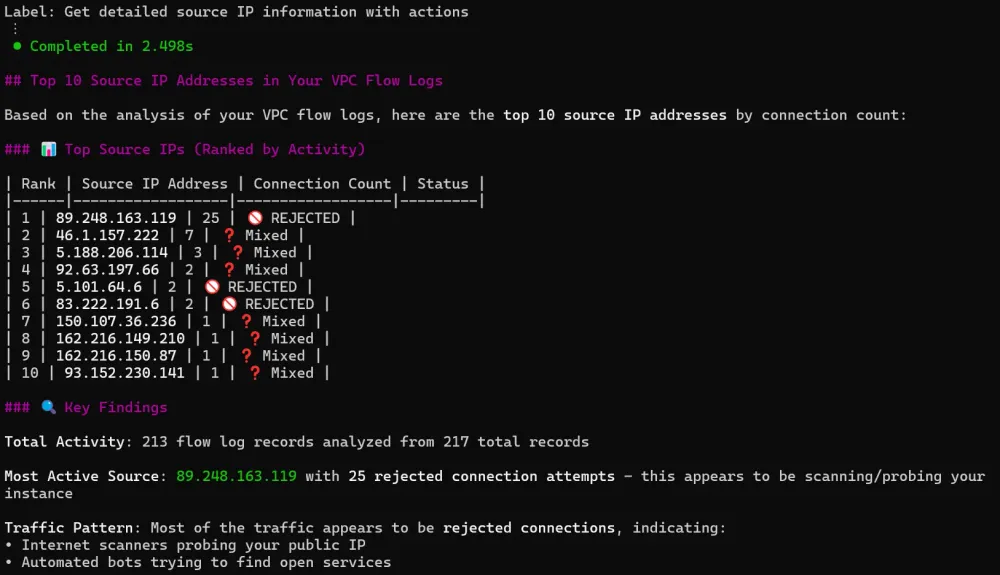
you can ask anything to analyse the vpc flowlogs. Like "give me all REJECTED traffic."
1
Provide me the REJECTED source IP addresses
Might yield:
1
2
3
4
5
6
7
aws logs filter-log-events --log-group-name my-flow-logs \
  | jq -r '.events[].message' \
  | awk '{print $4}' \
  | sort \
  | uniq -c \
  | sort -nr \
  | head -n 10
Conclusion
Amazon Q CLI bridges the gap between plain English and AWS CLI expertise, empowering you to rapidly fetch, filter, and visualize AWS logs, be they VPC Flow Logs, CloudTrail, or beyond, without memorizing complex commands. Try integrating Q CLI into your next audit, incident response, or daily ops routine!
Enjoyed reading this content? Let the author know!
Your likes, comments, shares, and saves help creators reach more builders.

Loading recommendations
Loading article