

Pixel Perfect Power Building Tetris with Amazon Q CLI Game 3
The 3rd Game - Create a fully functional, pixel-perfect experience without complex setup.

Since I published my last article titled "Pixel Perfect Power: Building Tetris with Amazon Q CLI", two people have informed me that one of the two games I uploaded to my GitHub repository isn’t running, while the other is malfunctioning. After investigating, I discovered that I had uploaded incorrect files and missed some critical code. To resolve this, I spent time refining the AI prompt and generating a new version of the game code, which now functions properly.
I am currently experiencing an issue with my article where I’m unable to save or update my posts. My latest entry is stuck in draft form, and I can’t make any changes or publish it. This has disrupted my workflow significantly.
If you didn’t read my last article, please read it here: https://community.aws/content/2xSFbL1ewpjcYskHmxeSkVJRKWe/pixel-perfect-power-building-tetris-with-amazon-q-cli
So, writing another article for the update...
PROMPT I USED IN AMAZON Q CLI CHAT INTERFACE
1
2
3
4
5
6
7
8
9
10
11
12
13
14
15
16
17
18
19
20
21
22
23
24
25
26
27
28
29
30
31
32
33
34
35
36
37
38
39
40
41
42
43
"Generate a complete Python script implementing a Tetris game using the Pygame library. The code should include the following key components and features:

Initialization:

Set up Pygame, define screen dimensions (800x500), block size (20px), and board dimensions (10x20).
Create a grid system with white lines for visibility.
Tetromino Shapes & Colors:

Define seven standard Tetris pieces ('I', 'O', 'T', 'L', 'J', 'S', 'Z') using their block shapes and corresponding colors (e.g., CYAN for 'I', YELLOW for 'O').
Include rotation logic for each piece.
Game Mechanics:

Implement gravity: automatically move pieces downward at a set interval.
Allow user input for movement:
Arrow keys (← → ↓ ↑) for left, right, down, and rotation.
Space bar for hard drop (instantly move piece to the bottom).
Enter key to start the game.
'R' key to restart after a game over.
Collision Detection & Board Logic:

Check if a new piece can spawn or move without overlapping existing blocks or boundaries.
Merge a valid piece into the board and clear completed lines (score += 100 per line).
Handle game over when a new piece cannot spawn.
Rendering:

Draw the grid, active falling piece, static blocks on the board, and score display.
Include start screen ("Press Enter to Start") and game-over screen ("GAME OVER - Press R to Restart").
State Management:

Track game states: 'start', 'playing', 'game_over'.
Ensure proper transitions between these states (e.g., restart on 'R').
Visuals & Feedback:

Use distinct colors for each Tetromino and white outlines for blocks.
Display the current score dynamically.
Requirements:

Do not add extra features beyond the scope of standard Tetris.
Follow the structure and logic of the provided code (e.g., SHAPES dictionary, Tetris class with run() method).
Ensure all methods like is_valid_position(), merge_piece_to_board(), and clear_lines() are implemented as in the example.
Output:

Provide a fully functional Python script using Pygame that matches these specifications exactly, without any additional text or explanations."
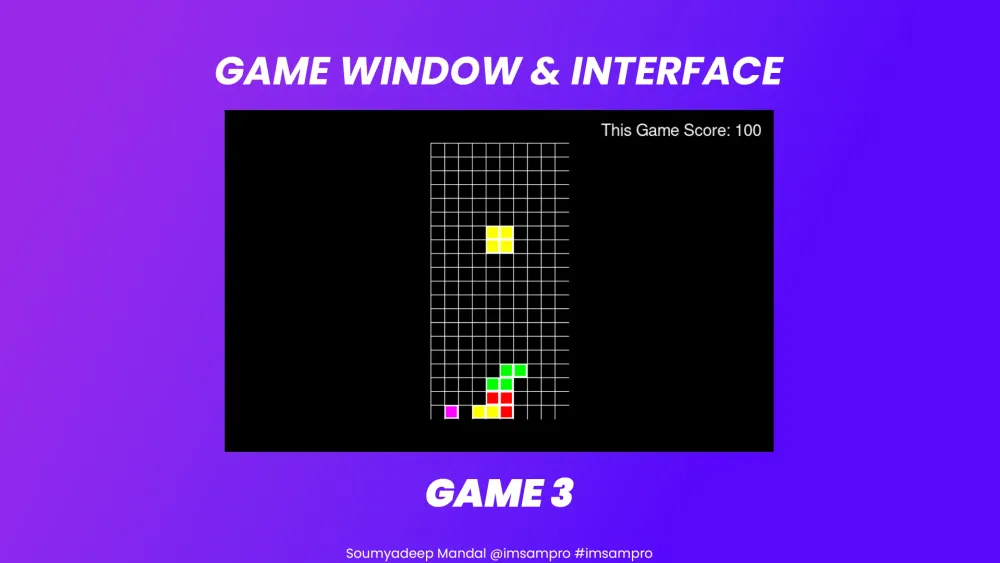
GAME WINDOW & INTERFACE
GAME IMPLEMENTATION & HOW TO PLAY INSTRUCTION BY AMAZON Q CLI
1
2
3
4
5
6
7
8
9
10
11
12
13
14
15
16
17
18
19
20
21
22
23
24
25
26
27
28
29
30
31
32
33
34
35
36
37
38
Tetris Game Instructions & How to Play

🎮 Game Overview
Welcome to Tetris! The goal is to arrange falling Tetromino blocks (I, O, T, L, J, S, Z) to form complete lines of blocks. When a line is completed, it disappears, earning you points and clearing space for new pieces.

🔄 Controls & Gameplay
Start the Game

Press Enter to begin. A welcome screen will appear.
Move Blocks

Use the Arrow Keys:
Left (←): Move piece left.
Right (→): Move piece right.
Down (↓): Move piece faster downward.
Up (↑): Rotate the current piece clockwise.
Hard Drop

Press Spacebar: Instantly drop the piece to the bottom of the board.
Restart After Game Over

When the game ends (a new piece can't spawn), press R to restart.

🧠 Game Mechanics
Gravity: Pieces fall automatically over time. Use the Down arrow to speed up their descent.
Clear Lines: When a row is completely filled with blocks, it disappears and adds points (100 per line cleared).
Score: Your score increases based on lines cleared during gameplay.
Game Over: If a new piece can't spawn (blocked by existing blocks), the game ends. Use R to restart.

💡 Tips for Success
Hold Pieces: Rotate strategically to fit pieces into tight spaces.
Clear Lines: Prioritize completing lines early to maximize points and free up space.
Avoid Stack-ups: Keep the board from filling up by placing blocks efficiently.

📌 End Game Conditions
A new Tetromino cannot spawn (blocked by existing blocks).
The game ends when this happens, displaying "GAME OVER" with instructions to press R to restart.
Enjoy your Tetris journey! 🎉
Download the Code
Grab the project from my GitHub repository: https://github.com/ImSaMPro/Tetris-Amazon-Q-CLI-DEMO
Feel free to star the repo, share your feedback, or contribute enhancements.
Till that time .. Keep Learning... Keep Growing!!
Happy Generating! Happy Re-Generating!!
Thanks for reading!
Soumyadeep Mandal
https://www.linkedin.com/in/imsampro
Soumyadeep Mandal
https://www.linkedin.com/in/imsampro
Enjoyed reading this content? Let the author know!
Your likes, comments, shares, and saves help creators reach more builders.

Loading recommendations
Loading article