
How to Generate AWS Architecture Diagrams Using Amazon Q CLI and MCP
Want to create AWS Architecture Diagram in a few mins? In this blog, we’ll cover what MCP is, how Amazon Q CLI support it, and walk through a demo of building an AWS architecture diagram using this.

The Challenge
Creating and maintaining AWS architecture diagrams has been a very critical task, yet often manual and time-consuming for developers, cloud architects, and DevOps teams. In dynamic cloud environments, updating these diagrams to reflect infrastructure changes becomes both a productivity bottleneck and a potential source of documentation drift.
You either:
- Drag and drop services in tools like Lucidchart or Draw.io.
- Reuse stencils in PowerPoint or Visio.
- Try diagram-as-code using Mermaid, PlantUML, or Cloudcraft.
While these tools work, they don't scale well when you're:
- Documenting multiple environments.
- Updating fast-moving infrastructure.
- Collaborating across teams.
- Building diagrams as part of CI/CD or dev workflows.
So what’s the solution?
Introducing MCP: Model Context Protocol
Model Context Protocol (MCP) is a new open standard designed to improve how AI models interact with tools and structured data. It provides a mechanism for AI systems to communicate with external tools or microservices (called MCP servers) via standard input/output (stdio), allowing for modular and context-aware workflows.
Kuch samaj nahi aaya na? (You didn't get it, right?)
MCP is a new way for AI tools (like Amazon Q CLI) to work better with external tools or custom logic - almost like giving the AI a toolbox it can use when it needs help.
For Example:
You’re chatting with an AI that’s helping you build something - say, an AWS diagram or a piece of code. Normally, the AI just gives you text responses based on what it knows. But what if your request needs something more—like actually generating a diagram, querying a database, or creating a formatted document?
That’s where MCP comes in.
MCP allows the AI to say:
"I know how to handle this. Let me pass this task to a specialized helper who knows how to do it better."
"I know how to handle this. Let me pass this task to a specialized helper who knows how to do it better."
These "helpers" are called MCP servers - small backend programs that perform specific tasks like:
- Drawing diagrams
- Generating templates
- Parsing documents
- Running API calls
- Fetching or transforming data
And the AI (Amazon Q) knows how to talk to them using a simple, standardized language (stdio).
So instead of the AI trying to guess everything, it can call in a tool, get a high-quality result, and show it to you—all behind the scenes.
In short: MCP is like plugging tools into your AI assistant—so it’s not just smart, but also useful.
Amazon Q CLI Now Supports MCP
Amazon recently added support for MCP to its Q Developer CLI, enabling seamless integration of external MCP tools and agents into the developer experience. With this integration, developers can now:
- Connect to an expansive list of pre-built AWS-integrated MCP servers or any tool that supports the MCP stdio interface
- Orchestrate tasks across native Q CLI tools and MCP-based agents
- Automate generation of code, documentation, infrastructure templates, and visual diagrams with prompt-based workflows
Available AWS MCP Servers
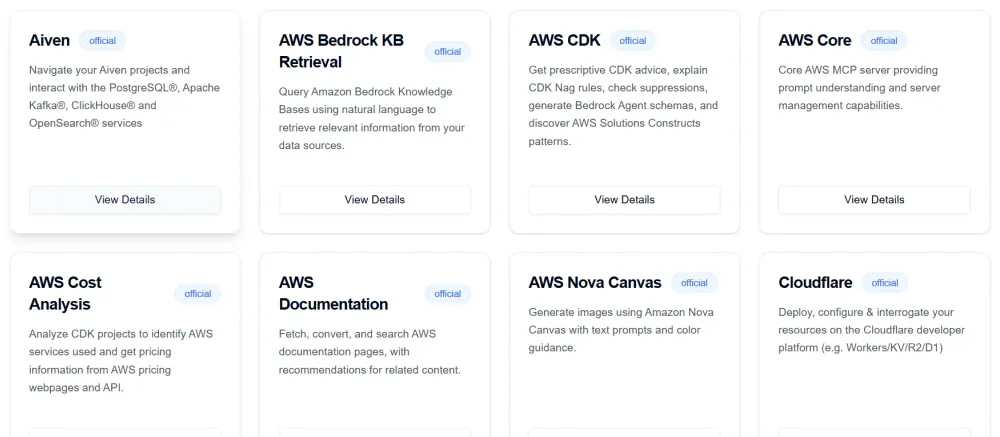
- Core MCP Server
- AWS Documentation MCP Server
- Amazon Bedrock Knowledge Bases Retrieval MCP Server
- AWS CDK MCP Server
- Cost Analysis MCP Server
- Amazon Nova Canvas MCP Server
- AWS Diagram MCP Server
- AWS Lambda MCP Server
- AWS Terraform MCP Server
- Use Cases for the Servers
Installation: Amazon Q CLI + MCP Setup
If you haven't already installed Amazon Q CLI from scratch, please read my previous blog here
Step 1: Install Python 3.10
1
2
3
4
sudo apt update
sudo apt install -y software-properties-common
sudo add-apt-repository ppa:deadsnakes/ppa -y
sudo apt install -y python3.10 python3.10-venv python3.10-dev
Step 2: Set Up a Virtual Environment
1
2
python3.10 -m venv ~/aws-diagram-mcp-env
source ~/aws-diagram-mcp-env/bin/activate
Step 3: Install the MCP Server and Dependencies
1
2
pip install --upgrade pip
pip install uvx awslabs.aws-diagram-mcp-server trio
Step 4: Configure Amazon Q to Use the MCP Server
Create a config directory:
1
mkdir -p ~/aws/amazonq
Then create the file
~/aws/amazonq/mcp.json with the following contents:1
2
3
4
5
6
7
8
9
10
11
12
13
{
"mcpServers": {
"awslabs.aws-diagram-mcp-server": {
"command": "python",
"args": ["-m", "mcp.server", "awslabs.aws_diagram_mcp_server"],
"env": {
"FASTMCP_LOG_LEVEL": "ERROR"
},
"autoApprove": [],
"disabled": false
}
}
}
You can follow above steps for the setup. Alternatively, you can rely on Amazon Q CLI as well to do the setup itself by giving proper prompts.
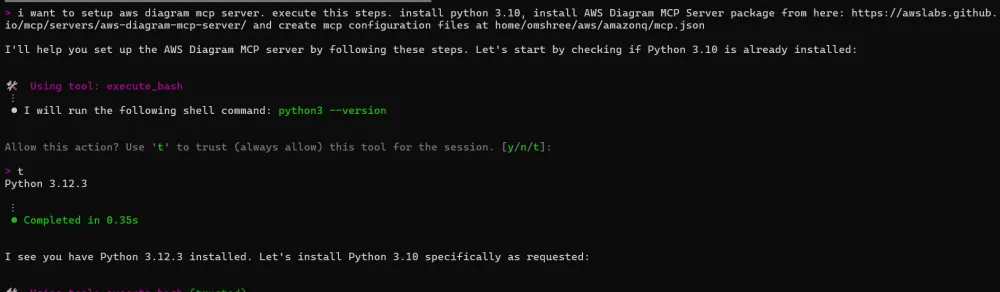
Once set up, Amazon Q CLI will auto-detect the MCP server. Just use a natural prompt.
Demo: Generate AWS Architecture Diagram Using Amazon Q CLI + MCP
Step 1: Prompt Execution
We begin by typing a natural language command into Amazon Q CLI:
generate an aws architecture diagram for serverless backend with API Gateway, Lambda, DynamoDB, and S3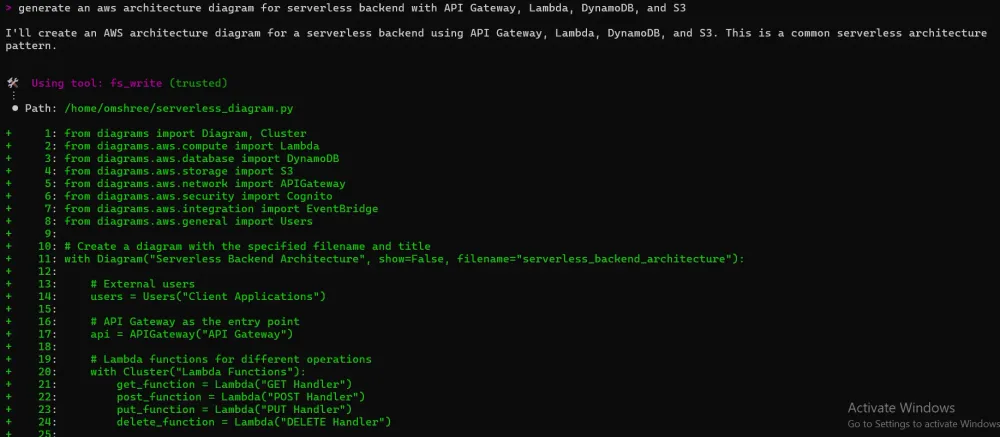
Step 2: Open the generated image stored in the folder.
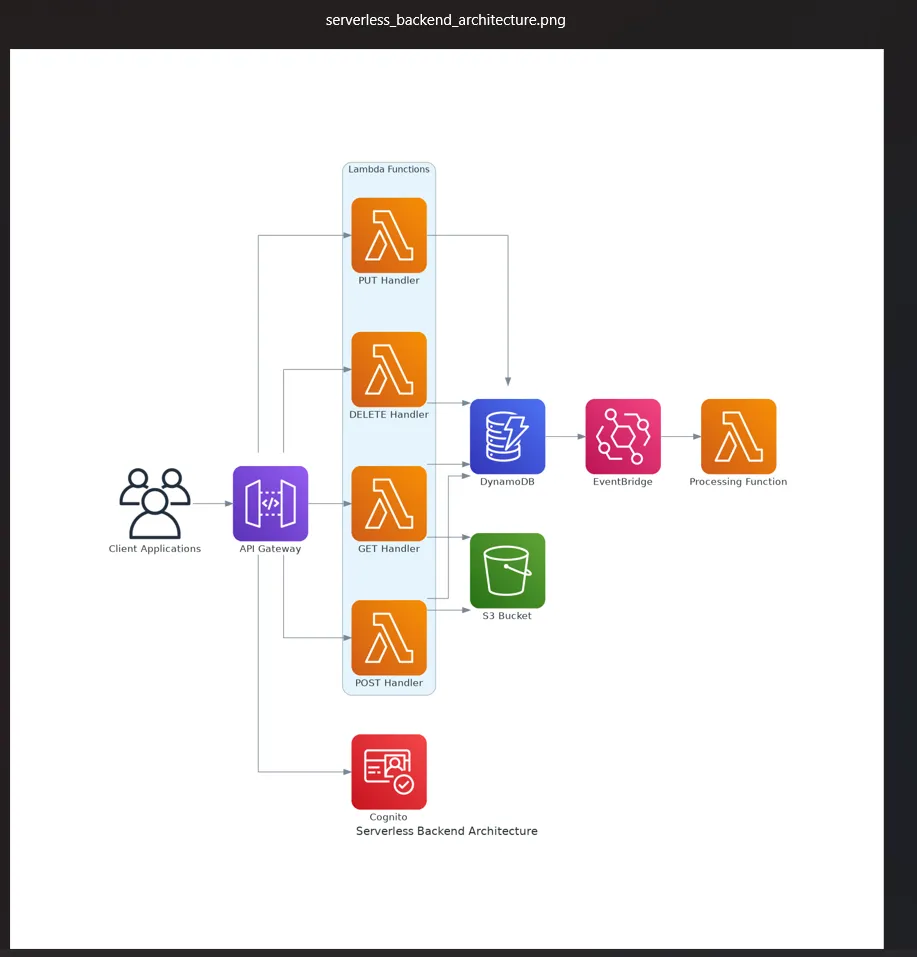
Step 3: Detailed Prompt
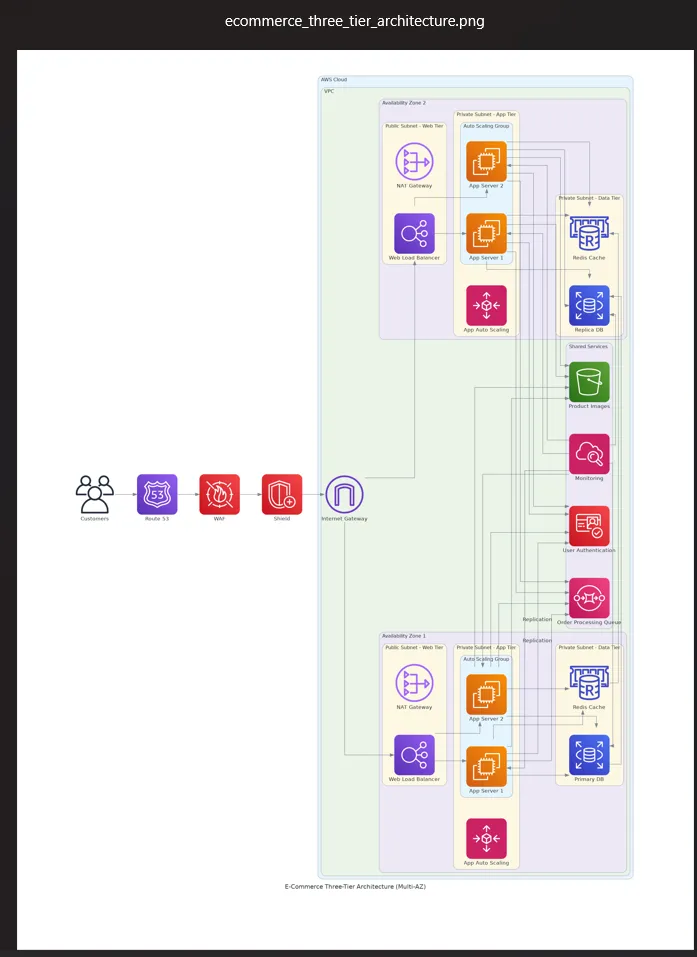
Let's give another detailed prompt for creating 3-tier architecture diagram:
generate an aws architecture diagram for serverless backend with API Gateway, Lambda, DynamoDB, and S3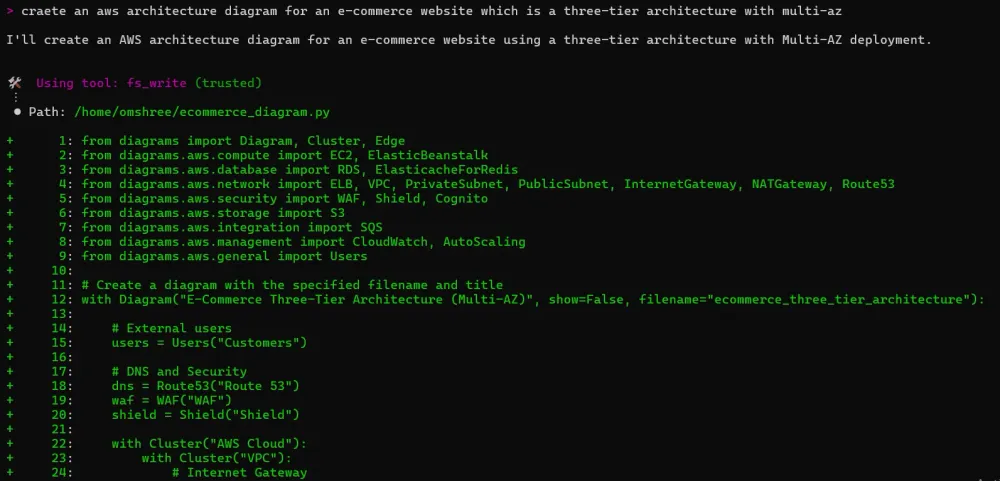
Behind The Scene
Architecture diagrams are created within minutes using AWS Diagram MCP Server. But are you also eager to know what happens behind the scene? (Please zoom the image for clarity)
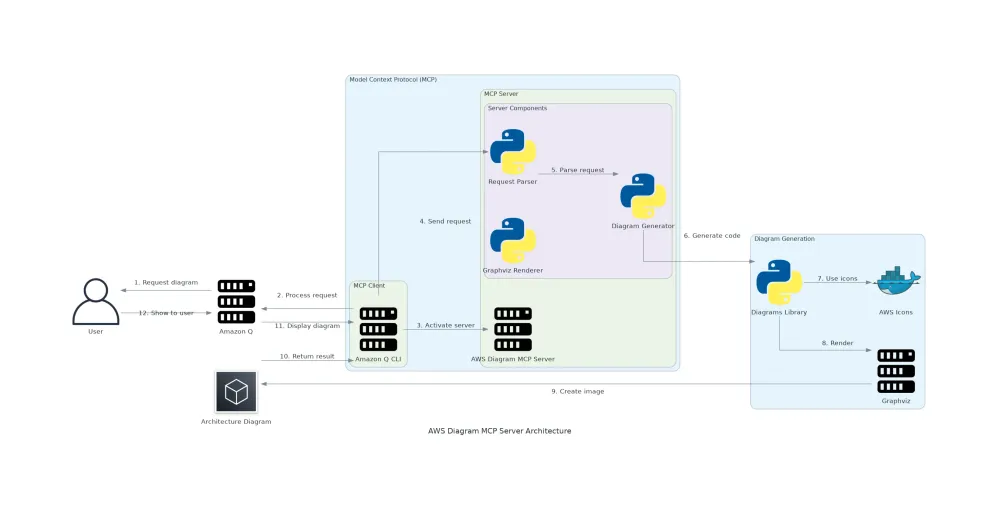
Component Architecture
1. MCP Client (Amazon Q):
- Receives user requests for diagram creation
- Formulates structured requests to the MCP server
- Handles authentication and authorization
2. MCP Server (AWS Diagram MCP Server):
- Listens on a local port for requests from Amazon Q
- Processes natural language instructions into diagram specifications
- Translates high-level concepts into specific AWS resource representations
3. Diagram Generation Engine:
- Uses the Python 'diagrams' library (built on Graphviz)
- Constructs a directed graph representation of AWS resources
- Handles layout algorithms to position elements optimally
Request Processing Flow
- User asks Amazon Q to create an AWS architecture diagram
- Amazon Q identifies this as a diagram request and activates the MCP server
- The server starts in the background using the configuration from ~/aws/amazonq/mcp.json
- Amazon Q sends a structured request with diagram specifications
- The MCP server parses the request and converts it to Python code using the diagrams library
- The code defines nodes (AWS services) and edges (relationships between services)
- Graphviz renders the diagram as a PNG image
- The image path is returned to Amazon Q, which presents it to the user
Technical Implementation Details
- Language: Primarily Python, with the core diagram generation using the diagrams library
- Dependencies:
- Graphviz for rendering
- boto3 for AWS service information (when applicable)
- pydantic for data validation
- trio for asynchronous operations
- Communication Protocol: JSON-based messages over HTTP
- Diagram Representation: Internal directed graph data structure that maps to visual elements
Tips and Tricks
While the system works well, here are some practical tips and precautions for using MCP and Amazon Q CLI effectively:
1. Use Clear, Declarative Prompts
Keep prompts specific and concise. Instead of “make a complex backend,” use “create a serverless backend with API Gateway, Lambda, DynamoDB, and S3.”
2. Iterate in Small Steps
Complex diagrams may exceed prompt context limits or generate ambiguous structures. Start with smaller systems and incrementally build.
3. Use Version Control for MCP Agents
Even though Q CLI auto-generates the server, treat it like a real codebase: Store in Git, write a short README explaining its use, track changes to prompt templates
Limitations and Potential Improvements
Despite the power of MCP, there are a few current limitations:
- Limited control over layout: AI-generated syntax can sometimes result in cluttered diagrams, especially for complex architectures.
- No visual customization: There is no support (yet) for customizing themes, icon sets, or layout styles unless you extend the agent manually.
- More Accuracy: There is a potential for more accurate layout inference for complex multi-tier architectures
Conclusion
The integration of MCP into Amazon Q CLI represents a major step forward in enabling developers to automate infrastructure documentation and visualization. By leveraging prompt-driven interfaces and specialized agents, developers can go from idea to diagram in minutes—without drawing tools or manual formatting.
Whether you're a DevOps engineer documenting your CI/CD pipeline, a solutions architect preparing for an AWS Well-Architected Review, or a developer learning cloud patterns - this approach can dramatically speed up your workflow.
Have Questions?
If you’re experimenting with Amazon Q CLI and MCP for infrastructure automation or architecture diagrams, I’d be happy to connect. Feel free to reach out with questions, implementation stories, or ideas for extending these tools.
Let’s continue building better, faster, and smarter infrastructure workflows. Let's #BuildOnAWS !
References:
Github Link: https://github.com/awslabs/mcp
AWS Diagram MCP Server: https://awslabs.github.io/mcp/servers/aws-diagram-mcp-server/
Enjoyed reading this content? Let the author know!
Your likes, comments, shares, and saves help creators reach more builders.

Loading recommendations
Loading article