

Setting Up Claude Code in VS Code
Super quick setup guide for Claude Code integration with VS Code, covering installation, keyboard shortcuts, configuration options, and troubleshooting steps.

Installation
- Run
claude updatein your terminal to ensure you have version > 1.0
- Open VS Code
- Open the integrated terminal in VS Code
- Run
claudein the terminal - the extension will auto-install

Usage
- Launch Claude interface: Cmd+Esc (Mac) or Ctrl+Esc (Windows/Linux)
- View and apply file diffs directly in editor
- Insert file references: Cmd+Option+K (Mac) or Alt+Ctrl+K (Windows/Linux)
- Selection context is automatically shared with Claude
- Diagnostic errors from the IDE are automatically shared with Claude
Shortcuts
- ! for bash mode
- ? for commands
- @ for file paths
- # to memorize information
- Double tap esc to undo
- Shift + tab to auto-accept edits
- Backslash (\) + Return (↵) for newline
Configuration
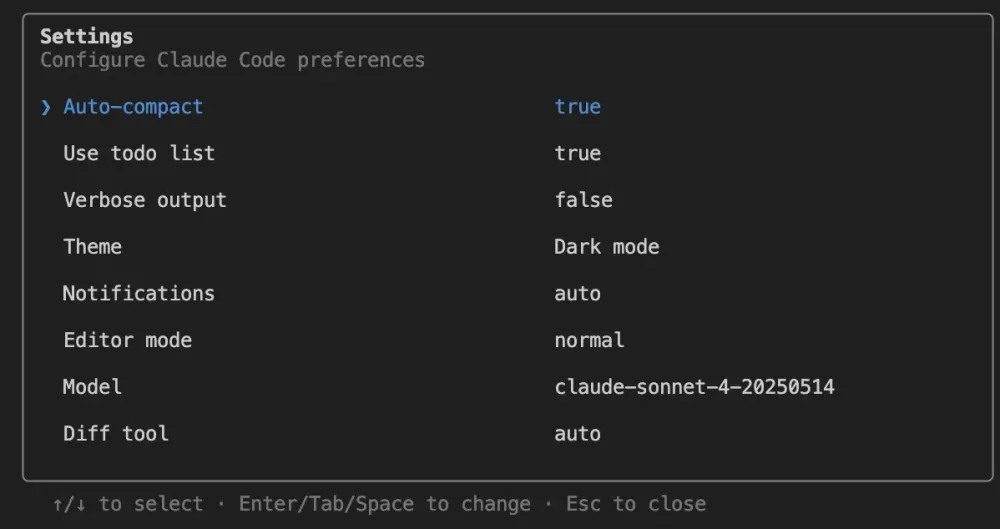
- Run `/config` in Claude Code to configure settings
- Set diff tool to `auto` for automatic IDE detection
- Claude Code will use the appropriate viewer based on your IDE
External Terminal Connection
If using Claude in an external terminal (not VS Code's integrated terminal):
- Use the
/idecommand after launching Claude Code
- Start Claude from the same directory as your VS Code project root
Troubleshooting
If the VS Code extension isn't installing:
- Ensure the `code` command is available in your PATH
- Use Cmd+Shift+P (Mac) or Ctrl+Shift+P (Windows/Linux) and search for "Shell Command: Install 'code' command in PATH"
- Check that VS Code has permission to install extensions
Documentation
Enjoyed reading this content? Let the author know!
Your likes, comments, shares, and saves help creators reach more builders.

Loading recommendations
Loading article