
Setting up Amazon ElastiCache Redis Cluster using AWS CDK
Leveraging Amazon Q Developer to implement a redis elasticache cluster using AWS CDK in Typescript

Welcome to another installment of Q-Bits , our regular series showcasing cool ways Amazon employees are leveraging Amazon Q Developer. In this article, we'll explore how Amazon Q Developer can assist with generating Amazon ElastiCache for Redis cluster using AWS CDK in Typescript.
Introduction
Amazon elasticache is a web service that makes it easy to set up, manage, and scale a distributed in-memory data store or cache environment in the cloud. It provides a high-performance, scalable, and cost-effective caching solution. Additionally, it helps remove the complexity associated with deploying and managing a distributed cache environment.
Today we will be leveraging Amazon Q developer integration with visual studio code to help us setup our own redis replication group with AWS CDK .
Project Setup using Amazon Q Developer in Visual Studio Code
We'll start by asking Amazon Q Developer, what we need to setup basic elastic cache.
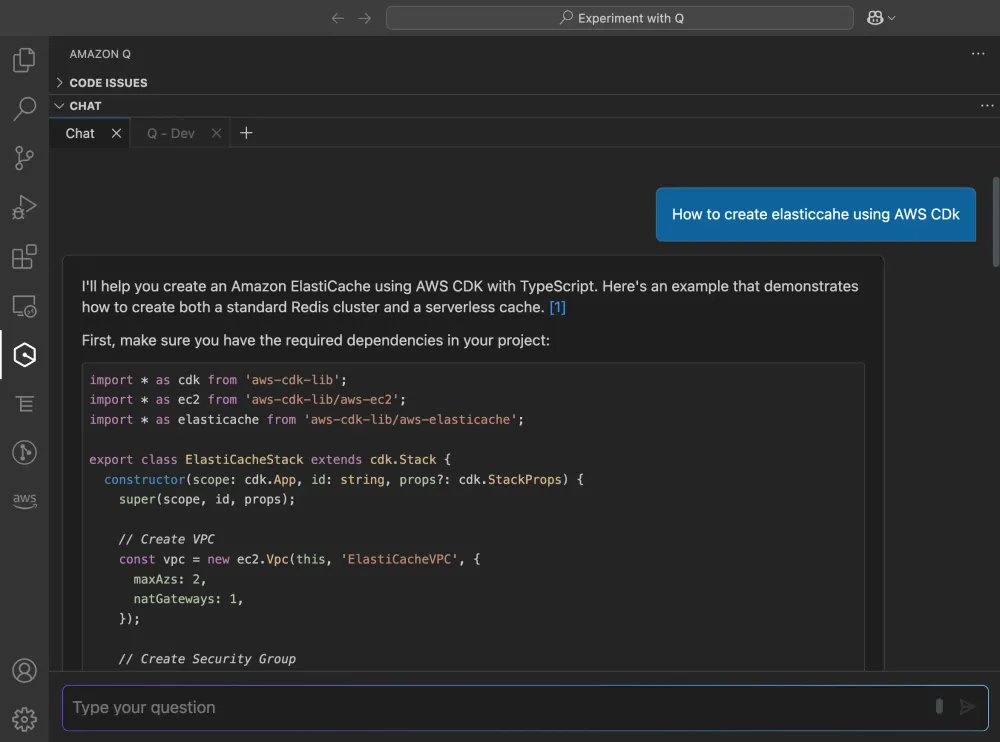
Amazon Q explains what we need to setup a basic ElastiCache cluster with primary node for write operations and one/multiple read replicas.
- Networking : VPC and Subnets
- Security: Security Groups
- Redis Cluster
Amazon Q developer agent gives us capabilities to create all the code necessary using the
/dev command.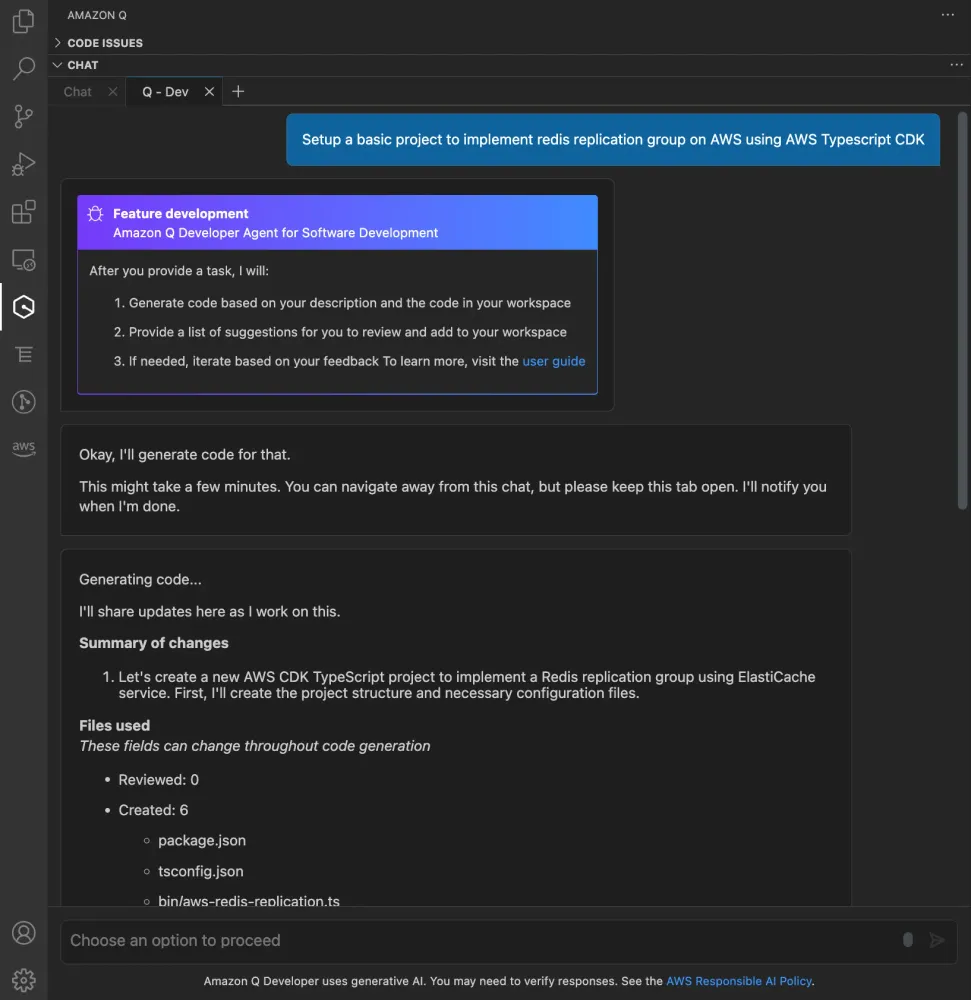
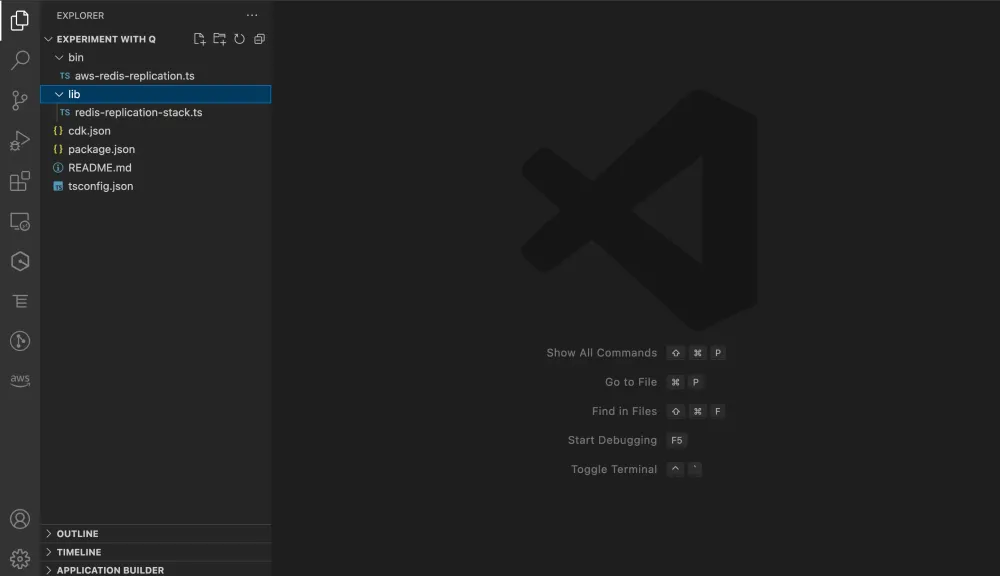
Amazon Q Developer creates the project structure along with the necessary files like
package.json, tsconfig.json, cdk.json and README.md files, it would then display the code suggestions and options to accept the changes or add onto additional changes. For the sake of this project, we will accept all the files provided by Amazon Q Developer to run the CDK.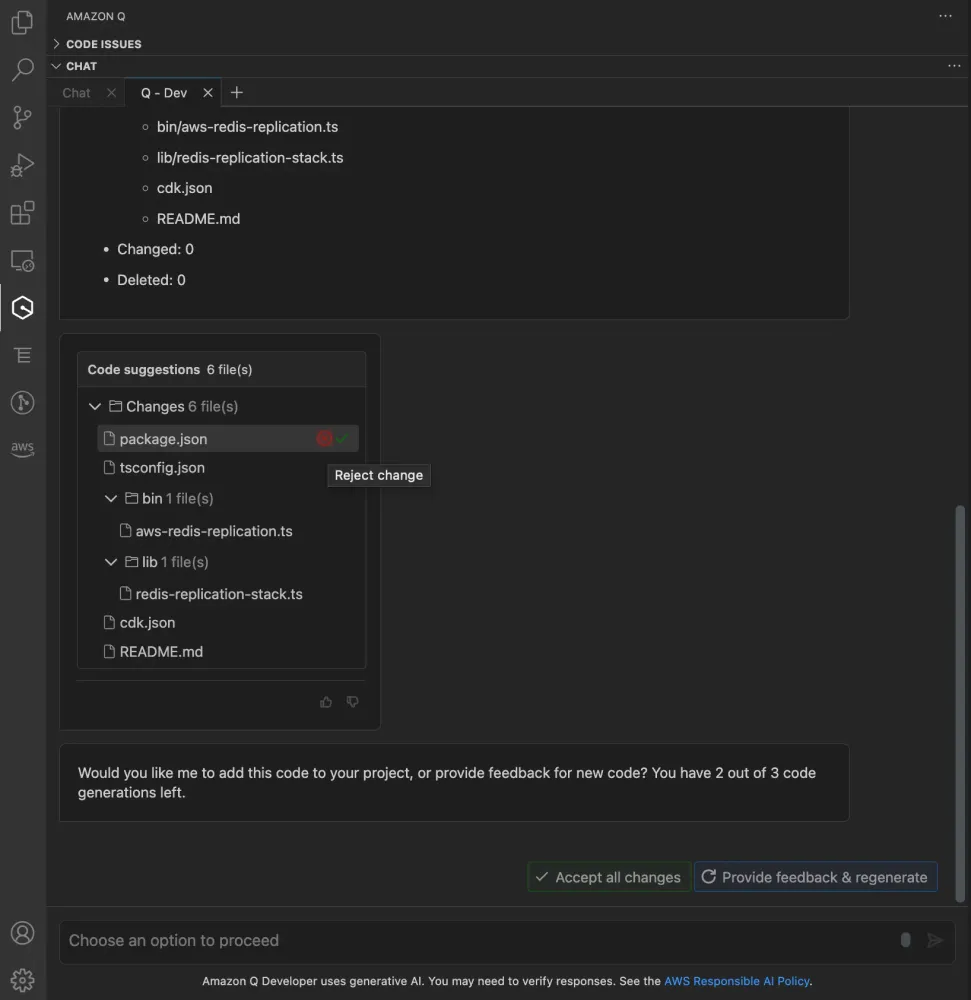
This is how the file structure will look after we accept the changes.
Prerequisites
Now, we will need to install aws cdk globally by running
- Run
npm install -g aws-cdk
To check if AWS CDK installation was successful
- Run
cdk --version
Since we are working on typescript CDK, we will need all the dependencies mentioned in
package.json file, to install the dependencies Run
npm i This will install all the dependencies.
Troubleshooting
If you get any errors during the process, jump to the Amazon Q chat window and ask Q, without leaving your code editor.
Understanding the Code Using Amazon Q Developer
Now that we have the code, let us try to use Amazon Q developer to understand the code and see what each part of the code does.
Let's first check the
lib > redis-replication-stack.ts file, we will select part of the code block, right click on Amazon Q option and click Explain.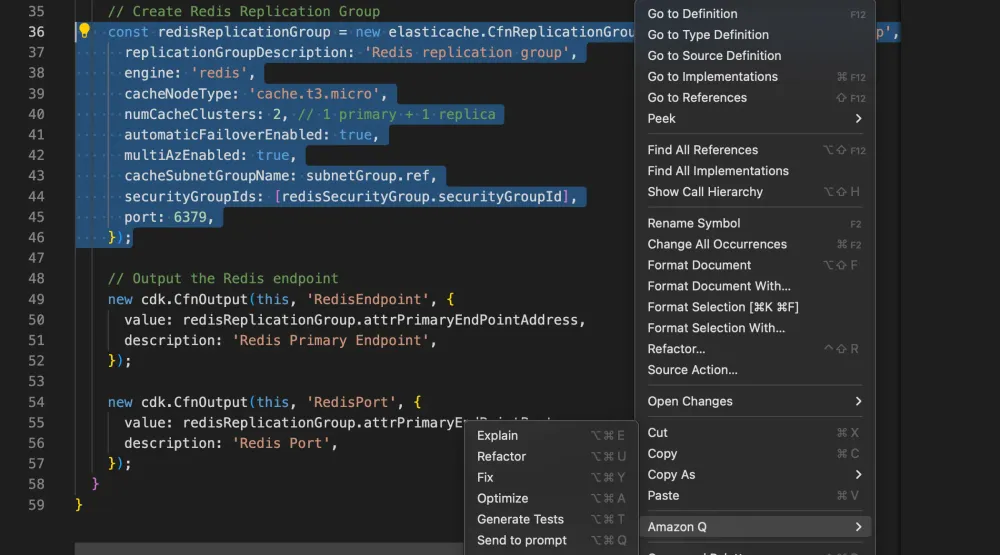
Amazon Q will open the chat window to explain the code, will break the code into parts and explain you the code.
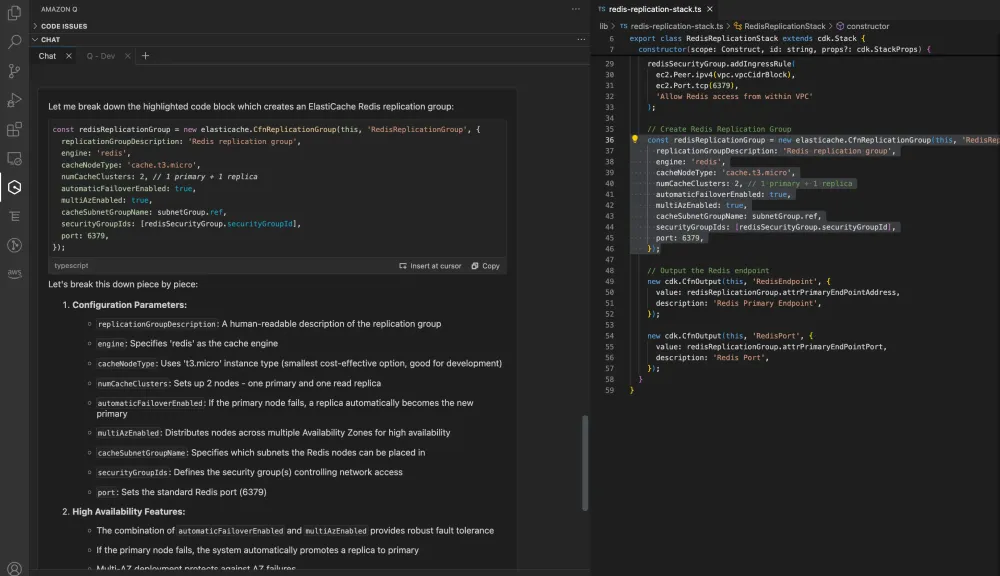
In our case, Amazon Q explains the High Availability function of having a primary as well as replica instance using simpler examples and also suggest follow up questions that might help in understanding performance and data consistency effects of having such setup.
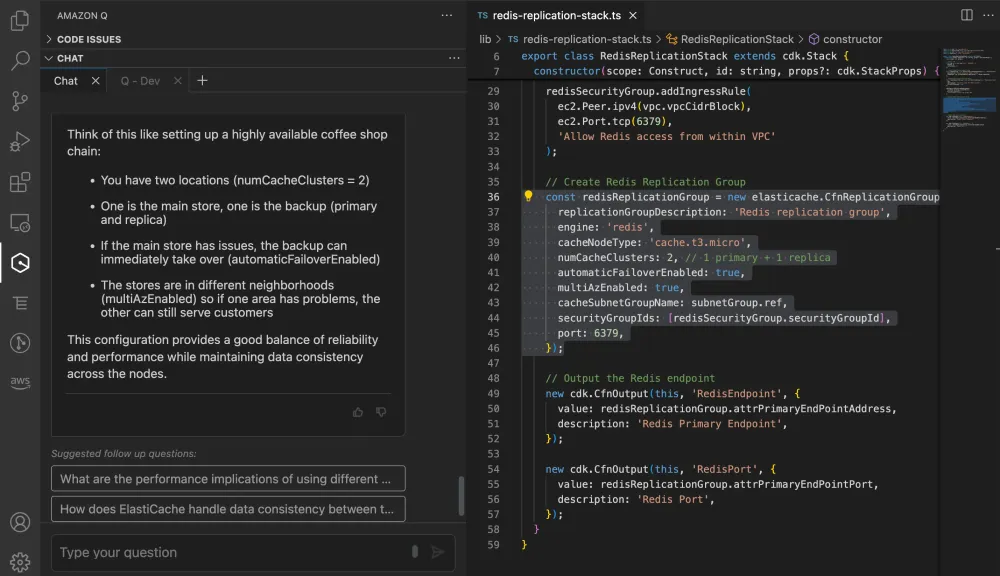
Amazon Q also suggests other questions that can help you understand the configuration better like
- What are the performance implications of using a larger cache node type in a Redis replication group?
- How does the network latency impact the performance of a Redis replication group with larger cache nodes?
- How does synchronous replication affect write performance in Redis replication groups?
- How does write performance vary between primary and replica nodes in a Redis replication group?
Try asking these questions to Amazon Q and know more!
Deployment Steps
To deploy this code and see if this runs correctly, open the terminal and run
cdk deploy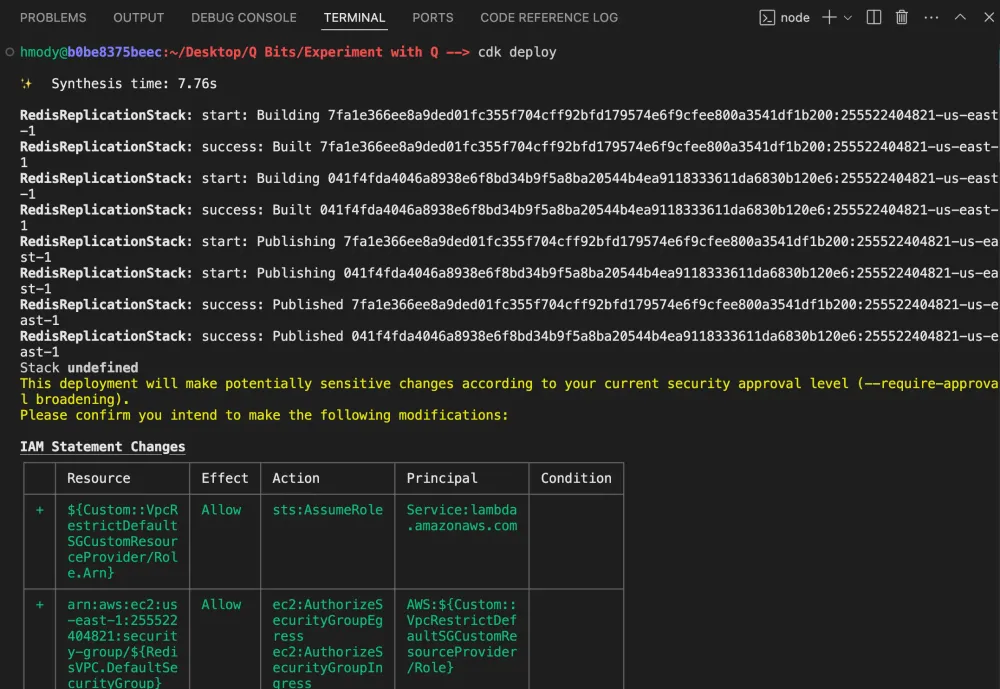
Note: Deployment typically takes approximately 15 minutes, you can monitor the progress of deployment through the Cloudformation tab in the AWS console
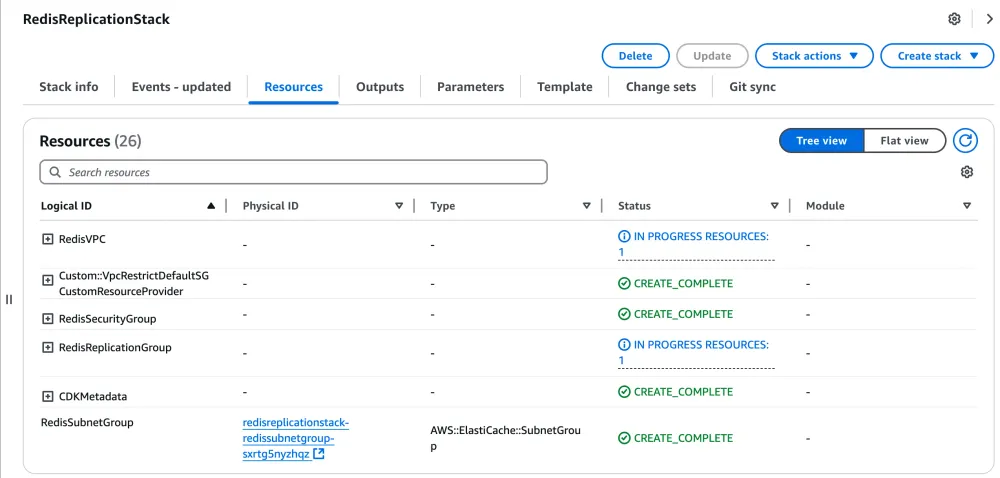
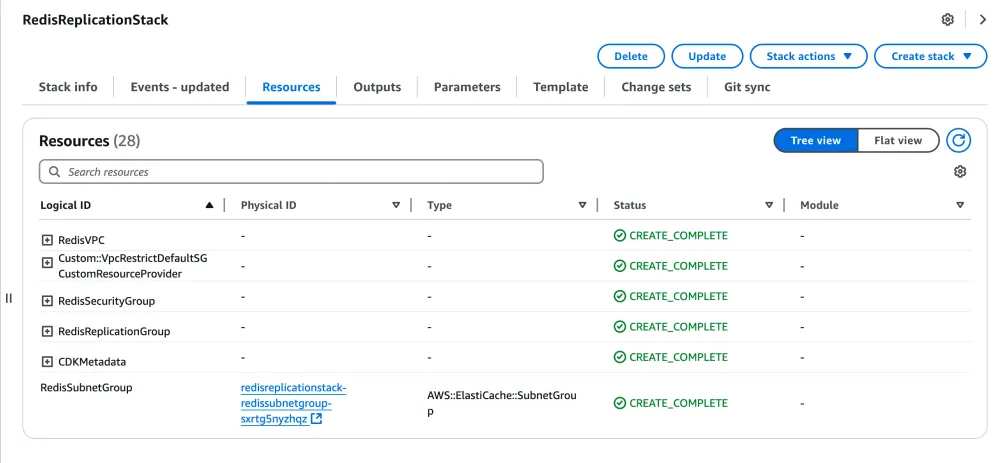
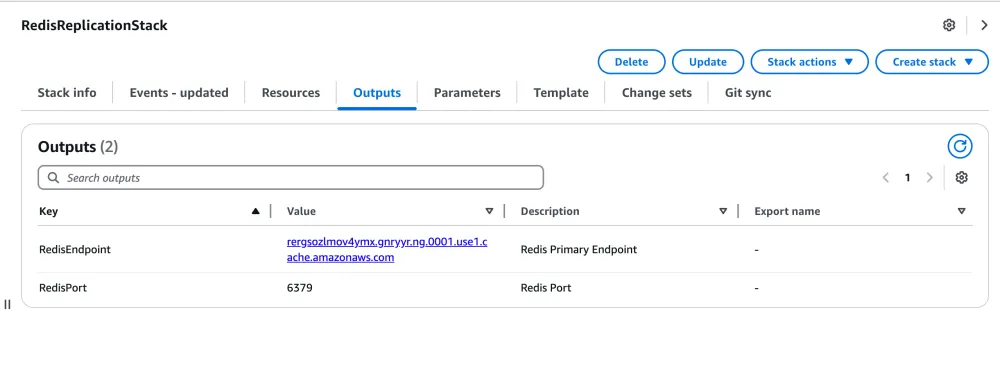
Once the deployment is complete you can check the resources and output tabs to find all the resource IDs as well as redis endpoint and port that you can use to connect your application
Cleaning up Resources
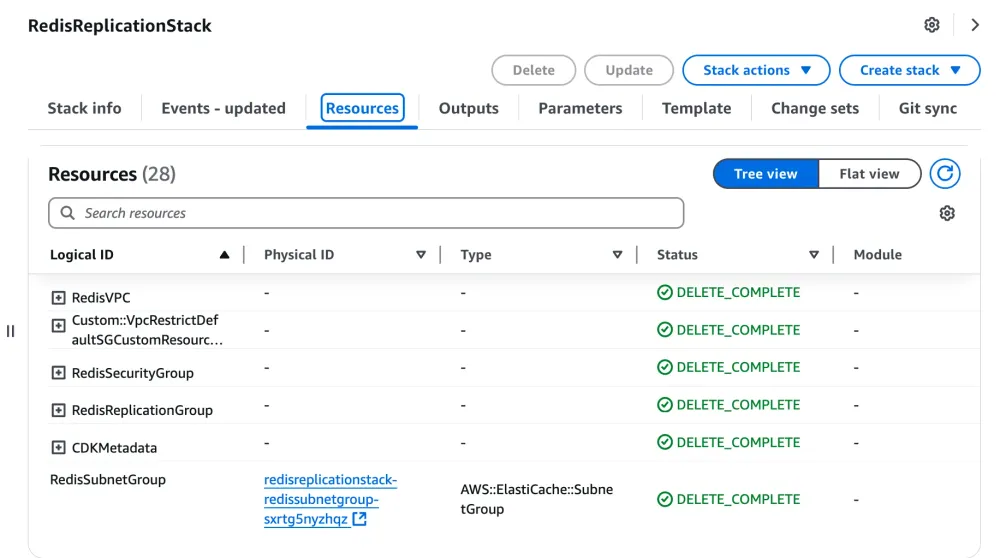
After completing the project, it is our responsibility to make sure that we destroy the resources so we do not incur additional charge, to do this, run the following command in your terminal:
cdk destroyMake sure that all the resources are deleted on the AWS console
Enjoyed reading this content? Let the author know!
Your likes, comments, shares, and saves help creators reach more builders.

Loading recommendations
Loading article