This is Part 1 of our series on how to deploy Deepseek on AWS. This post will focus on deploying on Amazon EC2. View Part 2 of our series on deploying to Amazon Sagemakerhere.
DeepSeek, a Chinese artificial intelligence (AI) company, has recently garnered significant attention for its innovative AI models that rival leading Western counterparts in performance while being more cost-effective. The company's latest release, launched on 20 Jan 2025, DeepSeek-R-1, matches the capabilities of OpenAI's o1 reasoning model across math, code, and reasoning tasks, but at less than 10% of the cost. Furthermore, DeepSeek-R-1 is completely open-source, enabling developers worldwide to access and implement the model on their own systems, disrupting the LLM landscape.
Hosting DeepSeek-R-1 on AWS offers unparalleled scalability and flexibility, ensuring you can seamlessly leverage its powerful AI capabilities for your specific use case - whether for research, business intelligence, or development projects.
This blog post will guide you through a step-by-step process for hosting DeepSeek-R-1, specifically the DeepSeek-R1-Distill-Qwen-14B model, on AWS infrastructure. This deployment will involve hosting Ollama and Ollama Web UI on an Amazon EC2 instance and exposing it using an Application Load Balancer, enabling you to harness DeepSeek-R-1 AI capabilities within the cloud.
Deploying DeepSeek-R-1 on EC2 GPU Instance with Ollama and Ollama Web UI
Create dependencies for the EC2 instance (IAM Instance Profile)
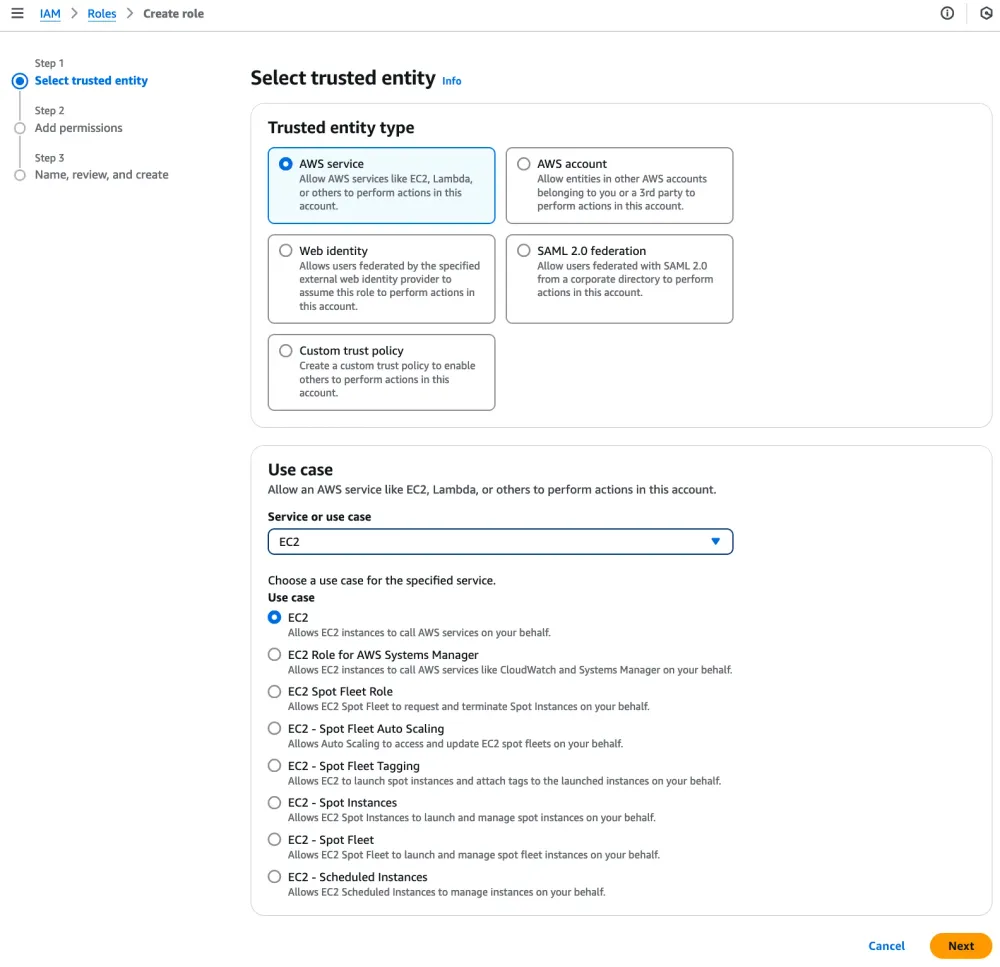
In the AWS Management Console, navigate to the IAM page and click Create Role. Select an AWS Service as the trusted entity type, with EC2 as the use case.
Note: The steps involve using permissive IAM managed policies. This is meant for simplicity in the demonstration within our sandbox account. In any real workload, even with non-production, please adhere to theleast privilegeprinciple.
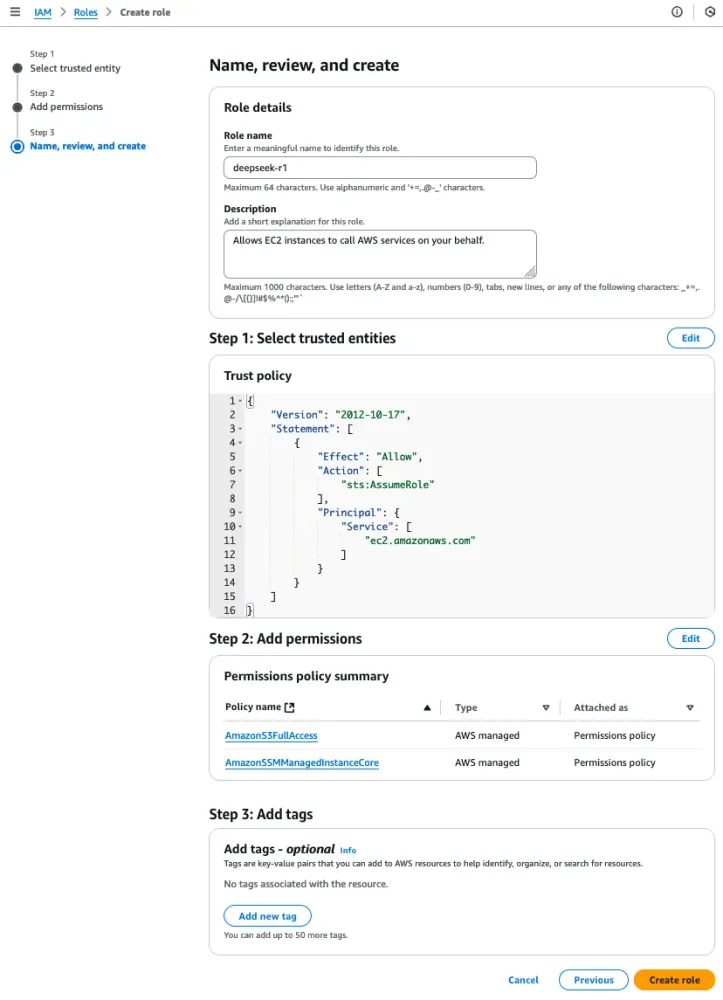
Attach the two managed policies AmazonS3FullAccess and AmazonSSMManagedInstanceCore to the deepseek-r1 role and hit Create Role.
Set up the EC2 instance
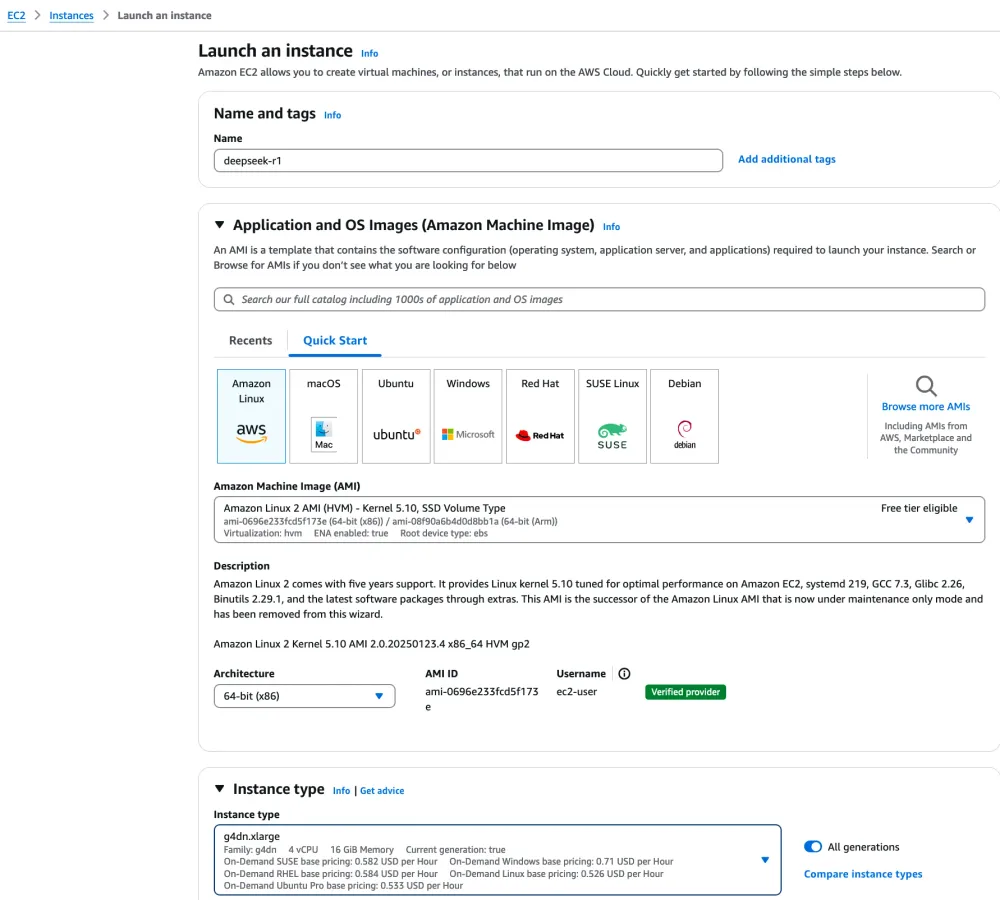
In the AWS Management Console, navigate to the EC2 page and launch an EC2 instance with the following specifications:
AMI: Amazon Linux 2 AMI
Instance Type: g4dn.xlarge
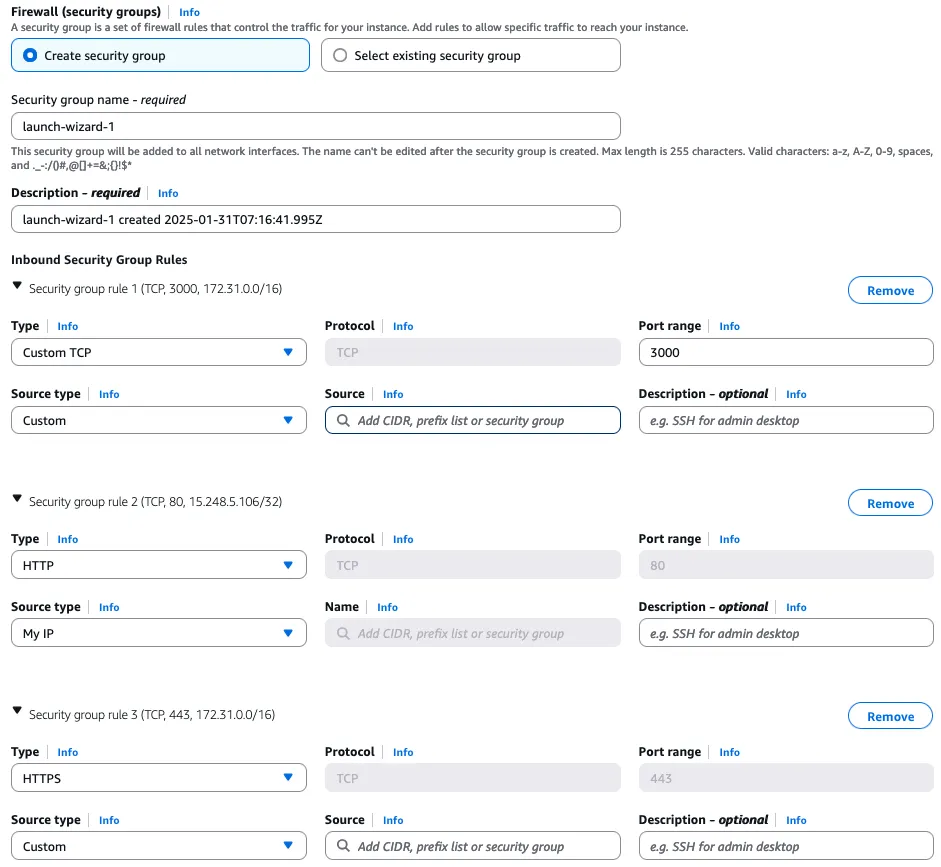
Network Settings: Click on Edit and use the default VPC settings. Create a new security group with the following inbound rules 1. HTTP traffic from a trusted IP range (In this example, we will allow HTTP traffic from My IP), 2. TCP traffic on port 3000 from the VPC CIDR range (This is required for the Application Load Balancer deployed in the later steps to forward traffic to the EC2 instance) and 3. HTTPS traffic from the VPC CIDR range.
Configure Storage: 100GiB gp3
Advanced Details: IAM Instance profile deepseek-r1
Connect to EC2 Instance using SSM
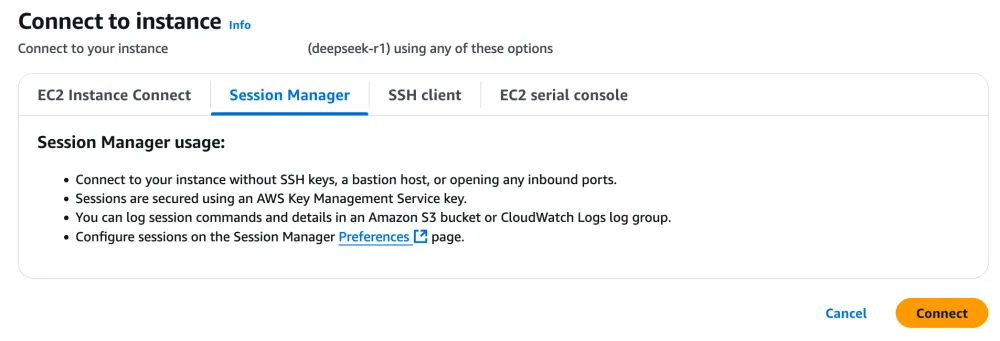
Select the deepseek-r1 EC2 instance after it's been initiated, and click on connect under the Session Manager tab.
In the upcoming steps, use the terminal established by SSM to perform the deployment.
Install and configure NVIDIA drivers on EC2 Instance
Run the following commands in the session manager terminal to install the NVIDIA GRID drivers on the g4dn EC2 instance.
Following the on-screen instructions to complete the driver installation process, selecting the default options for configuration. There might be a few warnings that show up, acknowledge them and continue with the setup. Once the installation is complete, verify the drivers are correctly installed and disable GSP.
1
2
3
nvidia-smi -q | head
sudo touch /etc/modprobe.d/nvidia.conf
echo "options nvidia NVreg_EnableGpuFirmware=0" | sudo tee --append /etc/modprobe.d/nvidia.conf
Install and configure Docker on EC2 Instance
Run the following commands in the session manager terminal to install and start Docker on the EC2 Instance.
Configure an Application Load Balancer to access the DeepSeek-R-1 EC2 Instance via a web browser
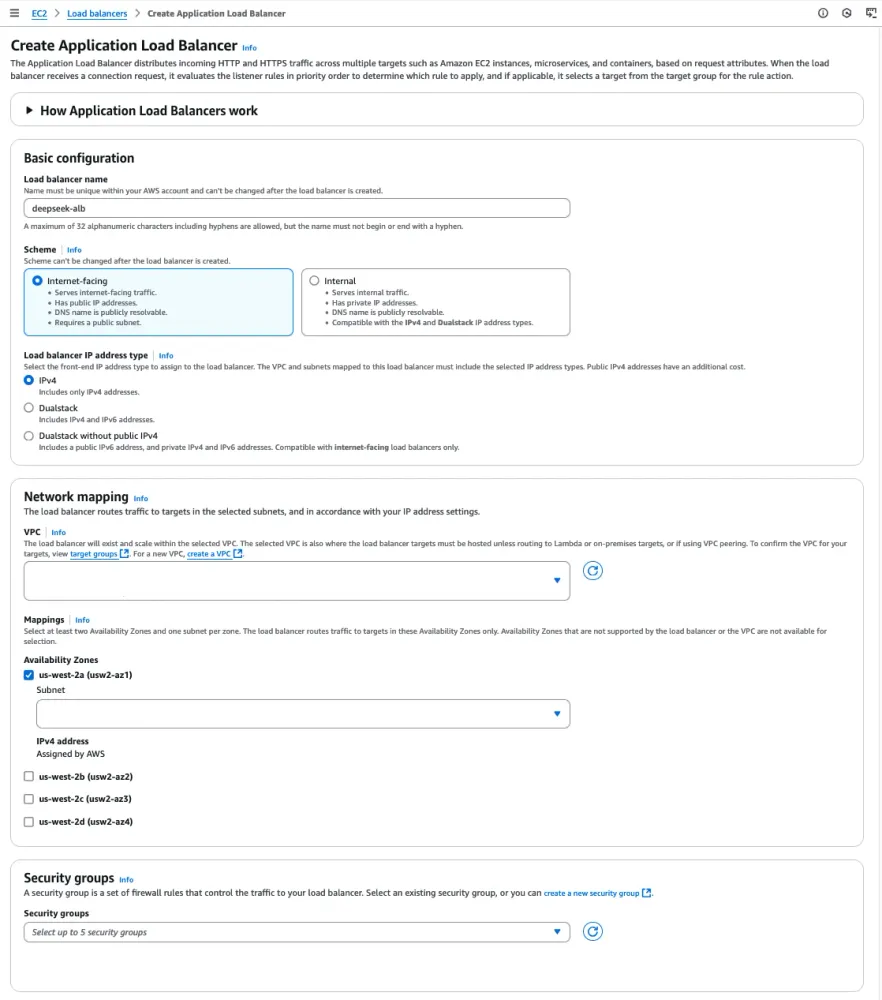
In the AWS Management Console, navigate to the EC2 page and select Load Balancers on the left navigation pane. Select Application Load Balancer (ALB) as the load balancer type, and click Create.
Use the following specifications for the ALB:
Scheme: Internet-facing
Load balancer IP address type: IPv4
Network Settings: Select the default VPC settings and the availability zone which your EC2 Instance is deployed in
Security Groups: Select the security group created during the EC2 configuration step
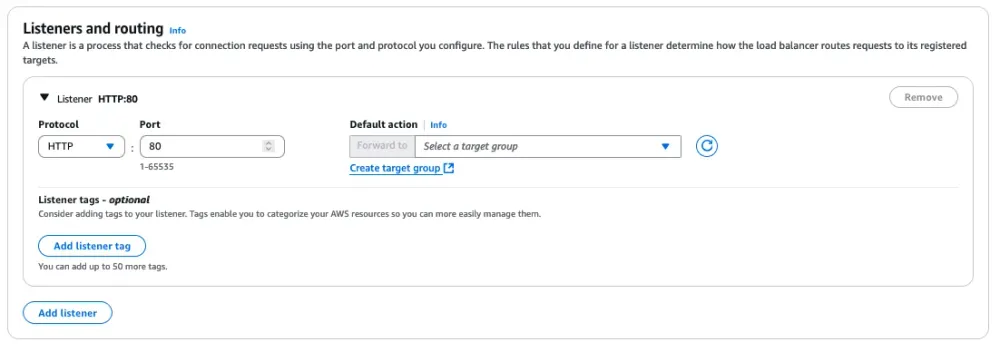
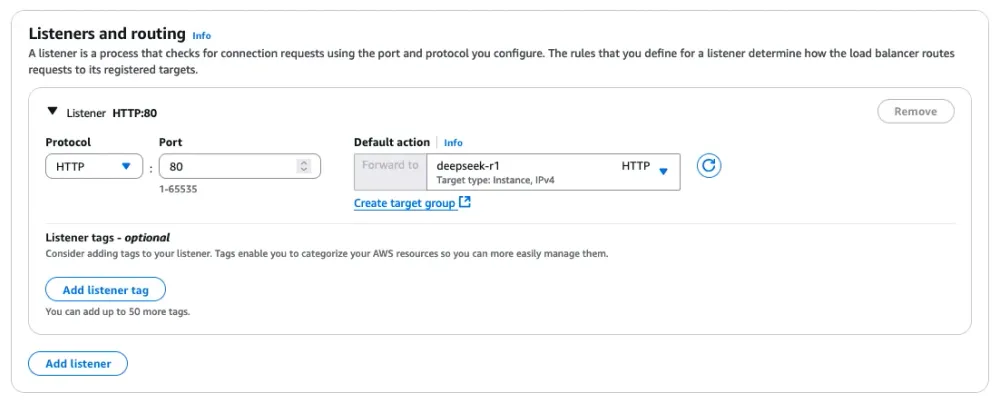
Under Listeners and routing, use the default HTTP:80 setting and click on Create target group.
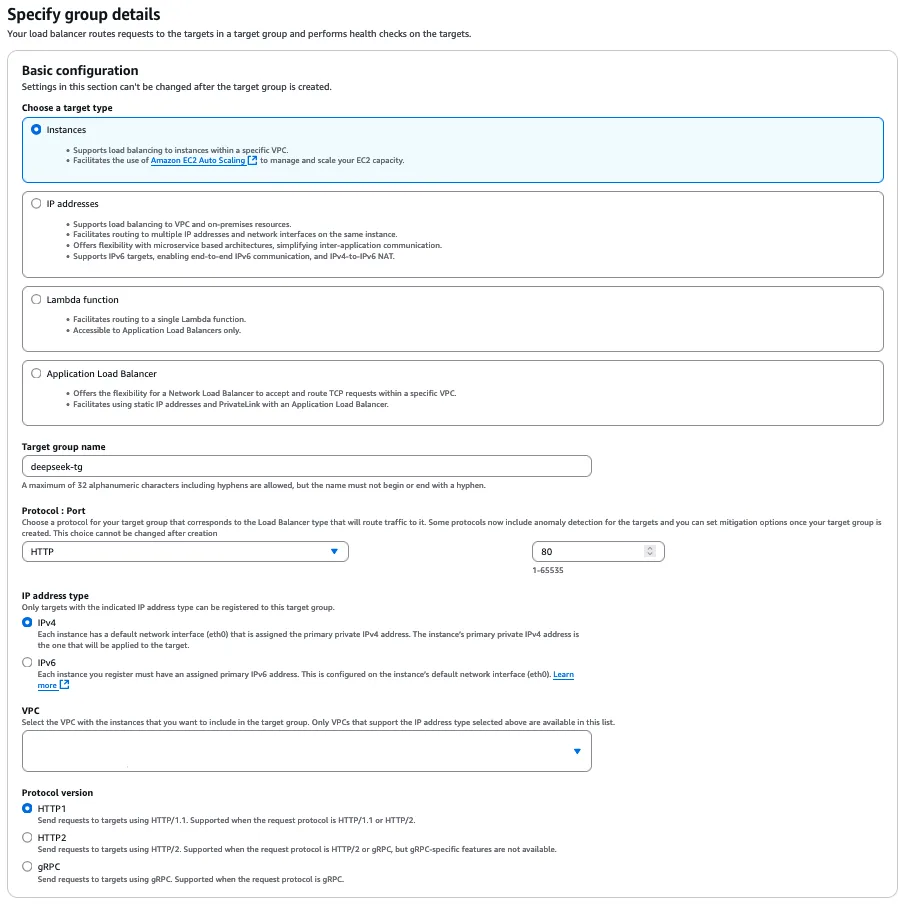
Specify Instances as the target type, name the target group deepseek-tg and click Next.
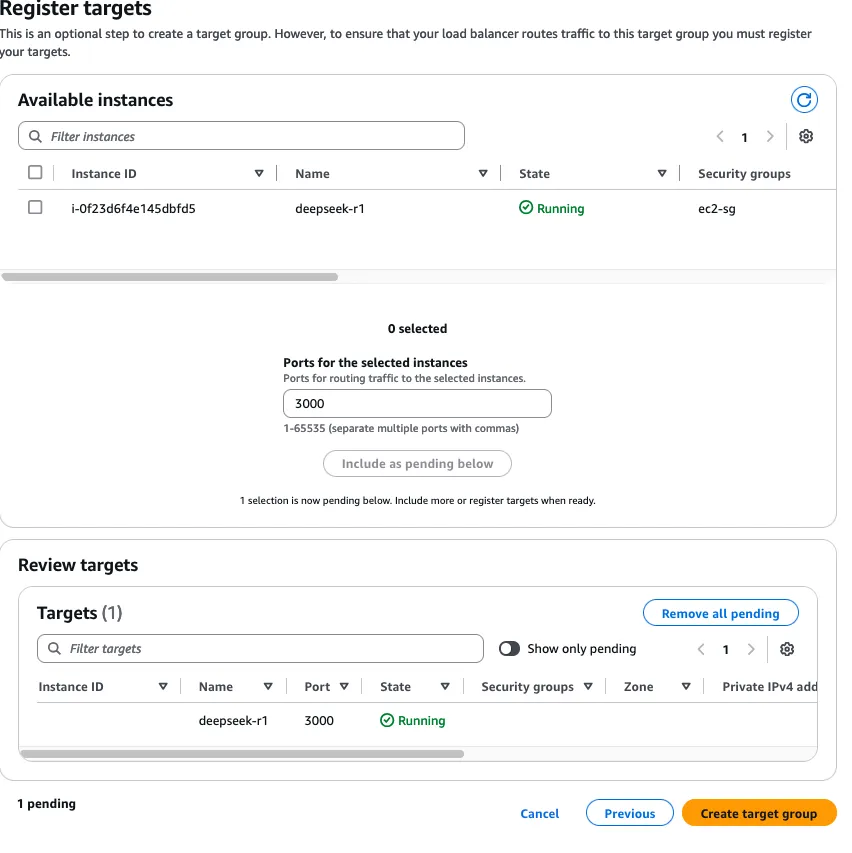
Register the deepseek-r1 instance as the target, specify port 3000 and click Include as pending below. Then, click Create Target Group.
Finally, navigate back to the Application Load Balancer creation page and select the deepseek-r1target group. Then, scroll down and click on Create Load Balancer.
Accessing DeekSeek-R-1 on Ollama Web UI via the ALB DNS
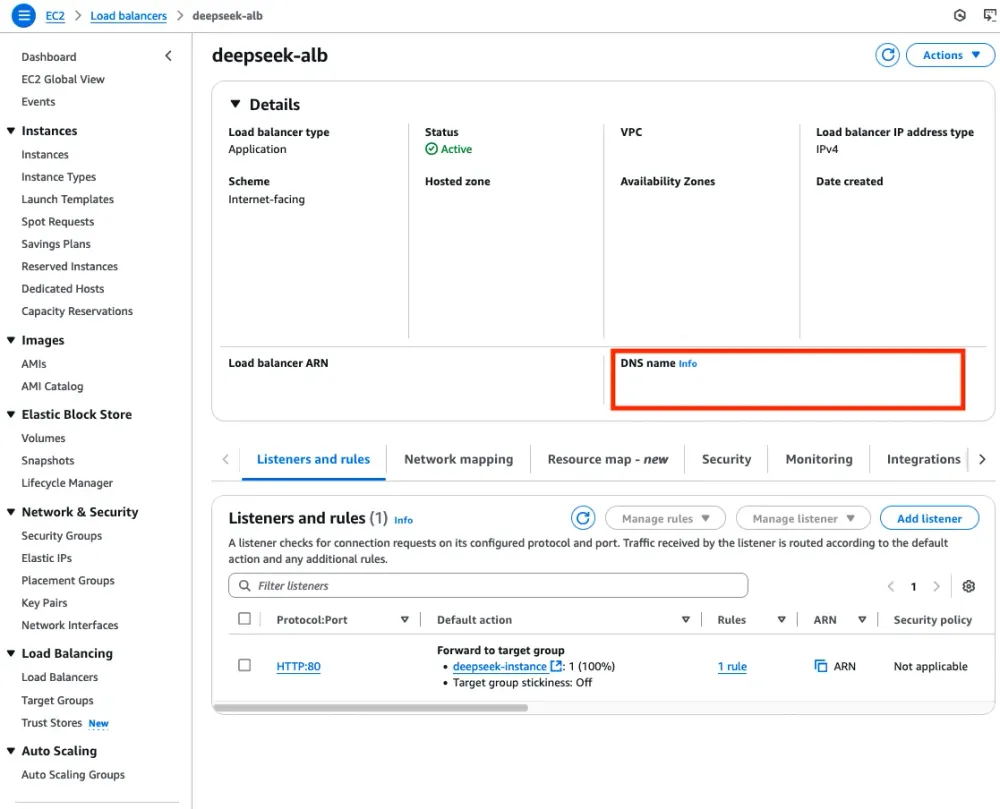
In the AWS Management Console, navigate to the EC2 page and select Load Balancers on the left navigation pane. Select the deepseek-alb created in the previous step and retrieve the DNS name.
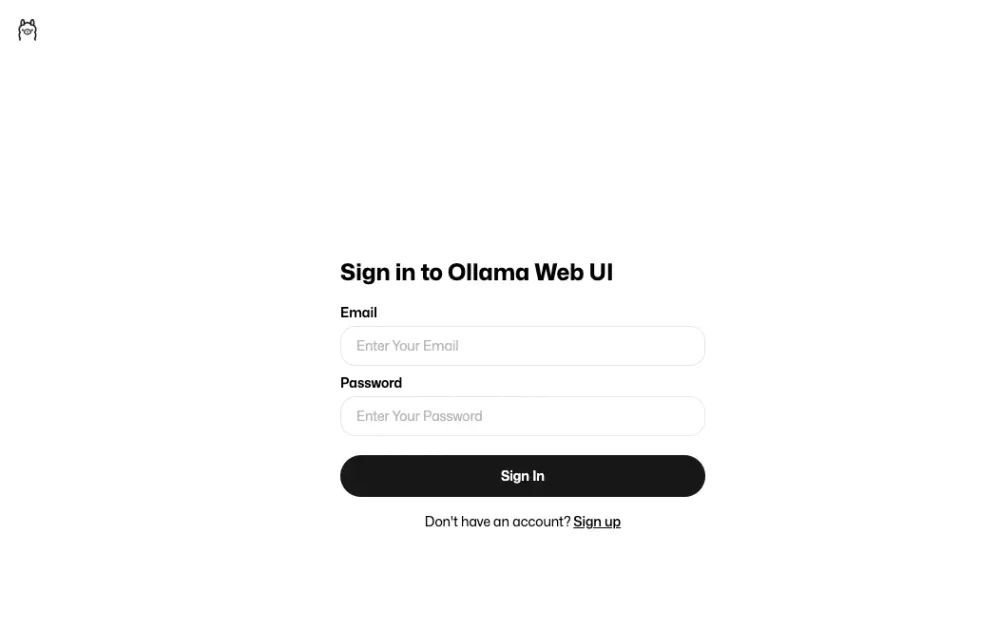
Use a web browser of your choice to access the ALB DNS. You will be greeted by a sign up page:
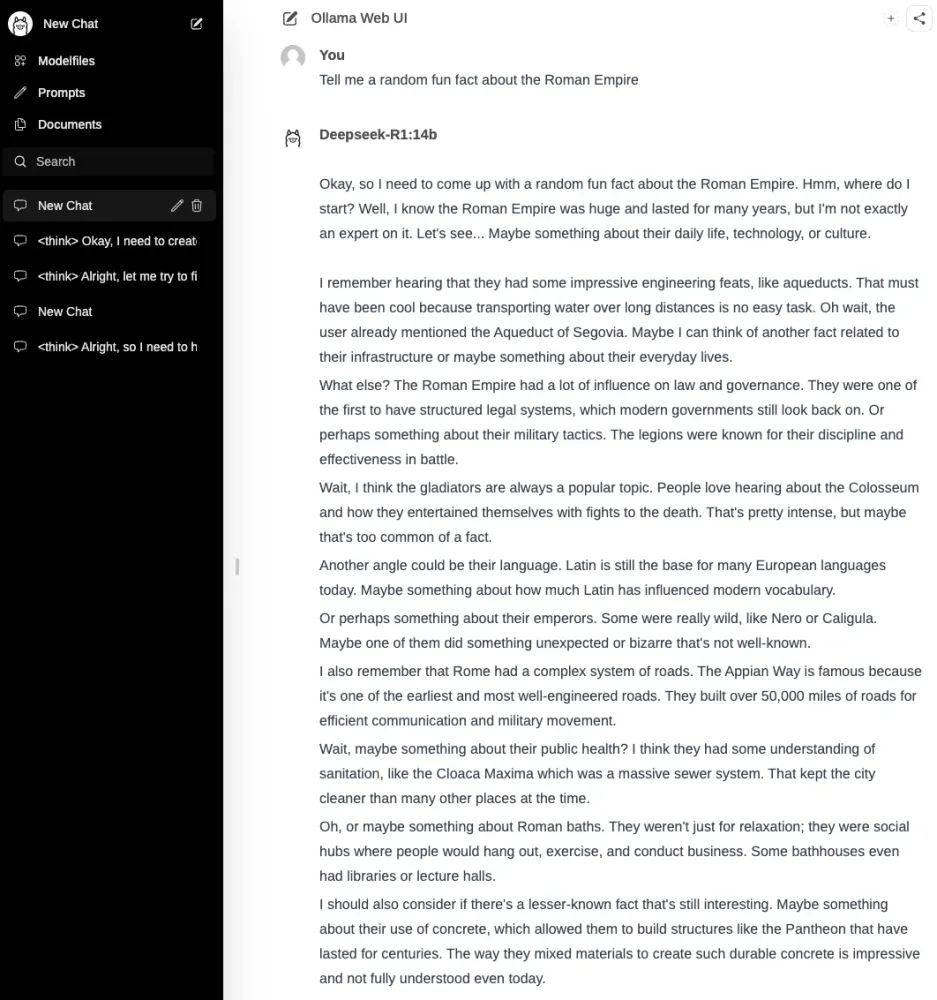
Sign up with an email and password of your choice, and you'd be ready to explore DeepSeek-R1-Distill-Qwen-14B hosted on Amazon EC2 with Ollama and Ollama Web UI!
Conclusion and further reading
DeepSeek-R1 and DeepSeek-R1 Distill models have gained popularity due to their reasoning capability. While DeepSeek-R1 Distill models can be deployed on GPU or AI chip for potential best latency and throughput, not all use cases require this level of performance. Some use cases can have better price-performance when the models are hosted on CPU. For getting started on deploying DeepSeek-R1 Distill models with CPU on EC2, please refer to this blog post.
Germaine is a Startup Solutions Architect in the AWS ASEAN Startup team covering Singapore Startup customers. She is an advocate for helping customers modernise their cloud workloads and improving their security stature through architecture reviews.
Jarrett Yeo - Associate Cloud Architect, AWS
Jarrett Yeo Shan Wei is a Delivery Consultant in the AWS Professional Services team covering the Public Sector across ASEAN and is an advocate for helping customers modernize and migrate into the cloud. He has attained five AWS certifications, and has also published a research paper on gradient boosting machine ensembles in the 8th International Conference on AI. In his free time, Jarrett focuses on and contributes to the generative AI scene at AWS.





Loading article