
Adding Amazon Q Developer to JetBrains IDEs
Amazon Q Developer is now available in all JetBrains IDEs, and this article will teach you how to install, configure, and use it inside your favorite tool.

If you have not heard about it before - Amazon Q is a generative AI-powered AWS expert with two capabilities: Amazon Q Business and Amazon Q Developer. It is also integrated with other AWS services, such as Amazon Connect or Amazon QuickSight. This assistant is available wherever you need it - in your IDE, the AWS Console, AWS Documentation, or Slack.
Speaking specifically about software development (and as the name suggests), Amazon Q Developer is designed to support you across all phases of the software development life cycle (SDLC). In this article, I would like to present how to leverage its full potential within your favorite integrated development environment (IDE) from the JetBrains family.
Why Amazon Q Developer?
It is estimated that today, more than 70% of developer time is spent on mundane or undifferentiated activities that slow down creativity and innovation. Amazon Q Developer reimagines the experience across your daily development tasks, allowing you to offload time-consuming, manual tasks - from coding, testing, and upgrading to troubleshooting and optimizing your AWS resources. As a result, it makes it faster and easier for developers to build, secure, manage, and optimize cloud-based applications.
The separation between two Amazon Q capabilities is also reflected in pricing plans , but - as was the case for Amazon CodeWhisperer before - Amazon Q Developer code generation and expert guidance on AWS is free for all individuals (it is called a free tier where no AWS account is required).
You may ask: wait, you are right - what about Amazon CodeWhisperer? 🤔
To avoid confusion, we are merging Amazon CodeWhisperer into Amazon Q Developer, so all of the functionality that CodeWhisperer provides is now powering Q Developer.
It's time to play!
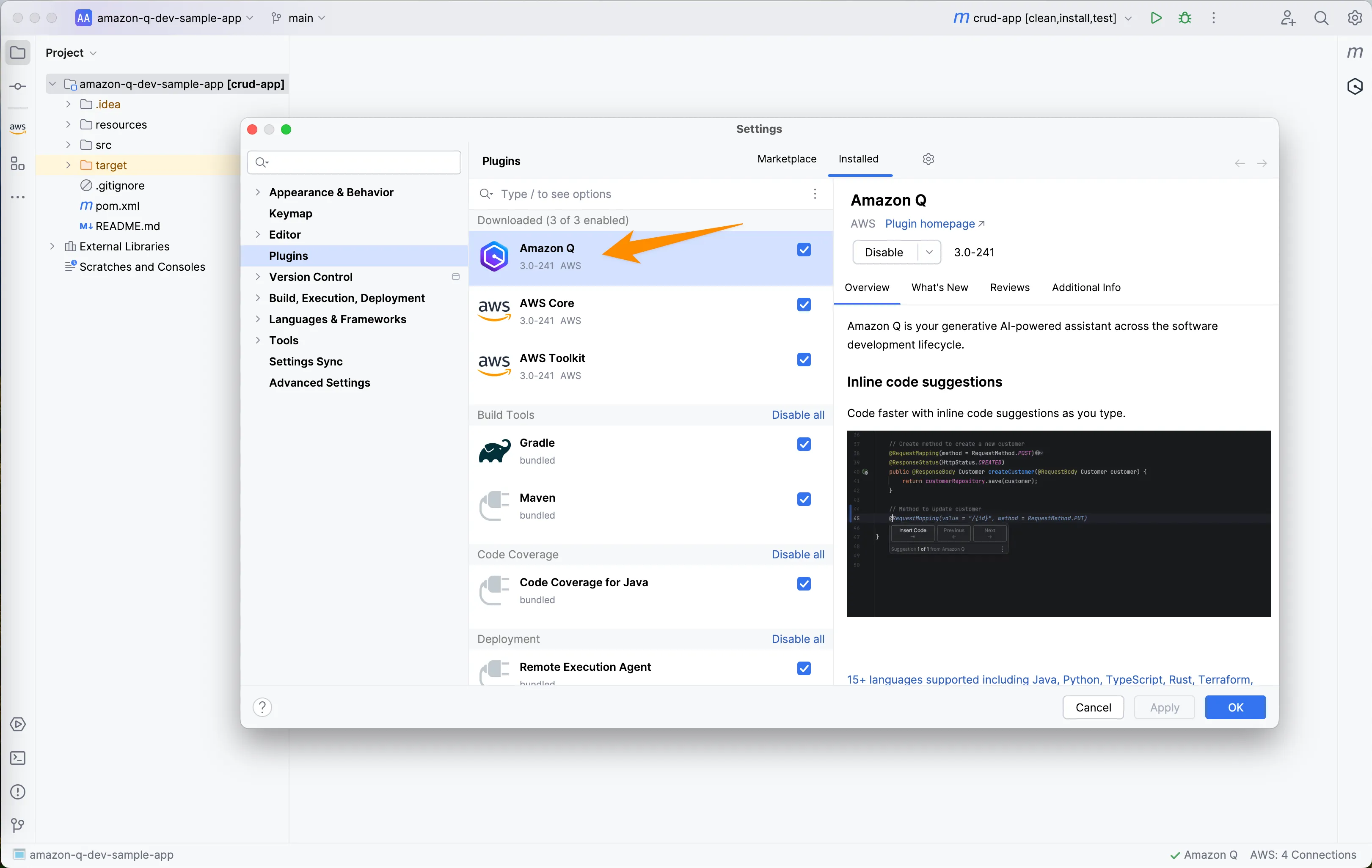
So, first things first: Amazon Q is now a standalone plugin - and you can find it here , in the official JetBrains marketplace. Installation is no different than any plugin you install in JetBrains - so you can find it in the dialog window after heading to
Settings -> Plugins . If you have previously used the AWS Toolkit with Amazon CodeWhisperer, remember to update the toolkit separately to the newest available version!
What JetBrains IDEs are supported?
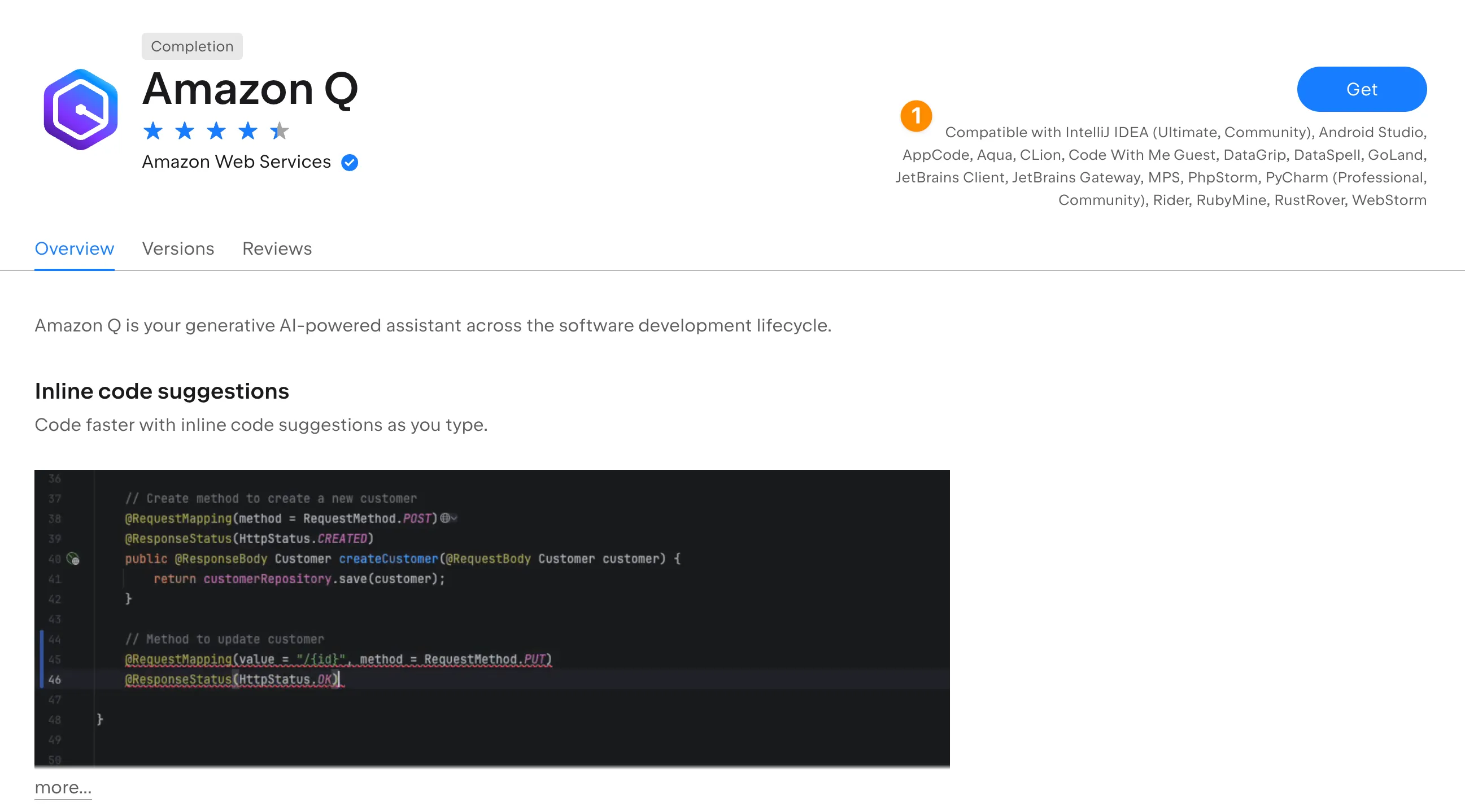
That's a great question — and there are no restrictions! The standalone plugin is supported in all JetBrains IDEs, including community (free to use) versions for IntelliJ and PyCharm .
That being said - please keep in mind that not all features are available in all programming languages (e.g., Amazon Q Developer Agent for code transformation supports only Java at the moment), and not all languages are equally supported at the moment. You can review the list of 15+ languages supported, including Java, Python, TypeScript, Rust, Terraform, AWS Cloudformation, and more .
After the successful installation, you can move forward with the configuration explained below.
How do you configure the plugin?
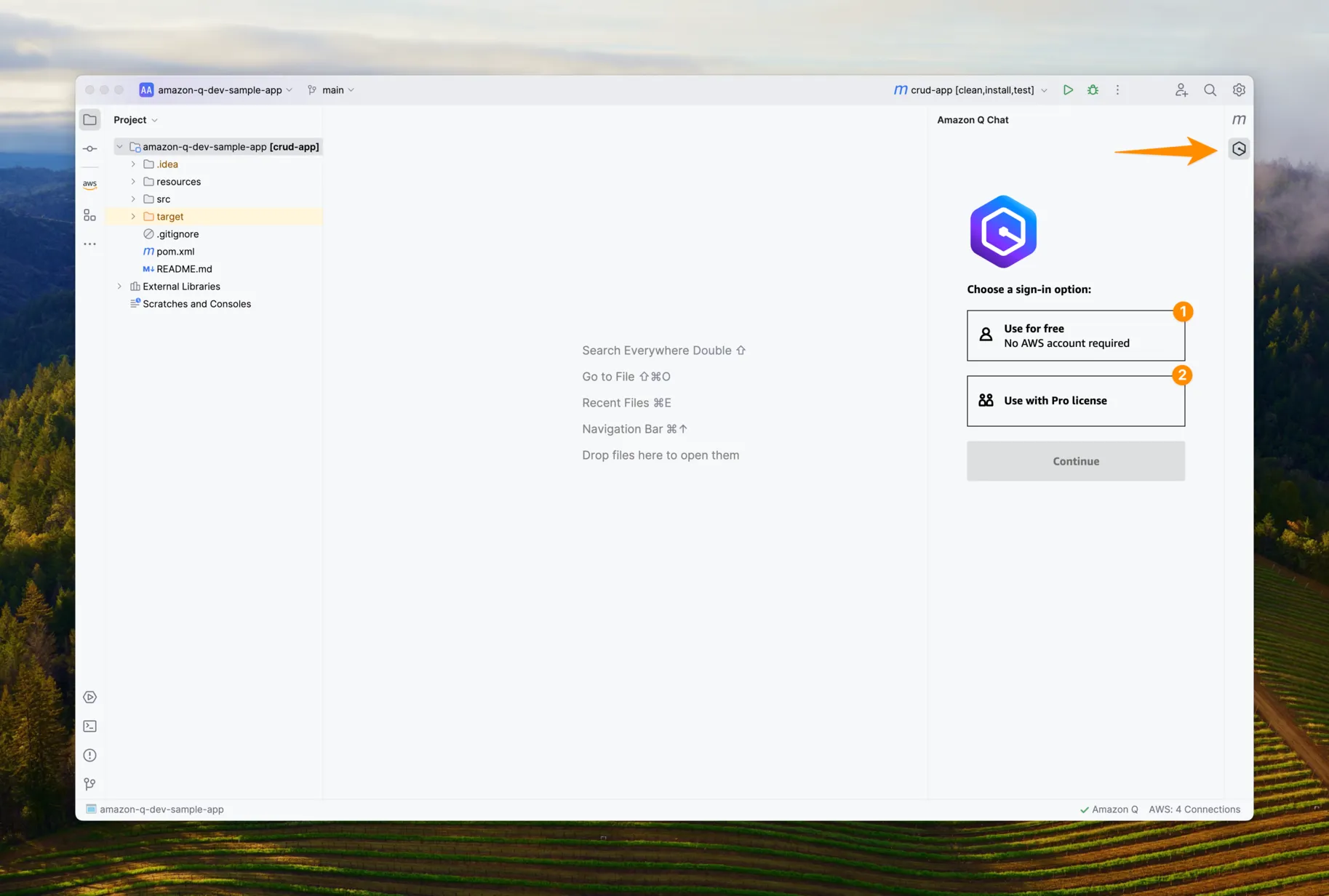
To start, you need to sign in, and there are two ways to do so.
Either you will use your AWS Builder ID (1st option marked on the screenshot above), which does not require an AWS account and provides all features available in the free tier, or you will use AWS Single Sign-On with your corporate identity provider (2nd option above), which gives you all features available in the professional tier.
If you do not have an AWS Builder ID, you should create one - it's not needed solely for this plugin, but it will allow you to authenticate in various other places - including this website ( community.aws ), AWS re:Post , Amazon CodeCatalyst , and AWS Training and Certification portal.
If your Builder ID is ready, select the first option on the screenshot above and click continue. It will open a new tab in your active browser, and after confirming that the code generated for the given authorization request is matching, you will be redirected to the AWS Builder ID login page. You need to provide all credentials - including email address and password - and remember to mark this device as a trusted one.
After that, you need to review and approve the permissions list presented below, and you are ready to start using Amazon Q Developer for your projects!
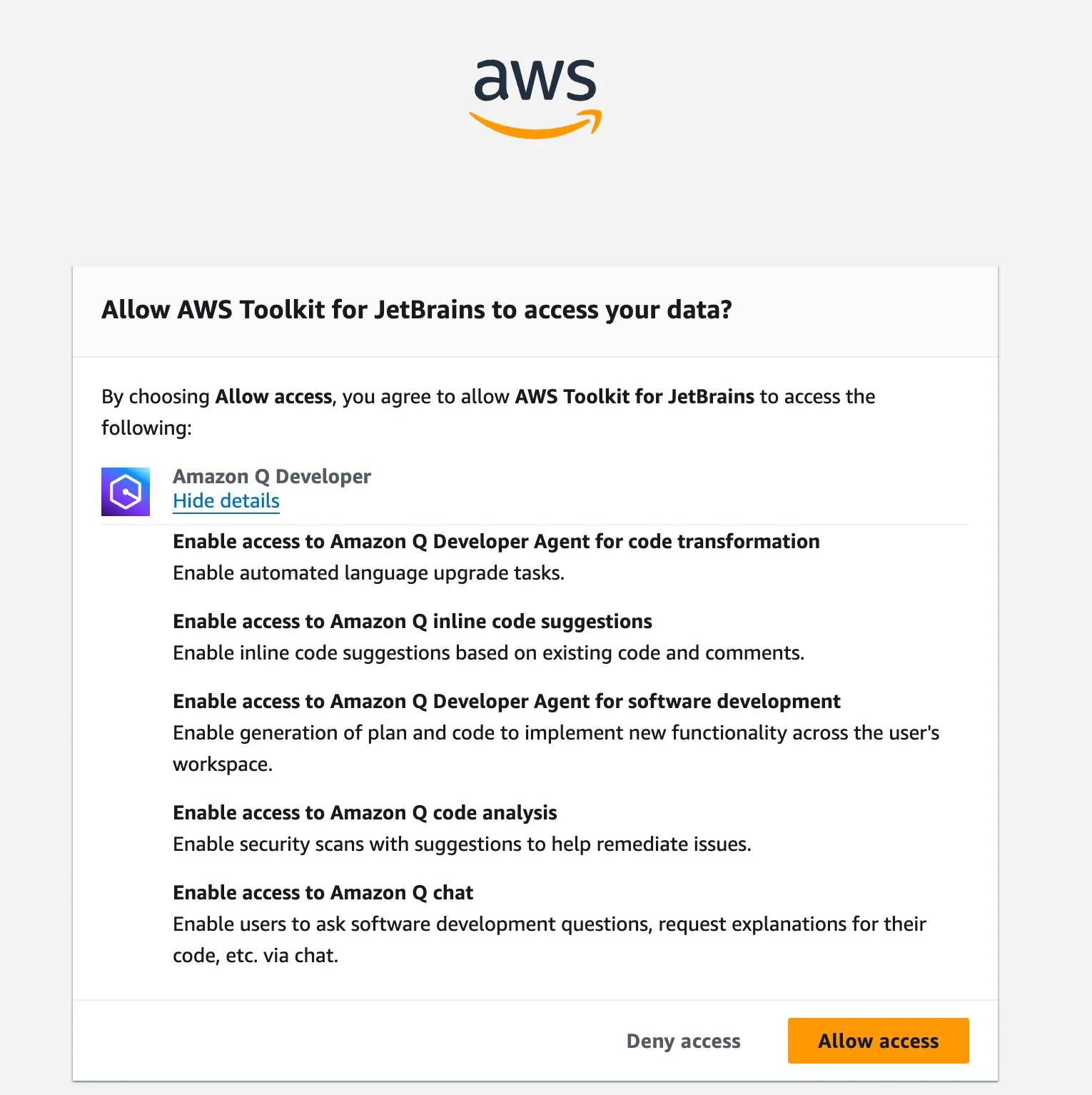
The second path marked above requires a Start URL and AWS Region where Single Sign-On (via AWS Identity Center) is configured - you should receive those from the administrator of your AWS Organisations. After that, instead of the AWS Builder ID login page, you will be redirected to the configured corporate identity provider, where you will provide the necessary credentials - and the rest of the process is the same (authorization request with code, allowing specific permissions, confirmation).
If you are interested in setting up AWS Identity Center access with Single Sign-On for your AWS Organizations in a multi-account environment - check the following step-by-step guide available in the official documentation.
Hey Q, how can you help me?
As for the handy AI-powered code assistant, you can interact with Q Developer in many different ways:
- Assistant is available to you via chat (opening a new tab opens a new session with the full context of your loaded project), where you can get answers to questions related to AWS, software development, and your project.
- It can help you with various coding activities - from writing actual code, refactoring, explaining and optimizing existing ones, and writing tests and documentation - all of the above in 15+ programming languages supported .
- Additionally, it can analyze and fix security vulnerabilities in your project in 10 supported languages, including Java, Python, Javascript, Golang, and more .
- Q Developer also has two powerful commands: Agents, which are available under the quick actions menu inside the opened chat session. After typing,
/you will see:
-
/devaction, a feature called Q Developer Agent for software development, which allows you to plan and implement new functionality across multiple files in your workspace.
-
/transformaction, a feature called Q Developer Agent for code transformation, which allows you to upgrade your Java applications in minutes, at the moment from Java 8 or 11 to Java 17 for Maven-powered projects , but new additions will come - you can read about plans and how does that feature work in the announcement post at the official AWS blog .
If you would like to see the plugin in practice, I would like to recommend you watch the following video (remember to leave a like and subscribe to the AWS Developers YouTube channel 😉). In that video, you will see all the mentioned features in action for an example Java project inside the IntelliJ IDEA Community edition IDE.
What's next?
Now it is your turn to check Q Developer and try it in practice! We look forward to your thoughts - especially since AWS works backward from customer needs, and this product will continually evolve based on your feedback.
In that context, it is important to know how to report bugs, improvements, and possible new features. As presented above, Amazon Q is now separated from AWS Toolkit - so you can report feedback directly from your IDE by clicking Amazon Q in the status bar at the bottom.
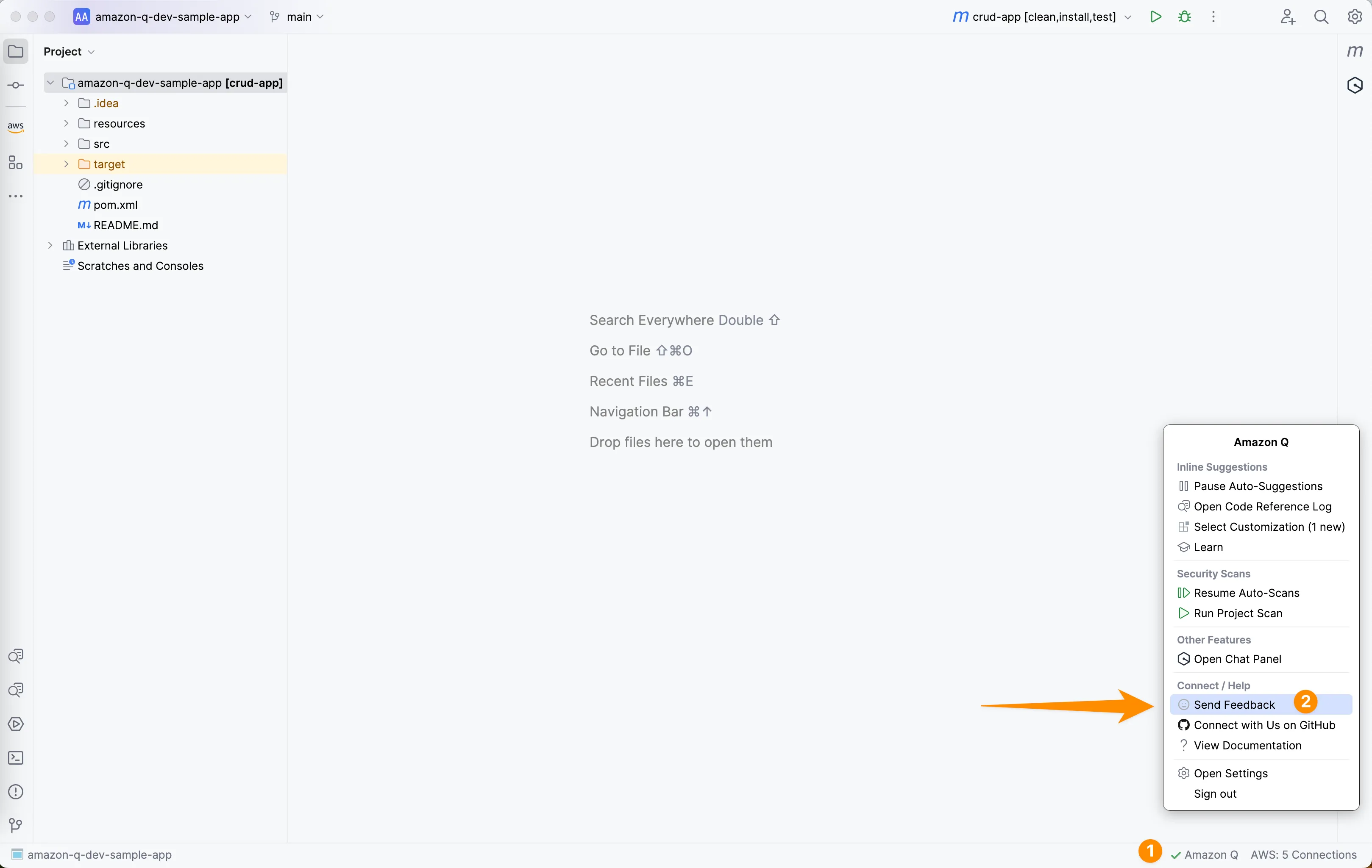
Keep in mind that AWS Toolkit and Amazon Q are now separate plugins - and both have their own way to provide feedback. Additionally, all the generated plans implementing new features, code transformations, generated code samples, and chat sessions have their own way of providing feedback (e.g., via thumbs up/thumbs down icons), do not hesitate to use them! Your voice matters and directly influences the quality of the Amazon Q Developer.
If you enjoyed this article, I would appreciate it if you would leave a like and share it with your network. Remember that Q Developer is free for individuals and does not require an AWS account. Also, I would love to hear from you in the comments — especially about how it helped you in your daily work and which feature is your favorite one!
Enjoyed reading this content? Let the author know!
Your likes, comments, shares, and saves help creators reach more builders.

Loading recommendations
Loading article