
Run Kubernetes Clusters for Less with Amazon EC2 Spot and Karpenter
Learn how to run Kubernetes clusters for up to 90% off with Amazon Elastic Kubernetes Service (EKS), Amazon EC2 Spot Instances, and Karpenter - all in less than 60 minutes.

One of the main cost factors for Kubernetes clusters relies on the compute layer for the data plane. Running Kubernetes clusters on Amazon EC2 Spot Instances is a great way to reduce your compute costs significantly. When using Spot Instances, you can get up to a 90% price discount compared to On-Demand Instances.
Spot is a great match for workloads that are stateless, fault-tolerant, and flexible applications such as big data, containerized workloads, CI/CD, web servers, high-performance computing (HPC), and test & development workloads. Containers often match with these characteristics as they’re Spot-friendly. For non Spot-friendly workloads, like stateful applications within your cluster, you can continue using On-Demand Instances.
To optimize data place capacity further, you can adjust the number of nodes when pods are unscheduable due to available capacity, or remove nodes when they’re no longer needed. For automatic nodes adjustment, use either Cluster Autoscaler (CA) or Karpenter . Both tools have support for Spot, and in this tutorial I’ll focus on Karpenter.
I’ll guide you on the steps you need to follow to configure an EKS cluster with Spot instances and Karpenter. Additionally, I’ll show you how to configure a workload to see Karpenter in action by provisioning the required capacity using Spot Instances.
Why Go With Karpenter?
Karpenter is an open-source node provisioning project built for Kubernetes. As new pods continue coming to your cluster, either because you increased the number of replicas manually or through an Horizontal Pod Autoscaling (HPA) policy or through a Kubernetes Event-driven Autoscaling (KEDA) event, at some point your data plane nodes will be at full capacity, causing you to have pending (unschedulable) pods. The Karpenter controller reacts to this problem, and aggregates the capacity of these pending pods by evaluating scheduling constraints (resource requests, nodeselectors, affinities, tolerations, and topology spread constraints). Then, Karpenter provisions the right nodes that meet the requirements of these pending pods.
One of the main advantages of using Karpenter is the simplicity of configuring Spot best practices like instance type diversification (multiple families, sizes, generations, etc) in what Karpenter calls a
NodePool. If you’re getting started with Spot in Amazon Elastic Kubernetes Service (EKS) or are struggling with the complexity of configuring multiple node groups, I recommend using Karpenter. However, if you’re already using CA and want to start spending less, you can find the detailed configuration to use Spot with CA here .| ✅ AWS experience | Advanced - 300 |
|---|---|
| ⏱ Time to complete | 75 minutes |
| 💰 Cost to complete | < $10.00 USD |
| 🧩 Prerequisites | - AWS Account - AWS CLI - Kubernetes CLI (kubectl) - Terraform CLI - Helm |
| 📢 Feedback | Any feedback, issues, or just a 👍 / 👎 ? |
| 💾 Code | Download the code |
| 🛠 Contributors | @jakeskyaws |
| ⏰ Last Updated | 2025-06-03 |
Prerequisites
- You need access to an AWS account with IAM permissions to create an EKS cluster. And if you're creating the VSCode server from this tutorial, you need permissions to create an EC2 instance, an Application Load Balancer, and a CloudFront distribution (you can check the CloudFormation template below to get all the details).
- Install and configure the AWS CLI
- Install the Kubernetes CLI (kubectl)
- Install the Terraform CLI
- Install Helm (the package manager for Kubernetes )
Step 1: Create a VSCode server
💡 Tip: You can skip this step if you’re planning to run all steps on your own computer. Just make sure you have the proper permissions listed in the pre-requisites section of this tutorial.
💡 Tip: You can control in which region to launch the VS Code server by setting up theAWS_REGIONenvironment variable.
I’ve prepared an AWS CloudFormation template to create an EC2 instance to deploy VS Code server so that you can have VS Code running in a browser with all the tooling you'll need to complete this tutorial. For instance, the instance already have tools like kubectl and Terraform CLI. You can either create the CloudFormation stack through the AWS Console , or do it through the command line. You can download the CloudFormation template here . I'm going to give you all the commands you need to run to create the stack using the CLI.
Now, let’s create the VSCode server running the following command:
1
2
wget https://raw.githubusercontent.com/build-on-aws/run-kubernetes-clusters-for-less-with-amazon-ec2-spot-and-karpenter/main/vscode-cnf.yaml
aws cloudformation deploy --stack-name VSCodeServer --template-file vscode-cnf.yaml --capabilities "CAPABILITY_IAM"
Wait around 15 minutes after CloudFormation finishes, then run the following command to get the CloudFormation stack ouput values to access the VS Code server:
1
aws cloudformation describe-stacks --stack-name VSCodeServer --query "Stacks[0].Outputs"
You should have an output similar to this one:
1
2
3
4
5
6
7
8
9
10
11
12
[
    {
        "OutputKey": "Password",
        "OutputValue": "GENERATED_PASSWORD",
        "Description": "VSCode-Server Password"
    },
    {
        "OutputKey": "VSCodeURL",
        "OutputValue": "https://DISTRIBUTIONID.cloudfront.net/?folder=/Workshop",
        "Description": "VSCode-Server URL"
    }
]
Open a new browser window using the
VSCodeURL output value, and when prompted (like the below image), enter the password you got from the Password output value.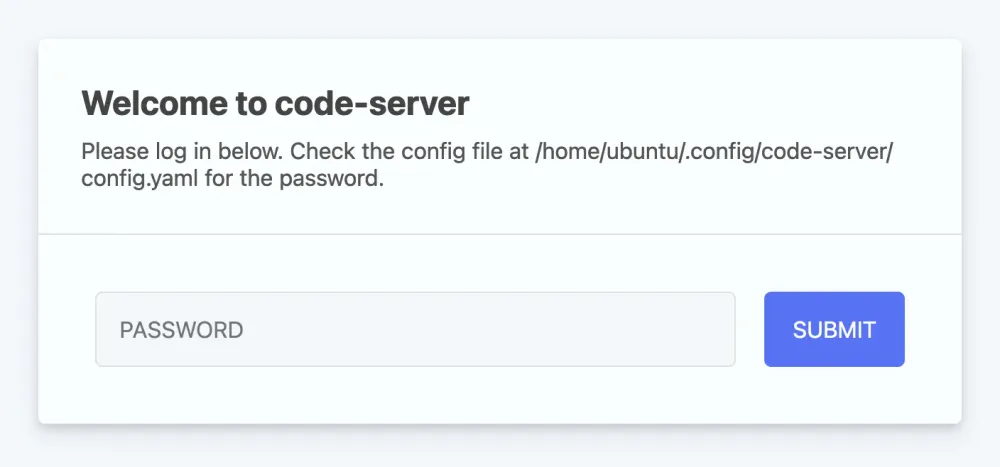
You should now see the Visual Studio Code IDE, as shown below (without any files):
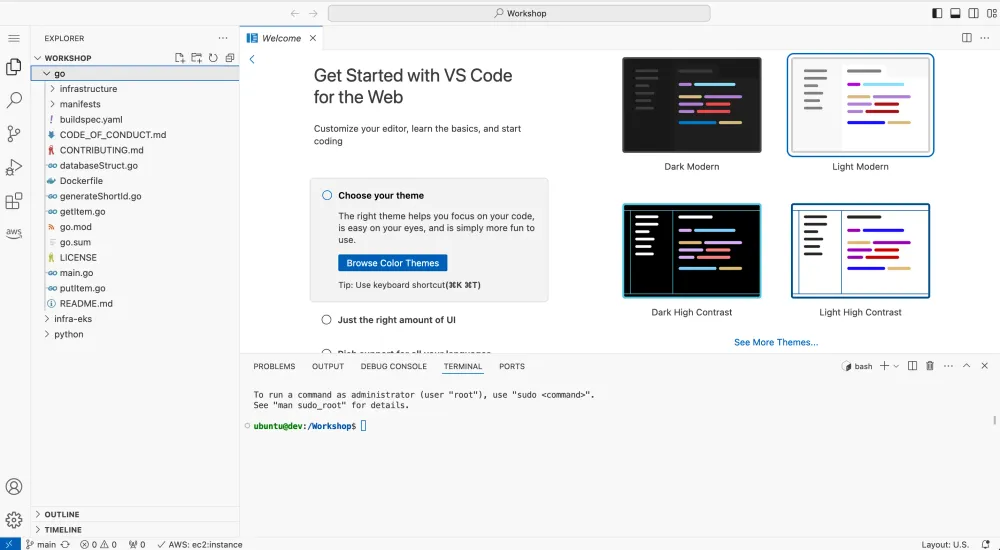
Open a new terminal, click on the left icon (hamburger), click on
Terminal then on New Terminal. This is what you'll use during this tutorial to run the commands: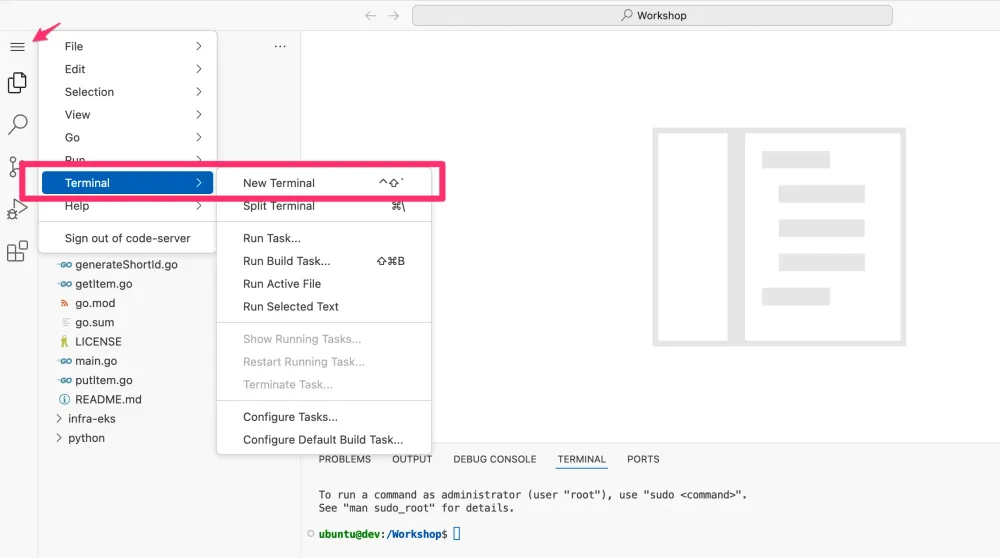
To confirm that you have all the CLI tools needed for this tutorial, input these commands:
1
2
3
4
aws --version
kubectl version --client=true -o json
terraform version
helm version
💡 IMPORTANT: You might have problems trying to paste a command (depending on your browser settings), so use the below commands: 1) On Windows/Linux useShift+V, and 2) On macOS useCommand+Shift+V. And if you're using Firefox, you might see aPastebutton appear, just click it.
Step 2: Create an EKS Cluster with Karpenter using Terraform
💡 Tip: The Terraform template used in this tutorial is using an On-Demand managed node group to host the Karpenter controller. However, if you have an existing cluster, you can use an existing node group with On-Demand instances to deploy the Karpenter controller. To do so, you need to follow the Karpenter getting started guide .
In this step you'll create an Amazon EKS cluster using Terraform. The Terraform template you’ll use in this tutorial is going to create a VPC, an EKS control plane, and a Kubernetes service account along with the IAM role and associate them using EKS access entries to let Karpenter launch instances.
To create the cluster, run the following commands:
1
2
3
4
5
6
7
wget https://raw.githubusercontent.com/build-on-aws/run-kubernetes-clusters-for-less-with-amazon-ec2-spot-and-karpenter/main/cluster/terraform/main.tf
helm registry logout public.ecr.aws
export TF_VAR_region=$AWS_REGION
terraform init
terraform apply -target="module.vpc" -auto-approve
terraform apply -target="module.eks" -auto-approve
terraform apply --auto-approve
Once complete (after waiting about 15 minutes), run the following command to update the
kube.config file to interact with the cluster through kubectl:1
aws eks --region $AWS_REGION update-kubeconfig --name karpenter-spot💡 Tip: If you’re using a different region or changed the name of the cluster, you can get the previous command for your setup from the Terraform output by running this command:terraform output -raw configure_kubectl.
You need to make sure you can interact with the cluster and that the Karpenter pods are running:
1
2
3
4
$ kubectl get pods -n karpenter
NAME                       READY STATUS  RESTARTS AGE
karpenter-5f97c944df-bm85s 1/1   Running 0        15m
karpenter-5f97c944df-xr9jf 1/1   Running 0        15m
Step 3: Set Up a Karpenter NodePool
The EKS cluster already has a static managed node group configured in advance for the
kube-system and karpenter namespaces, and it’s going to be only one you’ll need. For the rest of pods, Karpenter will launch nodes through a NodePool CRD. The NodePool sets constraints on the nodes that can be created by Karpenter and the pods that can run on those nodes. A single Karpenter NodePool is capable of handling many different pod shapes, and for this tutorial you’ll only create the default NodePool.💡 Tip: Karpenter simplifies the data plane capacity management using an approach called group-less auto scaling. This is because Karpenter is no longer using node groups, which match with Auto Scaling groups , to launch nodes. Over time, clusters using the paradigm of running different types of applications (that require different capacity types), end up with a complex configuration and operational model where node groups must be defined and provided in advance.
Before you continue, you need to enable your AWS account to launch Spot instances if you haven't launch any yet. To do so, create the service-linked role for Spot by running the following command:
1
aws iam create-service-linked-role --aws-service-name spot.amazonaws.com || true
If the role has already been successfully created, you will see:
1
An error occurred (InvalidInput) when calling the CreateServiceLinkedRole operation: Service role name AWSServiceRoleForEC2Spot has been taken in this account, please try a different suffix.
You don't need to worry about this error, you simply had to run the above command to make sure you have the service-linked role to launch Spot instances.
Now, you need to create two environment variables that we’ll use next. The values you need can be obtained from the Terraform output variables. Make sure you’re in the same folder where the Terraform
main.tf file lives and run the following command:1
2
export CLUSTER_NAME=$(terraform output -raw cluster_name)
export KARPENTER_NODE_IAM_ROLE_NAME=$(terraform output -raw node_instance_role_name)💡 NOTE: If you're working with an existing EKS cluster, make sure to set the proper values for the previous environment variables as we'll use those values to setup the Karpenter provsioner.
Let’s create a default
NodePool by running the following commands:1
2
3
4
5
6
7
8
9
10
11
12
13
14
15
16
17
18
19
20
21
22
23
24
25
26
27
28
29
30
31
32
33
34
35
36
37
38
39
40
41
42
43
44
45
46
47
48
49
50
51
52
53
54
55
56
57
58
59
60
61
cat <<EOF | kubectl apply -f -
apiVersion: karpenter.sh/v1
kind: NodePool
metadata:
name: default
spec:
template:
metadata:
labels:
intent: apps
spec:
requirements:
- key: kubernetes.io/arch
operator: In
values: ["amd64", "arm64"]
- key: "karpenter.k8s.aws/instance-cpu"
operator: Gt
values: ["4"]
- key: "karpenter.k8s.aws/instance-memory"
operator: Gt
values: ["8191"] # 8 * 1024 - 1
- key: karpenter.sh/capacity-type
operator: In
values: ["spot", "on-demand"]
- key: karpenter.k8s.aws/instance-category
operator: In
values: ["c", "m", "r"]
nodeClassRef:
group: karpenter.k8s.aws
kind: EC2NodeClass
name: default
limits:
cpu: 1000
disruption:
consolidationPolicy: WhenEmptyOrUnderutilized
consolidateAfter: 1m
---
apiVersion: karpenter.k8s.aws/v1
kind: EC2NodeClass
metadata:
name: default
spec:
role: ${KARPENTER_NODE_IAM_ROLE_NAME}
amiSelectorTerms:
- alias: "bottlerocket@v1.39.1"
subnetSelectorTerms:
- tags:
karpenter.sh/discovery: ${CLUSTER_NAME}
securityGroupSelectorTerms:
- tags:
karpenter.sh/discovery: ${CLUSTER_NAME}
tags:
project: build-on-aws
IntentLabel: apps
KarpenterNodePoolName: default
NodeType: default
intent: apps
karpenter.sh/discovery: ${CLUSTER_NAME}
EOFKarpenter is now active and ready to begin provisioning nodes.
Let me highlight a few important settings from the default
NodePool you just created:requirements: Here’s where you define the type of nodes Karpenter can launch. Be as flexible as possible and let Karpenter choose the right instance type based on the pod requirements. For thisNodePool, you’re saying Karpenter can launch either Spot or On-Demand Instances, families includingc,mandr, with a minimum of 4 vCPUs and 8 GiB of memory. With this configuration, you’re choosing around 150 instance types from the 700+ available today in AWS. Read the next section to understand why this is important.limits: This is how you constrain the maximum amount of resources that theNodePoolwill manage. Karpenter can launch instances with different specs, so instead of limiting a max number of instances (as you’d typically do in an Auto Scaling group), you define a maximum of vCPUs or memory to limit the number of nodes to launch. Karpenter provides a metric to monitor the percentage usage of thisNodePoolbased on the limits you configure.disruption: Karpenter does a great job at launching only the nodes you need, but as pods can come an go, at some point in time the cluster capacity can end up in a fragmented state. To avoid fragmentation and optimize the compute nodes in your cluster, you can enable consolidation . When enabled, Karpenter automatically discovers disruptable nodes and spins up replacements when needed.consolidateAfter: Here’s where you define the time Karpenter needs to wait to consolidate a node.nodeClassRef: This is where you reference the template to launch a node. AnEC2NodeClassis where you define which subnets, security groups, and IAM role the nodes will use. You can set node tags or even configure a user-data . To learn more about which other configurations are available, go here .
You can also learn more about which other configuration properties are available for a
NodePool here .Why Is It a Good Practice To Configure a Diverse Set of Instance Types?
As you noticed, with the above
NodePool we’re basically letting Karpenter choose from a diverse set of instance types to launch the best instance type possible. If it’s an On-Demand Instance, Karpenter uses the lowest-price allocation strategy to launch the cheapest instance type that has available capacity. When you use multiple instance types, you can avoid the InsufficientInstanceCapacity error .If it’s a Spot Instance, Karpenter uses the
price-capacity-optimized (PCO) allocation strategy. PCO looks at both price and capacity availability to launch from the Spot Instance pools that are the least likely to be interrupted and have the lowest possible price. For Spot Instances, applying diversification is key. Spot Instances are spare capacity that can be reclaimed by EC2 when it is required. Karpenter allows you to diversify extensively to replace reclaimed Spot Instances automatically with instances from other pools where capacity is available.Step 4: Deploy a Spot-friendly Workload
You’re now going to see Karpenter in action. Your default
NodePool can launch both On-Demand and Spot Instances, but Karpenter considers the constraints you configure within a pod to launch the right node(s). Let’s create a Deployment with a nodeSelector to run the pods on Spot instances. To do so, run the following command:1
2
3
4
5
6
7
8
9
10
11
12
13
14
15
16
17
18
19
20
21
22
23
24
25
26
27
cat <<EOF > workload.yaml
apiVersion: apps/v1
kind: Deployment
metadata:
name: stateless
spec:
replicas: 10
selector:
matchLabels:
app: stateless
template:
metadata:
labels:
app: stateless
spec:
nodeSelector:
intent: apps
karpenter.sh/capacity-type: spot
containers:
- image: public.ecr.aws/eks-distro/kubernetes/pause:v1.33.0-eks-1-33-latest
name: app
resources:
requests:
cpu: 512m
memory: 512Mi
EOF
kubectl apply -f workload.yamlAs there are no nodes that match the pod’s requirements, all pods will be
Pending, making Karpenter react and launch the nodes, similar to this output:1
2
3
4
5
6
7
8
9
10
11
12
$ kubectl get pods
NAME READY STATUS RESTARTS AGE
stateless-5c77994ccb-4mtsp 0/1 Pending 0 3s
stateless-5c77994ccb-4mtsp 0/1 Pending 0 3s
stateless-5c77994ccb-4mtsp 0/1 Pending 0 3s
stateless-5c77994ccb-4mtsp 0/1 Pending 0 3s
stateless-5c77994ccb-4mtsp 0/1 Pending 0 3s
stateless-5c77994ccb-4mtsp 0/1 Pending 0 3s
stateless-5c77994ccb-4mtsp 0/1 Pending 0 3s
stateless-5c77994ccb-4mtsp 0/1 Pending 0 3s
stateless-5c77994ccb-4mtsp 0/1 Pending 0 3s
stateless-5c77994ccb-4mtsp 0/1 Pending 0 3sReview Karpenter logs to see what’s happening while you wait for the new node to be ready. Create the following alias:
1
alias kl='kubectl -n karpenter logs -l app.kubernetes.io/name=karpenter --all-containers=true -f --tail=20'
Karpenter logs should look similar to this (I’m including only the lines I want to highlight):
1
2
3
4
5
6
7
$ kl
... "message":"found provisionable pod(s)","commit":"9458bb5","controller":"provisioner","namespace":"","name":"","reconcileID":"13f5f4c5-45c8-4a64-b957-8351b0dc873b","Pods":"default/stateless-56cdd6894d-skcmd, default/stateless-56cdd6894d-bfz74, default/stateless-56cdd6894d-86z4q, default/stateless-56cdd6894d-l6rfs, default/stateless-56cdd6894d-xrh4z and 5 other(s)","duration":"152.27122ms"}
... "message":"computed new nodeclaim(s) to fit pod(s)","commit":"9458bb5","controller":"provisioner","namespace":"","name":"","reconcileID":"13f5f4c5-45c8-4a64-b957-8351b0dc873b","nodeclaims":1,"pods":10}
... "message":"created nodeclaim","commit":"9458bb5","controller":"provisioner","namespace":"","name":"","reconcileID":"13f5f4c5-45c8-4a64-b957-8351b0dc873b","NodePool":{"name":"default"},"NodeClaim":{"name":"default-zwqkq"},"requests":{"cpu":"5330m","memory":"5360Mi","pods":"14"},"instance-types":"c3.2xlarge, c4.2xlarge, c5.2xlarge, c5a.2xlarge, c5ad.2xlarge and 55 other(s)"}
... "message":"launched nodeclaim","commit":"9458bb5","controller":"nodeclaim.lifecycle","controllerGroup":"karpenter.sh","controllerKind":"NodeClaim","NodeClaim":{"name":"default-zwqkq"},"namespace":"","name":"default-zwqkq","reconcileID":"0ac46036-a6a4-40da-8a4e-35d9204d4642","provider-id":"aws:///eu-west-1b/i-0bb18b164b31f5d50","instance-type":"c6g.2xlarge","zone":"eu-west-1b","capacity-type":"spot","allocatable":{"cpu":"7910m","ephemeral-storage":"17Gi","memory":"14103Mi","pods":"58","vpc.amazonaws.com/pod-eni":"38"}}
... "message":"registered nodeclaim","commit":"9458bb5","controller":"nodeclaim.lifecycle","controllerGroup":"karpenter.sh","controllerKind":"NodeClaim","NodeClaim":{"name":"default-zwqkq"},"namespace":"","name":"default-zwqkq","reconcileID":"16f01245-32ea-44b9-834e-52208d4ae99e","provider-id":"aws:///eu-west-1b/i-0bb18b164b31f5d50","Node":{"name":"ip-10-0-66-239.eu-west-1.compute.internal"}}
... "message":"initialized nodeclaim","commit":"9458bb5","controller":"nodeclaim.lifecycle","controllerGroup":"karpenter.sh","controllerKind":"NodeClaim","NodeClaim":{"name":"default-zwqkq"},"namespace":"","name":"default-zwqkq","reconcileID":"61aab19a-fe4c-4b06-893f-3e7b0e141054","provider-id":"aws:///eu-west-1b/i-0bb18b164b31f5d50","Node":{"name":"ip-10-0-66-239.eu-west-1.compute.internal"},"allocatable":{"cpu":"7910m","ephemeral-storage":"18191325562","hugepages-1Gi":"0","hugepages-2Mi":"0","hugepages-32Mi":"0","hugepages-64Ki":"0","memory":"15029844Ki","pods":"58"}}
By reading the logs, you can see that Karpenter:
- Noticed there were 10 pending pods, and decided that can fit all pods in only one node.
- Is considering the kubelet and kube-proxy
Daemonsets(2 additional pods), and is aggregating all resources need for 12 pods. Moreover, Karpenter noticed that 100 instance types match these requirements. - Launched an
c6g.2xlargeSpot Instance ineu-west-2aas this was the pool with more spare capacity with lowest price.
Step 5: Spread Pods Within Multiple AZs
Karpenter launched only one node for all pending pods. However, putting all your eggs in the same basket is not recommended, as if you lose that node, you’ll need to wait for Karpenter to provision a replacement node (which can be fast, but still, you’ll see an impact). To avoid this, and to make the workload more highly available, let’s spread the pods within multiple AZs. Let’s configure a Topology Spread Constraint (TSP) within the
Deployment.Before you continue, remove the stateless
Deployment:1
kubectl delete deployment stateless💡 NOTE: To see pods being spread within AZs withh similar instance sizes, wait until pods and existing EC2 instances launched by Karpenter are removed.
To configure a TSP, add the following snippet between the
nodeSelector and the containers block from the workload.yaml file you downloaded before:1
2
3
4
5
6
7
8
topologySpreadConstraints:
- labelSelector:
matchLabels:
app: stateless
maxSkew: 1
minDomains: 2
topologyKey: topology.kubernetes.io/zone
whenUnsatisfiable: DoNotSchedule💡 Tip: You can download the full version of the deployment manifest including the TSP here .
Create the stateless
Deployment again. If you downloaded the manifest from GitHub, you can simply run:1
kubectl apply -f workload.yamlThen, you can review the Karpenter logs and notice how different the actions are. Wait one minute and you should see the pods running within three nodes in different AZs:
1
kubectl get nodes -L karpenter.sh/capacity-type,beta.kubernetes.io/instance-type,topology.kubernetes.io/zone -l karpenter.sh/capacity-type=spot
You should see an output similar to this:
1
2
3
4
NAME                                        STATUS     ROLES    AGE   VERSION               CAPACITY-TYPE   INSTANCE-TYPE   ZONE
ip-10-0-105-68.eu-west-1.compute.internal   NotReady   <none>   11s   v1.33.0-eks-987fa8d   spot            c6g.4xlarge     eu-west-1c
ip-10-0-46-222.eu-west-1.compute.internal   NotReady   <none>   11s   v1.33.0-eks-987fa8d   spot            c6g.2xlarge     eu-west-1a
ip-10-0-78-85.eu-west-1.compute.internal    NotReady   <none>   10s   v1.33.0-eks-987fa8d   spot            c6g.2xlarge     eu-west-1b
Step 6: (Optional) Simulate Spot Interruption
You can simulate a Spot interruption to test the resiliency of your applications. As I said before, Spot is spare capacity for steep discounts in exchange for returning them when EC2 needs the capacity back. Spot interruptions have a 2 minute notice before EC2 reclaims the instance. Karpenter can watch these interruptions (the cluster you created with Terraform is already configured this way). When this happens, the
NodePool starts a new node as soon as it sees the Spot interruption warning. Karpenter’s average node startup time means that, generally, there is sufficient time for the new node to become ready and to move the pods to the new node before the node is reclaimed.You can simulate a Spot interruption using Fault Injection Simulator (FIS) . To do this, you can either do it through the console , or using the Amazon EC2 Spot Interrupter CLI.
In this tutorial, I’ll use a CloudFormation template to create a FIS experiment template, and then run an experiment to send a Spot interruption to one (randomly) instance launched by Karpenter. You first need to download the CloudFormation template:
1
wget https://raw.githubusercontent.com/build-on-aws/run-kubernetes-clusters-for-less-with-amazon-ec2-spot-and-karpenter/main/fis/spotinterruption.yaml
Now let's create the FIS experiment template by running the following command:
1
aws cloudformation deploy --stack-name fis-spot-and-karpenter --template-file spotinterruption.yaml --capabilities "CAPABILITY_NAMED_IAM"
Now, you’ll need two extra terminals: 1) to monitor the nodes
STATUS, and 2) for the Karpenter logs. In one terminal watch the nodes using this command:1
kubectl get nodes -L karpenter.sh/capacity-type,beta.kubernetes.io/instance-type,topology.kubernetes.io/zone -l karpenter.sh/capacity-type=spot --watchIn another terminal, run the following commands:
1
2
alias kl='kubectl -n karpenter logs -l app.kubernetes.io/name=karpenter --all-containers=true -f --tail=20';
kl
In the third terminal, run the following command to send a Spot interruption:
1
2
FIS_EXP_TEMP_ID=$(aws cloudformation describe-stacks --stack-name fis-spot-and-karpenter --query "Stacks[0].Outputs[?OutputKey=='FISExperimentID'].OutputValue" --output text)
aws fis start-experiment --experiment-template-id $FIS_EXP_TEMP_ID --no-cli-pager
Review what happens by looking at the Karpenter logs, as soon as the Spot interruption warning lands, Karpenter immediately cordons and drains the node, but also launches a replacement instance:
1
2
3
4
5
{"level":"INFO","time":"2025-01-29T08:47:30.575Z","logger":"controller.interruption","message":"initiating delete from interruption message","commit":"1072d3b","queue":"karpenter-spot-and-karpenter","messageKind":"SpotInterruptionKind","nodeclaim":"default-4w54b","action":"CordonAndDrain","node":"ip-10-0-36-60.eu-west-2.compute.internal"}
{"level":"INFO","time":"2025-01-29T08:47:30.603Z","logger":"controller.node.termination","message":"tainted node","commit":"1072d3b","node":"ip-10-0-36-60.eu-west-2.compute.internal"}
{"level":"INFO","time":"2025-01-29T08:47:31.963Z","logger":"controller.provisioner","message":"found provisionable pod(s)","commit":"1072d3b","pods":"default/stateless-7956bd8d4c-48mj9, default/stateless-7956bd8d4c-spsqr, default/stateless-7956bd8d4c-sm4cp","duration":"18.833162ms"}
{"level":"INFO","time":"2025-01-29T08:47:31.963Z","logger":"controller.provisioner","message":"computed new nodeclaim(s) to fit pod(s)","commit":"1072d3b","nodeclaims":1,"pods":3}
{"level":"INFO","time":"2025-01-29T08:47:31.997Z","logger":"controller.provisioner","message":"created nodeclaim","commit":"1072d3b","nodepool":"default","nodeclaim":"default-6p2qb","requests":{"cpu":"1746m","memory":"1776Mi","pods":"7"},"instance-types":"c4.2xlarge, c4.4xlarge, {"level":"INFO","time":"2024-01-29T08:47:34.823Z","logger":"controller.nodeclaim.lifecycle","message":"launched nodeclaim","commit":"1072d3b","nodeclaim":"default-6p2qb","nodepool":"default","provider-id":"aws:///eu-west-2a/i-005ca44c327470d09","instance-type":"m7g.2xlarge","zone":"eu-west-2a","capacity-type":"spot","allocatable":{"cpu":"7810m","ephemeral-storage":"17Gi","memory":"29158Mi","pods":"58","vpc.amazonaws.com/pod-eni":"38"}}
You can also go back to the terminal where you listed all the nodes, and you'll see how the interrupted instance was cordoned, and when the new instance was launched.
Alternatively to vizualise the consolidation process, you can use eks-node-viewer .
eks-node-viewer a tool for visualizing dynamic node usage within a cluster. It was originally developed as an internal tool at AWS for demonstrating consolidation with Karpenter. It displays the scheduled pod resource requests vs the allocatable capacity on the node.To launch it execute the following in a new VSCode server terminal tab:
1
eks-node-viewer
💡 Tip: You might end up seeing only one/two Spot nodes running, and if you review the Karpenter logs, you’ll see that it was because of the consolidation process.
Step 7: (Optional) Deploy a Stateful Workload
You can still launch On-Demand Instances in a cluster that’s also running Spot Instances for those non Spot-friendly workloads. Continue using the default Karpenter
NodePool you created before. But make sure you’re configuring the workload properly. One way of doing it is to use a similar approach for the Spot-friendly workload by using a nodeSelector.Deploy the following application to simulate a stateful workload:
1
2
3
4
5
6
7
8
9
10
11
12
13
14
15
16
17
18
19
20
21
22
23
24
25
26
27
cat <<EOF > workload-stateful.yaml
apiVersion: apps/v1
kind: Deployment
metadata:
  name: stateful
spec:
  replicas: 7
  selector:
    matchLabels:
      app: stateful
  template:
    metadata:
      labels:
        app: stateful
    spec:
      nodeSelector:
        intent: apps
        karpenter.sh/capacity-type: on-demand
      containers:
      - name: app
        image: public.ecr.aws/eks-distro/kubernetes/pause:v1.33.0-eks-1-33-latest
        resources:
          requests:
            cpu: 512m
            memory: 512Mi
EOF
kubectl apply -f workload-stateful.yaml
Same as before, wait one minute, and you should see all pods running and one On-Demand node running:
1
2
3
$ kubectl get nodes -L karpenter.sh/capacity-type,beta.kubernetes.io/instance-type,topology.kubernetes.io/zone -l karpenter.sh/capacity-type=on-demand
NAME                                        STATUS   ROLES    AGE   VERSION               CAPACITY-TYPE   INSTANCE-TYPE   ZONE
ip-10-0-60-181.eu-west-1.compute.internal   Ready    <none>   31s   v1.33.0-eks-987fa8d   on-demand       c6g.2xlarge     eu-west-1a
You can review the Karpenter logs as well, you’ll see a similar behavior as before with the Spot-friendly workload.
Step 8: Clean Up
When you’re done with this tutorial, remove the two deployments you created:
1
2
kubectl delete deployment stateless
kubectl delete deployment stateful
Wait 30 seconds until the nodes that Karpenter launched are gone (due to consolidation), then remove all resources:
1
2
3
4
5
export TF_VAR_region=$AWS_REGION
terraform destroy -target="module.eks_blueprints_addons" --auto-approve
terraform destroy -target="module.eks" --auto-approve
terraform destroy --auto-approve
aws cloudformation delete-stack --stack-name fis-spot-and-karpenter
Conclusion
Using Spot Instances for your Kubernetes data plane nodes helps you reduce computing costs. As long as your workloads are fault-tolerant, stateless, and can use a variety of instance types, you can use Spot. Karpenter allows you to simplify the process of configuring your EKS cluster with a high-instance type diversification, and provisions only the capacity you need.
Workshops
You can learn more about using Karpenter on EKS with this hands-on workshop , and you can learn more about how to migrate an x86-based applications to AWS Graviton Processors and deploy it to EKS or Auto Scaling groups.
Blueprints
Karpenter Blueprints is a repository that includes a list of common workload scenarios.
Docuementation
Dive deeper into the Karpenter concepts here
Enjoyed reading this content? Let the author know!
Your likes, comments, shares, and saves help creators reach more builders.

Loading recommendations
Loading article