

Live Streaming from Unity - Real-Time Playback (Part 7)
Let's add live stream *playback* in a game built with Unity!
Series: Live Streaming from Unity with Amazon IVS (9 articles)
- …
- 7Live Streaming from Unity - Real-Time Playback (Part 7) This article

In this series, we've been focusing on broadcasting from a game built in Unity to an Amazon Interactive Video Service (Amazon IVS) real-time stage. But it's not just broadcasting that is possible with Amazon IVS - playback is also possible. In this post, we'll focus on adding real-time playback to the HUD of a Unity game. This capability provides a really unique way to add managed game chat (audio only streams) or team chat (with audio and video) directly into the game experience.
🐉 Here Be Dragons! 🐉: The method used in this post uses some undocumented functionality to obtain the URL used for subscribing to real-time playback with Amazon IVS. This is likely to change (or not work) in the future, so be warned!
We'll use the same
WebRTC package that we used for broadcasting for playback, and we'll also require a stage token for playback, so if you've not yet read part 2 in this series, now would be a great time to do that. The main difference for playback is that we'll need to render the incoming frames to the UI, and we'll need to modify the URL that we use to connect based on the contents of the stage token. We'll also need to know the participantId of the stream that we'd like to subscribe to, so we'll need to construct a way to obtain that. Let's start by getting that participantId . We'll use the Amazon IVS chat integration that we learned about in part 4 in a different way than we've previously seen. This time we'll use the chat WebSocket connection as a message bus so that we can be notified when another participant's video is available to display.
We're going to walk through the various elements in the
WebRTCPlayback script below, but you can refer to the final script as a reference.Getting The Participant Id
Each participant that connects to an Amazon IVS stage is assigned a
participantId , and we can use the Amazon IVS integration with EventBridge to get notified when another participant has joined the stage. For this, I've created an AWS Lambda function that is triggered by an EventBridge rule filtered to look for events with the detail-type of IVS Stage Update with the an event_name of Participant Published or Participant Unpublished . This rule will trigger the UnityParticipantUpdated function and here is the SAM yaml used to create the rule.YAML
EventRule1:Type: AWS::Events::RuleProperties:Description: >-Rule to send a custom chat event when an a stage participant joins or leaves the unity demo stage.EventBusName: defaultEventPattern:source:- aws.ivsdetail-type:- IVS Stage Updatedetail:event_name:- Participant Published- Participant UnpublishedName: unity-demo-stage-participant-updateState: ENABLEDTargets:-Arn:Fn::GetAtt:- "UnityParticipantUpdated"- "Arn"Id: "UnityParticipantUpdateTarget"
The
UnityParticipantUpdated function is also defined in yaml . This function needs two variables, the UNITY_CHAT_ARN that we'll need to send a message to the game via the WebSocket connection, and the UNITY_STAGE_ARN to make sure that we're only notifying the message bus when a participant has joined/left the specific Amazon IVS stage that we're interested in. YAML
UnityParticipantUpdated:Type: 'AWS::Serverless::Function'Properties:Environment:Variables:UNITY_CHAT_ARN: '[YOUR CHAT ARN]'UNITY_STAGE_ARN: '[YOUR STAGE ARN]'Handler: index.unityParticipantUpdatedLayers:- !Ref IvsChatLambdaRefLayerCodeUri: lambda/
The event that the AWS Lambda function will receive will have the following format:
JSON
{"version": "0","id": "12345678-1a23-4567-a1bc-1a2b34567890","detail-type": "IVS Stage Update","source": "aws.ivs","account": "123456789012","time": "2020-06-23T20:12:36Z","region": "us-west-2","resources": ["[YOUR STAGE ARN]"],"detail": {"session_id": "st-...","event_name": "Participant Published","user_id": "[Your User Id]","participant_id": "xYz1c2d3e4f"}}
The function will check the stage ARN, and if it matches it will utilize the
SendEvent ( docs ) method of the IvsChatClient to send a custom event with the name STAGE_PARTICIPANT_UPDATED to the chat room.js
import { IvschatClient, SendEventCommand } from "@aws-sdk/client-ivschat";const ivsChatClient = new IvschatClient();export const unityParticipantUpdated = async (event) => {if (event.resources.findIndex((e) => e === process.env.UNITY_STAGE_ARN) > -1) {const sendEventInput = {roomIdentifier: process.env.UNITY_CHAT_ARN,eventName: 'STAGE_PARTICIPANT_UPDATED',attributes: {event: JSON.stringify(event.detail),},};const sendEventRequest = new SendEventCommand(sendEventInput);await ivsChatClient.send(sendEventRequest);}};
Another (easier, but less "dynamic") way to list stage participants would be to create an AWS Lambda function to list the participants (see ListStageParticipantsCommand ). This method would need to be refreshed occasionally as participants enter and leave the stage.
Create the Playback UI
For this demo, we'll add a
Raw Image in the FPS demo game's HUD that we'll ultimately use to render the live stream. We'll add a child Audio Source as well for the live stream audio playback. 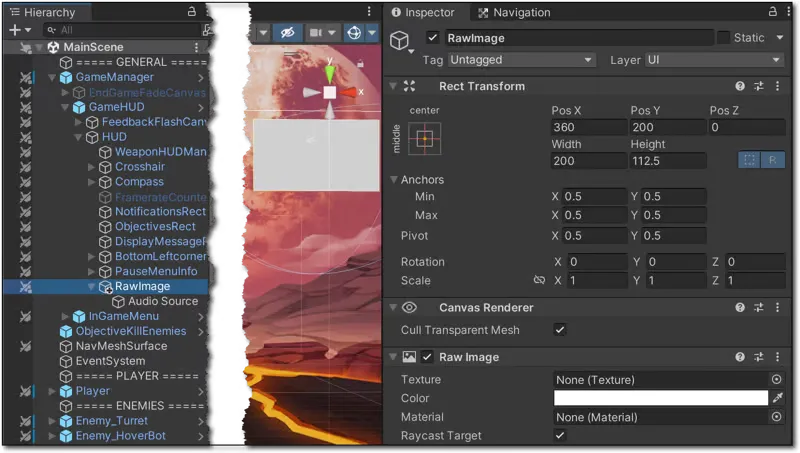
We'll add a script called
WebRTCPlayback to the Raw Image to handle listening for participants and rendering the video. Responding to the Stage Participant Updated Event
We'll set up a chat connection (see part 4) to listen for events in our
WebRTCPlayback script. When we receive the publish event that our AWS Lambda function publishes, we'll establish the peerConnection and connect the live stream for playback. If the event is an 'unpublish' event, we'll clear the render texture and dispose of the peerConnection .C#
websocket.OnMessage += (bytes) =>{var msgString = System.Text.Encoding.UTF8.GetString(bytes);Debug.Log("Chat Message Received! " + msgString);ChatMessage chatMsg = ChatMessage.CreateFromJSON(msgString);Debug.Log(chatMsg);if (chatMsg.Type == "EVENT" && chatMsg.EventName == "STAGE_PARTICIPANT_UPDATED"){if (chatMsg.Attributes.particpantUpdatedEvent.event_name == "Participant Published"){//receiveImage.gameObject.SetActive(true);participantId = chatMsg.Attributes.particpantUpdatedEvent.participant_id;Debug.Log("Participant ID: " + participantId);EstablishPeerConnection();StartCoroutine(DoWHIP());}else{receiveImage.texture = null;if (peerConnection != null){peerConnection.Close();peerConnection.Dispose();peerConnection = null;}}}};
Adding Playback
In previous demos, we didn't need to parse the JWT stage token at all - we just passed it along when we established the connection. But for playback, we'll need to get the
whip_url from the token and use that to get our SDP. Let's create a class to model the stage token.C#
[System.Serializable]public class StageJwt{public string whip_url;public string[] active_participants;public static StageJwt CreateFromJSON(string jsonString){return JsonUtility.FromJson<StageJwt>(jsonString);}}
Now we can decode and parse the token by adding the following to our
GetStageToken() function.C#
// decode and parse token to get `whip_url`var parts = participantToken.token.Split('.');if (parts.Length > 2){var decode = parts[1];var padLength = 4 - decode.Length % 4;if (padLength < 4){decode += new string('=', padLength);}var bytes = System.Convert.FromBase64String(decode);var userInfo = System.Text.ASCIIEncoding.ASCII.GetString(bytes);StageJwt stageJwt = StageJwt.CreateFromJSON(userInfo);whipUrl = stageJwt.whip_url;}
We'll declare a variable in our
WebRTCPlayback script for the RawImage that we'll use to render the video.C#
RawImage receiveImage;
The
EstablishPeerConnection() function renders the live stream to the RawImage by setting the texture of the receiveImage every time a new frame is receivedC#
void EstablishPeerConnection(){peerConnection = new RTCPeerConnection();peerConnection.AddTransceiver(TrackKind.Audio);peerConnection.AddTransceiver(TrackKind.Video);peerConnection.OnIceConnectionChange = state => { Debug.Log(state); };Debug.Log("Adding Listeners");peerConnection.OnTrack = (RTCTrackEvent e) =>{Debug.Log("Remote OnTrack Called:");if (e.Track is VideoStreamTrack videoTrack){videoTrack.OnVideoReceived += tex =>{Debug.Log("Video Recvd");receiveImage.texture = tex;};}if (e.Track is AudioStreamTrack audioTrack){Debug.Log("Audio Recvd");receiveAudio.SetTrack(audioTrack);receiveAudio.loop = true;receiveAudio.Play();}};}
Finally, in
DoWhip() we use the participantId and the whipUrl from the StageToken to construct the URL used to obtain the SDP.C#
IEnumerator DoWHIP(){Task getStageTokenTask = GetStageToken();yield return new WaitUntil(() => getStageTokenTask.IsCompleted);Debug.Log(participantToken.token);Debug.Log(participantToken.participantId);var offer = peerConnection.CreateOffer();yield return offer;var offerDesc = offer.Desc;var opLocal = peerConnection.SetLocalDescription(ref offerDesc);yield return opLocal;var filteredSdp = "";foreach (string sdpLine in offer.Desc.sdp.Split("\r\n")){if (!sdpLine.StartsWith("a=extmap")){filteredSdp += sdpLine + "\r\n";}}Debug.Log("Join?");using (UnityWebRequest publishRequest =new UnityWebRequest(whipUrl + "/subscribe/" + participantId)){publishRequest.uploadHandler = new UploadHandlerRaw(System.Text.Encoding.ASCII.GetBytes(filteredSdp));publishRequest.downloadHandler = new DownloadHandlerBuffer();publishRequest.method = UnityWebRequest.kHttpVerbPOST;publishRequest.SetRequestHeader("Content-Type", "application/sdp");publishRequest.SetRequestHeader("Authorization", "Bearer " + participantToken.token);yield return publishRequest.SendWebRequest();if (publishRequest.result != UnityWebRequest.Result.Success){Debug.Log(publishRequest.error);}else{var answer = new RTCSessionDescription { type = RTCSdpType.Answer, sdp = publishRequest.downloadHandler.text };var opLocalRemote = peerConnection.SetRemoteDescription(ref answer);yield return opLocalRemote;if (opLocalRemote.IsError){Debug.Log(opLocalRemote.Error);}}}}
Testing Playback
To test out our playback, we can create a page to broadcast to the Amazon IVS page using the Amazon IVS Web Broadcast SDK , or use this CodePen demo with a manually generated token. Launch the game, then connect to the stage and the remote participant will be rendered in the HUD.
Summary
In this post, we learned how to add real-time live stream playback directly inside of our Unity built game.
Series: Live Streaming from Unity with Amazon IVS (9 articles)
- …
- 7Live Streaming from Unity - Real-Time Playback (Part 7) This article
Enjoyed reading this content? Let the author know!
Your likes, comments, shares, and saves help creators reach more builders.

Loading recommendations
Loading article