
Build a UGC Live Streaming App with Amazon IVS: Adding Chat to a User's Channel Page (Lesson 8.1)
Welcome to Lesson 8.1 in this series where we're looking at building a web based user-generated content live streaming application with Amazon IVS. This entire series is available in video format on the AWS Developers YouTube channel and all of the code related to the sample application used in this series can be viewed on GitHub. Refer to the links at the end of the post for more information.
Series: Build a UGC Live Streaming App with Amazon IVS (30 articles)
- …
- 25Build a UGC Live Streaming App with Amazon IVS: Adding Chat to a User's Channel Page (Lesson 8.1) This article

Intro
In lesson 8, we'll focus on the social features of the StreamCat application. We'll start off in this lesson by learning how the application adds live chat to a user's channel page to facilitate interaction between stream participants.
Adding Chat to a User's Channel
If you recall from earlier lessons, when a user registers for a new account, the StreamCat application creates a dedicated Amazon IVS channel, chat room and stage for real-time streams. The chat room information is persisted in a
ChatRoom entity. Also note the ChatMessage entity which contains a record of every message posted to a ChatRoom during a Stream.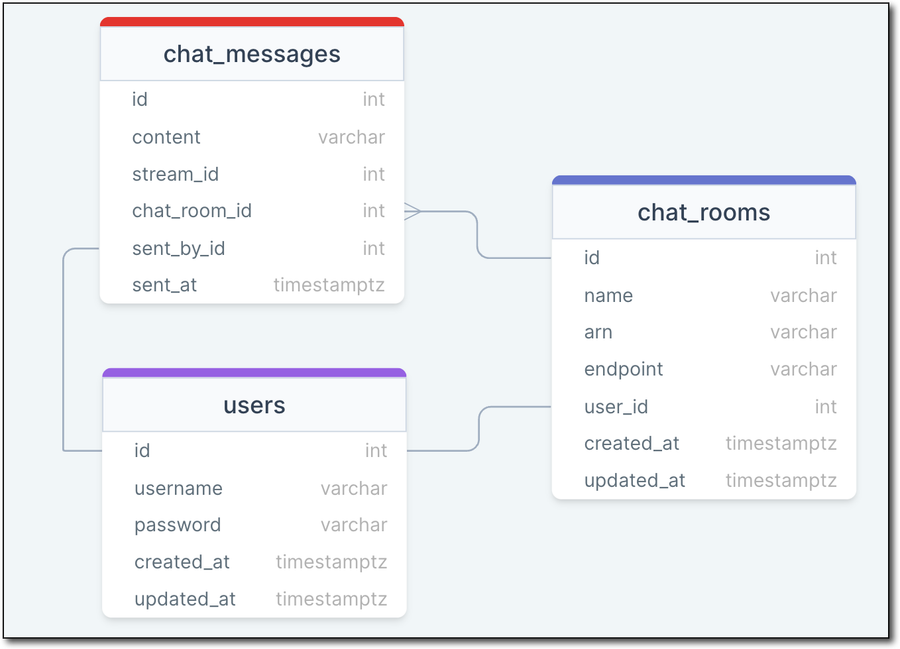
User, Chat Room, Chat Message Relationship
Because chat is a piece of functionality that is re-used in multiple places in StreamCat, it's bundled into a re-usable component. The HTML markup for this component contains a container that will render the chat messages as they are posted, and an
<input> that is used to post a new chat message.1
2
3
4
5
6
7
8
9
10
11
12
13
14
15
16
17
18
19
20
21
22
<div id="chat-container"
x-data="chatmodel('{{chatArn}}', '{{chatEndpoint}}', '{{broadcastType || ''}}')">
<div id="chat">
<template x-for="msg in messages">
<div x-bind:data-timestamp="msg.SendTime">
<span x-text="msg.Sender.Attributes.username"></span>:
<span x-bind:data-msg-id="msg.Id" x-text="msg.Content"></span>
</div>
</template>
</div>
<div>
<input
x-init="$el.focus()"
x-on:keyup.enter="sendChat($el)"
x-ref="chatInput"
maxlength="500"
type="text" />
<button type="button" x-on:click="sendChat($refs.chatInput)" id="submit-chat">
<i class="bi bi-send"></i>
</button>
</div>
</div>
In this component, we're passing the
chatArn, chatEndpoint, and the broadcastType (real-time, or low-latency) to Alpine.JS in the chatmodel (line 2).The
init() function of the chat component gets a chat participant token and sets data from that token into scope. It then initializes a WebSocket connection to the chatEndpoint and calls initChat().1
2
3
4
5
6
7
8
async init() {
const token = await this.getChatToken();
this.userId = token.userId;
this.username = token.username;
this.isAdmin = token.isAdmin;
this.chatConnection = new WebSocket(this.chatEndpoint, token.token);
this.initChat();
}The
getChatToken() function makes a request to the /api/chat/token endpoint.1
2
3
4
5
6
7
8
9
10
11
12
async getChatToken() {
const request = await fetch('/api/chat/token', {
method: 'POST',
headers: {
'Content-Type': 'application/json',
},
body: JSON.stringify({
chatArn: this.chatArn,
}),
});
return await request.json();
}The endpoint generates a chat token via the
ChatRoomService with the current user's id and username (or a new UUID and random name for anonymous users).1
2
3
4
5
6
7
8
9
10
11
Route.post('/chat/token', async ({ auth, request, response }) => {
const body = request.body();
const arn = body.chatArn;
const chatRoom = await ChatRoom.findBy('arn', arn);
const userId = auth.user?.id || uuid4();
const username = auth.user?.username || `Guest${new Date().getTime().toString().substring(10, 13)}`;
const isAdmin = auth.user?.id === chatRoom?.userId;
const isGuest = !auth.user;
const token = await ChatRoomService.createChatToken(arn, userId, username, isAdmin, isGuest);
return response.send({ token: token.token, isAdmin, userId, username });
});The
createChatToken() method of the ChatRoomService uses the AWS SDK for JavaScript (v3) to issue a CreateChatTokenCommand which returns the chat token. By default, all users are granted the SEND_MESSAGE capability. Admin users are granted additional capabilities to handle disconnecting users and deleting messages.1
2
3
4
5
6
7
8
9
10
11
12
13
14
public async createChatToken(roomArn: string, userId: string, username: string, isAdmin: boolean, isGuest: boolean): Promise<CreateChatTokenCommandOutput> {
let capabilities = ['SEND_MESSAGE'];
if (isAdmin) capabilities = [...capabilities, 'DISCONNECT_USER', 'DELETE_MESSAGE'];
const request: CreateChatTokenCommand = new CreateChatTokenCommand({
roomIdentifier: roomArn,
userId: userId.toString(),
attributes: {
username,
isGuest: isGuest.toString(),
},
capabilities,
});
return await this.ivsChatClient.send(request);
}After the token is obtained and the connection is established, the
initChat() function adds onopen and onmessage handlers to the connection.1
2
3
4
5
6
7
8
9
10
11
12
13
14
15
16
17
18
19
initChat() {
this.chatConnection.onopen = () => {
const payload = {
Action: 'SEND_MESSAGE',
Content: '[joined chat]',
};
this.chatConnection.send(JSON.stringify(payload));
};
this.chatConnection.onmessage = (event) => {
const data = JSON.parse(event.data);
const chatEl = document.getElementById('chat');
if (data.Type === 'MESSAGE') {
this.messages.push(data);
this.$nextTick(() => {
chatEl.scrollTop = chatEl.scrollHeight;
});
}
};
}When new messages are received, they are pushed to the
messages array which updates the chat view to render the new message and scrolls the container to display the new message.The
sendChat() function calls send() on the chatConnection, passing it an object with an Action of SEND_MESSAGE and a Content key with the sanitized chat message (to prevent HTML injection).1
2
3
4
5
6
7
8
9
10
sendChat(msgInput) {
this.chatConnection.send(
JSON.stringify({
Action: 'SEND_MESSAGE',
Content: Utils.stripHtml(msgInput.value),
})
);
msgInput.value = '';
msgInput.focus();
}The
Utils.stripHtml() static method uses the DOMParser to return only the textContent from the message.1
2
3
4
5
6
export class Utils {
static stripHtml(html) {
let doc = new DOMParser().parseFromString(html, 'text/html');
return doc.body.textContent || '';
}
}Persisting Chat Messages
In order to provide chat logs and replay chat messages during VOD playback, StreamCat archives all of the chat messages from a live stream in the database. If you remember from the architectural overview in lesson 1.4, we created an IVS Chat Logging configuration which logs all chat messages (or events) to CloudWatch. To make it easier to retrieve these messages, StreamCat copies the chat messages from the CloudWatch logs into its own database after a live stream has concluded. This work is done in the AWS Lambda function that is triggered by the Amazon IVS events via Amazon EventBridge.
When a 'Stream End' event is received, we retrieve the
Stream from the database.1
2
3
4
5
6
7
8
9
10
11
12
13
14
const stream = await client.query(`
select
id,
date_part('epoch', started_at) * 1000 as started_at,
date_part('epoch', ended_at) * 1000 as ended_at
from streams
where stream_id = $1`,
[
event.detail.stream_id,
]
);
const streamId = stream.rows[0].id;
const streamStartedAt = stream.rows[0].started_at;
const streamEndedAt = stream.rows[0].ended_at;And the
ChatRoom:1
2
3
4
5
6
7
8
9
10
11
const chatRoom = await client.query(`
select id, arn
from chat_rooms
where name = $1`,
[
event.detail.channel_name,
]
);
const chatRoomId = chatRoom.rows[0].id;
const chatRoomArn = chatRoom.rows[0].arn;
const chatRoomArnId = chatRoomArn.split('/')[1];The chat logs in CloudWatch are stored in a log that uses a standard naming convention that includes the last part - the id - of the
arn from the ChatRoom.1
const chatLogName = `aws/IVSChatLogs/1.0/room_${chatRoomArnId}`;We can use this
chatLogName variable, and the streamStartedAt and streamEndedAt timestamps to retrieve the chat messages that were posted to the user's chat room during a given live stream.1
2
3
4
5
const chatMessages = await getChatMessages(
chatLogName,
streamStartedAt,
streamEndedAt
);The
getChatMessages() function uses the CloudWatch SDK to retrieve the chat messages (events).💡 Note: The CloudWatch SDK'sFilterLogEventsCommandreturns up to 1 MB (up to 10,000 log events), so if your chat log is larger, you'll have to implement pagination.
Since CloudWatch stores all chat events, the
FilterLogEventsCommandOutput returned via the SDK will not be quite ready to persist to the database. There could be moderation events, for example. To get a proper log of events, we parse the event array and remove any deleted messages.1
2
3
4
5
6
7
8
9
10
11
12
13
14
15
16
17
18
19
20
21
const parseEvents = (events) => {
let parsedEvents = [];
events.forEach(e => {
switch (e.type) {
case 'MESSAGE':
parsedEvents.push(e);
break;
case 'EVENT':
if (e.payload.EventName === 'aws:DELETE_MESSAGE') {
const existingEventIdx = parsedEvents.findIndex(parsedEvent => {
return parsedEvent.payload.Id === e.payload.Attributes.MessageID;
});
if (existingEventIdx > -1) {
parsedEvents.splice(existingEventIdx, 1);
}
}
break;
}
});
return parsedEvents;
};Finally, the parsed events are inserted into the database.
1
2
3
4
5
6
7
8
9
10
11
12
13
let start = 0;
await client.query(`
  insert into chat_messages (stream_id, chat_room_id, content, sent_at, sent_by_id)
  values
    ${Array
    .from({ length: chatMessages.length })
    .map((e, idx) => {
      start = Number(start) + 3;
      return '($1::integer, $2::integer, ' + '$' + start + '::text, $' + (Number(start) + 1) + '::timestamp, $' + (Number(start) + 2) + '::integer)';
    })
    .join()}
  `, [streamId, chatRoomId, chatMessages.map((e) => [e.payload.Content, e.payload.SendTime, e.payload?.Sender?.Attributes?.isGuest !== 'true' ? Number(e.payload?.Sender.UserId) : null]).flat()].flat()
);
Summary
In this lesson, we learned how the StreamCat application implements live chat for a user's live stream channel. We also saw how logged chat messages are retrieved from CloudWatch and stored in the application's database for retrieval and display during VOD playback. In a future lesson, we'll look at how VOD playback handles showing chat messages at the proper time in the video. In the next lesson, we'll look at how StreamCat allows streamers to invite a chat user to join their live stream.
Links
Series: Build a UGC Live Streaming App with Amazon IVS (30 articles)
- …
- 25Build a UGC Live Streaming App with Amazon IVS: Adding Chat to a User's Channel Page (Lesson 8.1) This article
Enjoyed reading this content? Let the author know!
Your likes, comments, shares, and saves help creators reach more builders.

Loading recommendations
Loading article