
Build a UGC Live Streaming App with Amazon IVS: Creating a Channel Page for a User (Lesson 5.1)
Welcome to Lesson 5.1 in this series where we're looking at building a web based user-generated content live streaming application with Amazon IVS. This entire series is available in video format on the AWS Developers YouTube channel and all of the code related to the sample application used in this series can be viewed on GitHub. Refer to the links at the end of the post for more information.
Series: Build a UGC Live Streaming App with Amazon IVS (30 articles)
- …
- 19Build a UGC Live Streaming App with Amazon IVS: Creating a Channel Page for a User (Lesson 5.1) This article
Intro
In this lesson, we'll take a look at how the StreamCat UGC application handles playback for both low-latency and real-time live streams.
Creating a User "Channel" for Playback
If you remember from earlier lessons in this course, each registered user in the StreamCat application is assigned a dedicated low-latency Amazon IVS
Channel when they sign up for a new account. 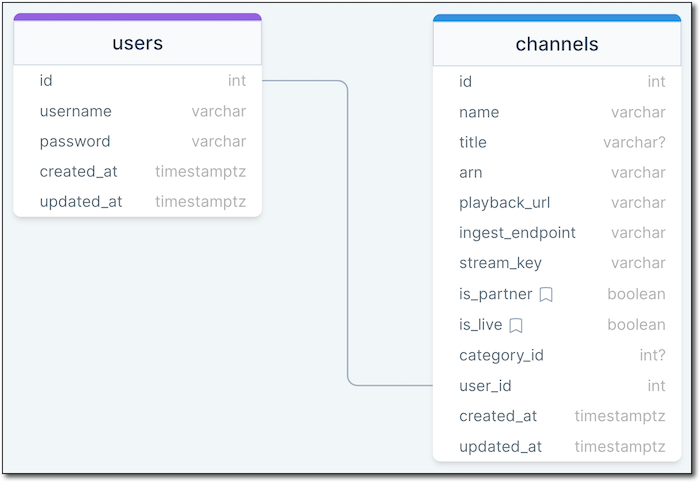
User Channel Relationship
In past lessons, we saw how users can broadcast to this channel from third-party applications or directly within their browser via the Amazon IVS Web Broadcast SDK.
Users are also assigned a
Stage which is used for real-time streaming.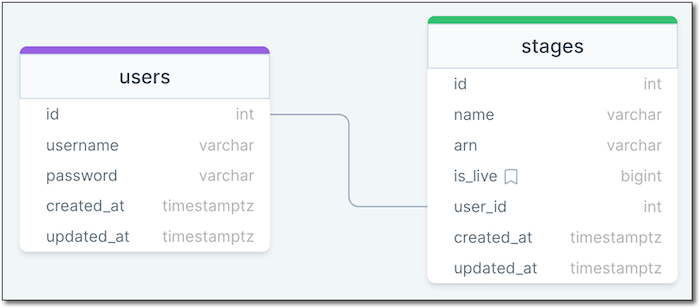
User Stage Relationship
Depending on your business needs, your application might want to combine both of these stream types into a single web page or offer only low-latency or real-time streams. To keep things simple and easier to demo, the StreamCat application uses two separate web pages for playback, depending on the type of broadcast (low-latency vs. real-time).
Low-Latency Playback Channel
To create a playback channel for low-latency streams, StreamCat needs the following data:
- The
Channelwhich contains theplaybackUrl - The
ChatRoomwhich contains the information necessary to create a chat experience for viewers (more in a future lesson) - If the current user follows the current channel to know if it needs to render a "follow" button (more in a future lesson)
Playback channels for low-latency streams use the
/channel/{channelName} format, where {channelName} determines which channel is being viewed. The endpoint for this playback channel looks like this:1
2
3
4
5
6
7
8
9
10
11
12
13
14
15
16
17
18
19
20
21
22
23
24
25
26
27
28
29
30
31
Route.get('/channel/:channelName', async ({ auth, view, params }) => {
// retrieve the Channel from the DB
const channel = await Channel
.query()
.preload('category')
.preload('streams', (streamQry) => {
streamQry
.whereNotNull('recordingPath')
.orderBy('startedAt', 'desc')
.limit(8);
})
.where('name', params.channelName)
.first();
// retrieve the ChatRoom from the DB
const chatRoom = await ChatRoom.findBy('user_id', channel?.userId);
// load the user's followed channels
await auth.user?.load('followedChannels');
// does the user follow this channel?
const userChannelIdx =
channel ?
auth.user?.followedChannels.findIndex((c) => c.id === channel?.id) : -1;
// render the view
return view.render('channel', {
channel,
chatRoom,
followsChannel: userChannelIdx! > -1,
});
});Real-Time Playback Channel
To create a web page for real-time stream playback, StreamCat needs:
- The
Stage - The
Channel - A token to connect as a view-only stage participant
Playback channels for real-time streams use the
/channel/realtime/{channelName} format, where {channelName} determines which stage is being viewed. The endpoint for this playback channel looks like this:1
2
3
4
5
6
7
8
9
10
11
12
13
14
15
16
17
18
19
20
21
22
23
24
25
26
27
28
29
30
31
32
33
34
35
36
37
38
39
40
41
42
Route.get('/channel/realtime/:stageName', async ({ auth, params, view, response }) => {
// retrieve the Stage from the DB
const stageName = params.stageName;
const stage = await Stage
.query()
.where('name', stageName)
.first();
// retrieve the Channel from the DB
const channel = await Channel
.query()
.where('name', stageName)
.first();
await channel?.load('category');
// retrieve the ChatRoom from the DB
const chatRoom = await ChatRoom
.query()
.where('userId', channel?.userId!)
.first();
// generate a stage participant token for the viewer
const userId = auth.user?.id.toString() || uuid4();
const username =
auth.user?.username ||
`Guest${new Date().getTime().toString().substring(10, 13)}`;
const stageToken = await RealTimeService.createStageToken(
userId,
username,
stage?.arn!,
['SUBSCRIBE']
);
// render the view
return view.render('multihost-player', {
stageToken: stageToken.participantToken,
stage: { name: stageName, id: stage?.id },
channel: channel,
chatArn: chatRoom?.arn,
chatEndpoint: chatRoom?.endpoint,
});
});Summary
In this lesson, we learned that StreamCat uses separate web views for low-latency and real-time streams. We saw how the application retrieves information related to those streams and passes that data to the views. In the next few lessons, we'll see how this information is used to create a playback experience for channel viewers.
Links
Series: Build a UGC Live Streaming App with Amazon IVS (30 articles)
- …
- 19Build a UGC Live Streaming App with Amazon IVS: Creating a Channel Page for a User (Lesson 5.1) This article
Enjoyed reading this content? Let the author know!
Your likes, comments, shares, and saves help creators reach more builders.

Loading recommendations
Loading article